Using Macros
4 Shift select bars on the Program bus. The button will flash indicating it’s a
shifted source.
5 Shift select col1 on the preview bus. If you wish, you can easily map buttons such as
bars, black, and color generators to any of the first 10 buttons of the program and
preview bus for easier access. See the ‘button mapping’ section of this manual for
instructions.
6 Press the DVE/wipe button in transition control and then press dip/mix to ensure the
macro records the mix transition selection.
7 Press the orange home button to exit the macro soft buttons in order to access the
transition settings. Don’t worry, the macro will still be recording while a different system
control menu is selected.
8 Press the trans soft button to enter the transition settings. You’ll see the transition
settings displayed on the system control LED display. Turn the knob under the mix
setting to set a 3:00 second transition rate. Press the system control home button
again to exit the transition settings and press macro to return to the macro soft buttons.
Therecord button is flashing so you can see your macro is still recording.
9 Press the auto button in transition control to perform the transition from color bars
to color 1.
10 To set the macro to wait for 2 seconds before applying the next transition, press and
hold the add pause soft button. Notice the time durations shown in the source names
display. Select 2:00, 2:00 again and 1:00 from the macro buttons above the durations.
The durations are accumulative so you can build various pause times. *Inserted Pause*
will momentarily display on the system control LED display to confirm your pause.
11 Now shift select blk on the preview bus and press the auto button. Your ATEM switcher
will perform a mix transition to black.
12 Press the record soft button to stop recording your macro.
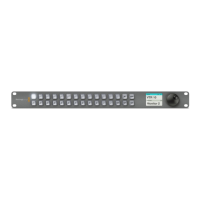
You’ve just recorded a macro using an ATEM 1 M/E Broadcast Panel. The macro will appear as
a macro button named ‘2’ because it is located in macro slot 2. The number of characters are
limited on control panels, but you can easily name your macro and add notes by clicking on
the ‘edit macro’ button in ATEM Software Control. For this reason, it’s probably better to record
macros using ATEM Software Control, however you can record a macro from any control
panel you like.
To run your macro, press the ‘play’ soft button. If your macro was successful, you should see
your ATEM switcher mix from color bars to color 1 using a 3 second mix transition, pause for
2seconds, then perform another 3 second mix transition to black, all by pressing one button
on your ATEM 1 M/E Broadcast Panel.
To edit the name of the macro you just recorded, click on the edit macro button on the create
page of the macros window in ATEM Software Control. You can also add notes to describe
the macro.
It’s worth frequently testing your macros using different switcher settings to make sure the
macro performs all the specific functions you intended, doesn’t miss any instructions or
produce something unexpected.
If you want to record over a previously recorded macro, or if you made a mistake and want to
start recording a macro again, shift select the record button. This is a safety measure to prevent
accidentally recording over a macro.
For information on the macro delete, show names, stop, and loop buttons, refer to the System
Control Macros Menu section.
163




 To Next Page