Keying using ATEM Switchers
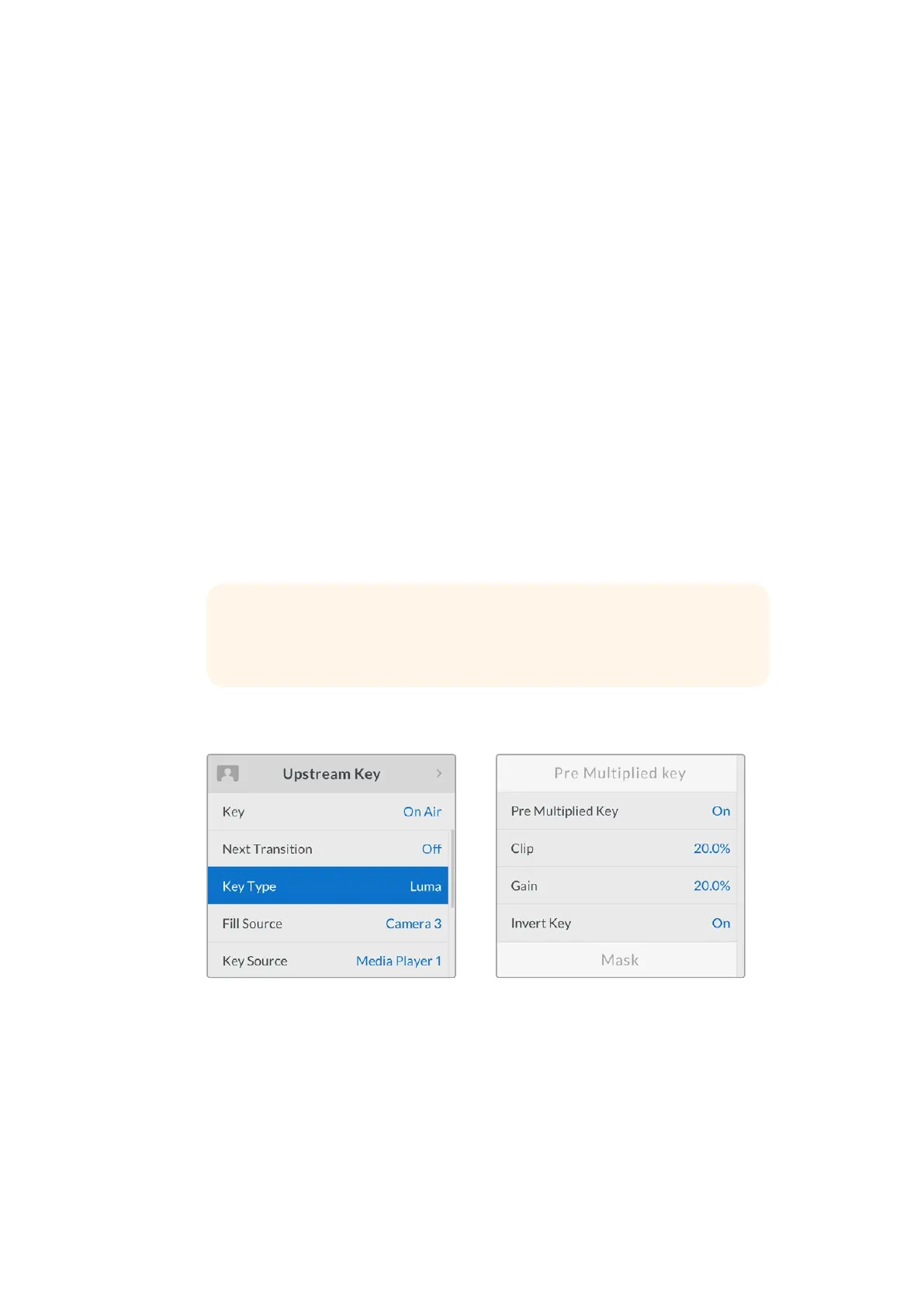
ATEM switchers have an auto key adjustment for pre multiplied keys so that when the pre
multiplied key setting is enabled, the clip and gain parameters are automatically set by the system.
When using a Photoshop generated image, generate graphics over a black background layer
and place all content on the upper layers. Add an alpha channel in your Photoshop document
that the ATEM can use for blending the graphic over the live video. Then, when saved as a
Targa image file, or downloaded direct to the media pool, you can select pre multiplied in the
keyer and you should have a great key!
Photoshop documents are pre multiplied by nature, so you should always use the pre multiplied
settings on the ATEM switcher when keying them.
Performing an Upstream Luma/Linear Key
Since luma and linear keys use the same parameters, they are set up on the software control
panel and broadcast panel using a common menu, called the luma key menu. What defines the
key as being either luma or linear is in the selection of fill and key sources. In a luma key, fill and
key sources are the same. For a linear key, fill and key sources are different.
To set up a luma/linear key on the upstream keyer on ATEM Television Studio HD:
1 Press the 'menu' button to open the LCD settings.
2 In the upstream key settings, select the 'luma' key type.
3 Select the fill source.
For a luma key, always make sure the same source is selected for both fill and key.
Luma Key Settings
To set up a luma/linear key on the upstream keyer on an ATEM Television Studio Pro
model switcher:
1 P
ress the KEY 1 TIE button on the control panel to enable the keyer on the
preview output.
2 Select 'luma' key type in the upstream key LCD settings.
3 Press the KEY 1 FILL button from the source select row, and press one of the numbered
buttons immediately below to select the fill source for your luma key.
TIP If you select a media player for the fill source, the media player key source
will automatically be selected for the key. For example, if you select media
player 1 for the fill source, media player 2 key will automatically be selected.
125










 To Next Page