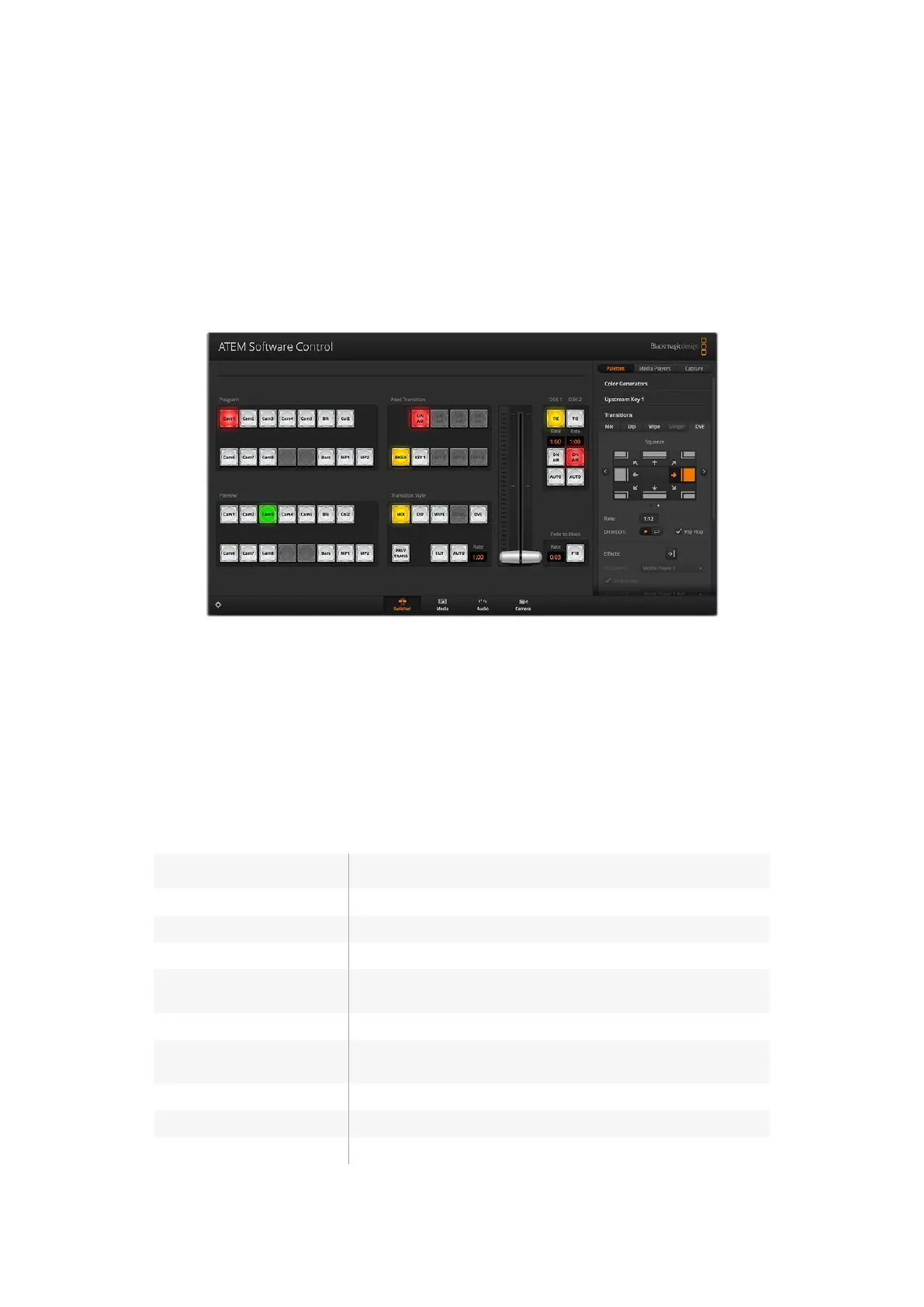
Using ATEM Software Control
Switcher Control Panel
The software control panel has four main control windows: Switcher, Media, Audio and Camera.
You can open these windows by selecting the buttons at the bottom of the interface or by
pressing the Shift and left/right arrow hot keys. A general settings window can be opened by
selecting the gear icon at the lower left of the interface.
Switcher Panel
When first launched, the switcher screen is selected, which is the main control interface for the
switcher. The software control panel must be connected to a switcher to run.
Mouse or Trackpad Operation
The virtual buttons, sliders and fader bar on the software control panel are operated using your
computer mouse or a trackpad if you’re using a laptop.
To activate a button, click once with the left mouse button. To activate a slider, click and hold
down the left mouse button while dragging. Similarly, to control the fader bar, click and hold
down the left mouse button on the fader bar handle and drag up or down.
Using Keyboard Hot Keys
Hot keys can be used allowing convenient control of some switcher functions using a standard
QWERTY keyboard as shown in the following table:
Hot Keys Function
<1> - <0> Previews source on switcher Inputs 1 - 10. 0 = input 10.
<Shift> <1> - <0> Previews source on switcher Inputs 11 - 20. Shift 0 = input 20.
<Control> <1> - <0> Hot switches source on switcher Inputs 1 - 10 to Program output
Press and release
<Control>, then <1> - <0>
Hot switches source on switcher Inputs 1 - 10 to Program output. Hot
switching remains on and the CUT button is lit red.
<Control> <Shift> <1> - <0> Hot switches source on switcher Inputs 11 - 20 to Program output
Press and release <Control>,
then <Shift> <1> - <0>
Hot switches source on switcher Inputs 11 - 20 to Program output. Hot
switching remains on and the CUT button is lit red.
<Control> Turns off hot switching if currently on. The CUT button is lit white.
<Space> CUT
<Return> or <Enter> AUTO
More information on how to use the switcher control panel is included in the next sections.
31










 To Next Page