Using ATEM Software Control
You can connect up to 4 Blackmagic HyperDeck Studio disk recorders and control them using
ATEM Software Control. When connecting HyperDecks, use these settings to configure the
IPAddress, select the inputs your HyperDecks are connected to, turn the auto roll feature for
each deck on or off, and set their frame offset settings so they can switch cleanly.
Status indicators appear above and below each deck so you can easily see if they are
successfully connected and if their remote buttons are active.
For detailed information on setting up Blackmagic HyperDecks with your ATEM switcher and
setting the ‘HyperDeck’ configuration settings, refer to the ‘HyperDeck control’ section of
this manual.
Remote Settings
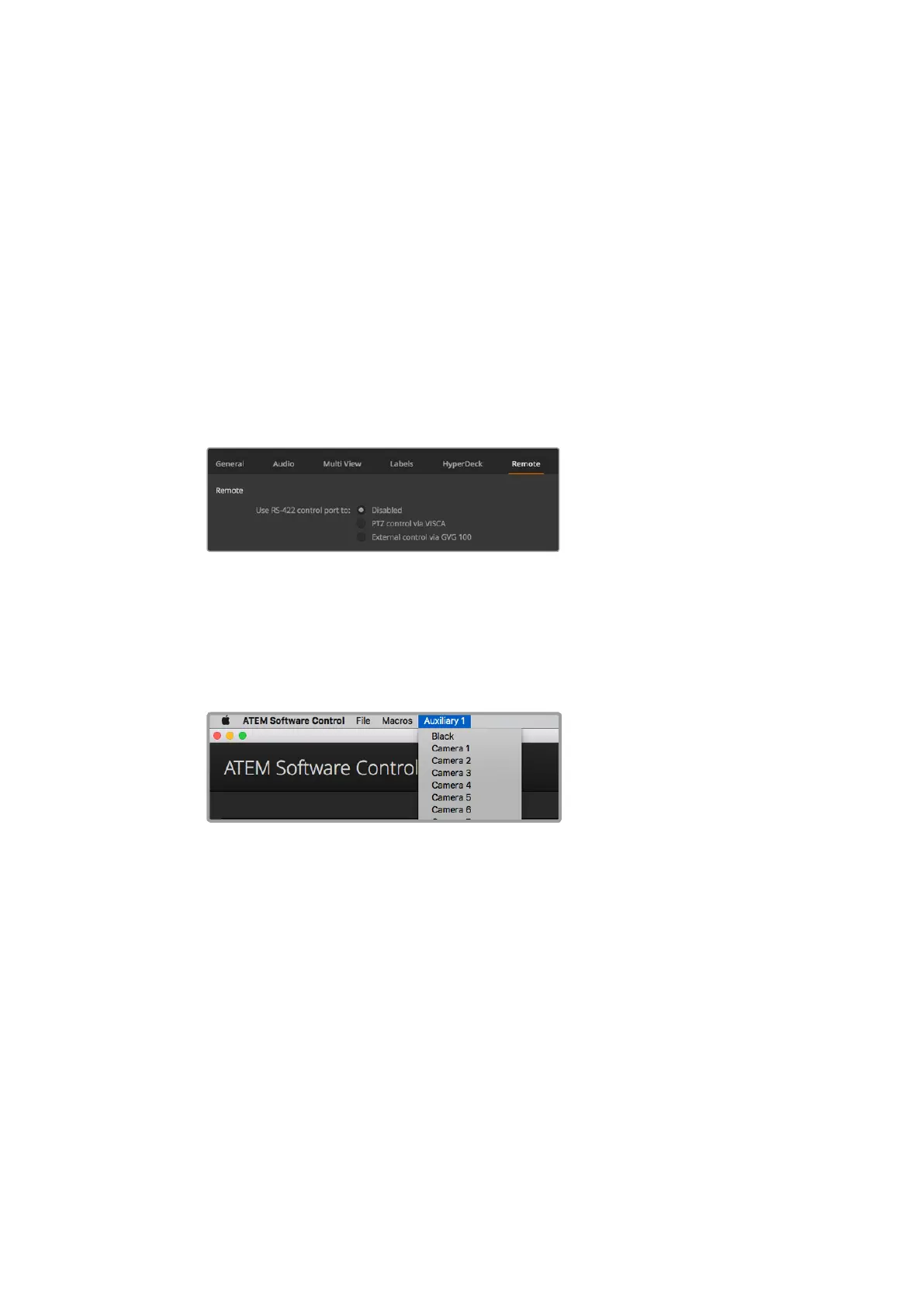
Use the 'remote' settings to tell your switcher how to use the RS-422 remote port. The options
are none, VISCA and GVG, where GVG sets it to use GVG100, a common legacy interface for
communicating with equipment such as linear editing suites.
Set the RS-422 remote port to none, VISCA or GVG
Controlling the Auxiliary Output
The auxiliary output is a separate SDI output on the switcher that can have various inputs and
internal sources routed to it. The auxiliary output is very similar to a router output, and all video
inputs, color generators, media players, program, preview and even color bars can be output.
Auxiliary output control menus on Mac OS
Routing the Auxiliary Output
The aux output has a menu for selecting the source to output on the aux video output.
Simplyselect the menu, then scroll the list for the source you want to output. When selected,
the output on the selected aux will change immediately. You can see the current source with
a tick in the menu item.
There is a range of sources available, including black, all video inputs, color bars, media players
fill and media player key outputs, program, preview and clean feeds.
More information about auxiliary outputs and how to use them is explained in the 'using the
auxiliary output' section. The aux output is extremely powerful and allow many exciting
possibilities like an alternative switcher output, or very commonly used for driving video
projectors and video walls on stage during concerts and live performances. Most modern live
performances have complex multi media aspects to them, and the aux output is designed to
allow you to control all these displays from your ATEM!
59










 To Next Page