HyperDeck Control
Control Knobs
As you change settings with the hardware panel, you will see the corresponding settings on the
software panel change as well. Use the following control knobs to make adjustments.
Y Lift: Allows you to modify image contrast via a Y-only adjustment for the black level.
Y Gamma: Allows you to modify image contrast via a Y-only adjustment for gamma.
Y Gain: Allows you to modify image contrast via a Y-only adjustment for highlights.
Contrast: Rotate clockwise to increase contrast, and counterclockwise to
reduce contrast.
Highlights: The ‘highlights’ knob controls the iris on your selected camera. Rotate the
knob clockwise to open the iris, and counterclockwise to close.
Saturation: Rotate clockwise or counterclockwise to increase or decrease color
saturation.
Hue: Adjust the hue along the hue distribution as seen on a color wheel by rotating the
‘hue’ knob clockwise or counterclockwise.
Lum Mix: Rotate clockwise or counterclockwise to set the output blend between the
RGB and YRGB correctors.
Control Buttons
Left Arrow: Select the previous camera number
Right Arrow: Select the next camera number
For more information on how each control affects the image, refer to the details provided earlier
in this section.
HyperDeck Control
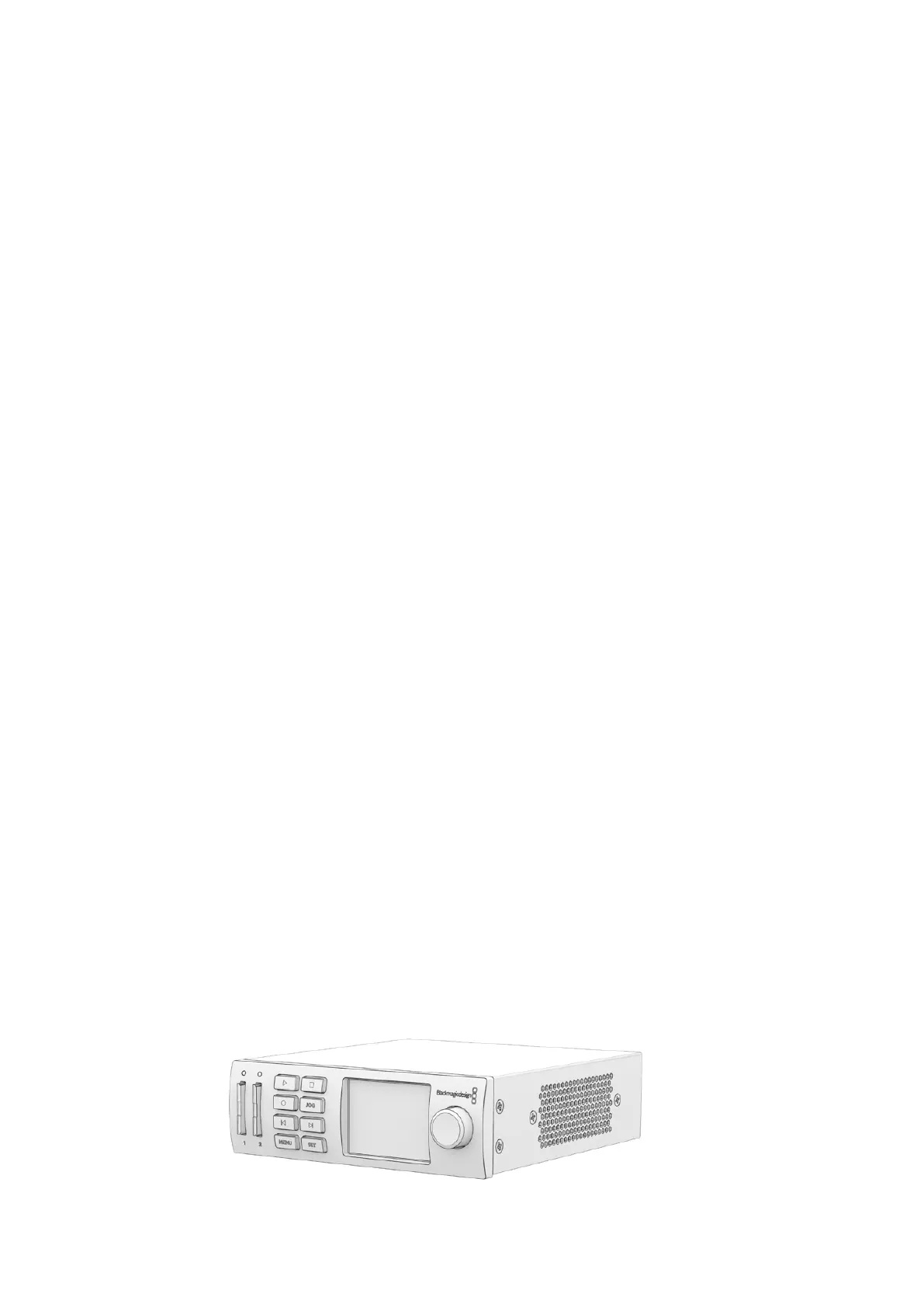
Introducing HyperDeck Control
You can connect up to 4 Blackmagic HyperDeck Studio disk recorders to your switcher and
control them using the HyperDecks palette in ATEM Software Control, the macro buttons or
LCD menu on ATEM Television Studio Pro HD’s built in control panel, or from the system control
buttons on an ATEM hardware panel. This is a very powerful feature! With four HyperDecks
connected to your switcher, it’s like having a portable videotape department able to record
outputs from your switcher, play back graphics, or you can even set your switcher to roll
prerecorded segments at the press of a button!
Transport controls are located in the HyperDecks palette in ATEM Software Control, or in the
system control menu on an ATEM broadcast panel, which lets you play back video, jog and
shuttle, skip clips, pause and more. You can also record video.
When you combine this feature with ATEM’s powerful macros feature, it opens up a world of
creative possibilities that can really enhance your live production!
72










 To Next Page