Using Audio
Connecting Your Audio Mixer Control Surface
1 Connect your compatible MIDI control surface to your Mac or PC. Most modern control
surfaces use USB.
2 Verify your control surface is recognized by your computer as a MIDI device.
For Mac OS computers, go to Applications/Utilities/Audio MIDI Setup and launch the
application. Go to the Window menu and choose Show MIDI Window. Ensure your
control surface appears as a MIDI device in this window.
For Windows computers, go to Computer/Properties/Device Manager/Sound, Videoand
Game Controllers and ensure your control surface appears in the list of icons.
3 The ATEM audio mixer is designed to communicate with your control surface using
Mackie Control commands so your control surface will need to support Mackie Control.
You’ll also need to make sure your control surface is configured to use native Mackie
Control or Mackie Control emulation. Please refer to your control surface’s user manual
for configuration details.
Some control surfaces offer several types of Mackie Control emulation and you should
choose the one that activates the most features on your control surface. For example,
with the Behringer BCF 2000, choosing “Mackie Control Mapping for Cakewalk Sonar
3 [MCSo]” enables level faders, bank selectors, balance control, AFV and ON/MUTE
functions, and also activates the LED screen which displays which bank of faders you
have selected for your audio mix. The LED screen will not activate if you choose
another Mackie Control emulation.
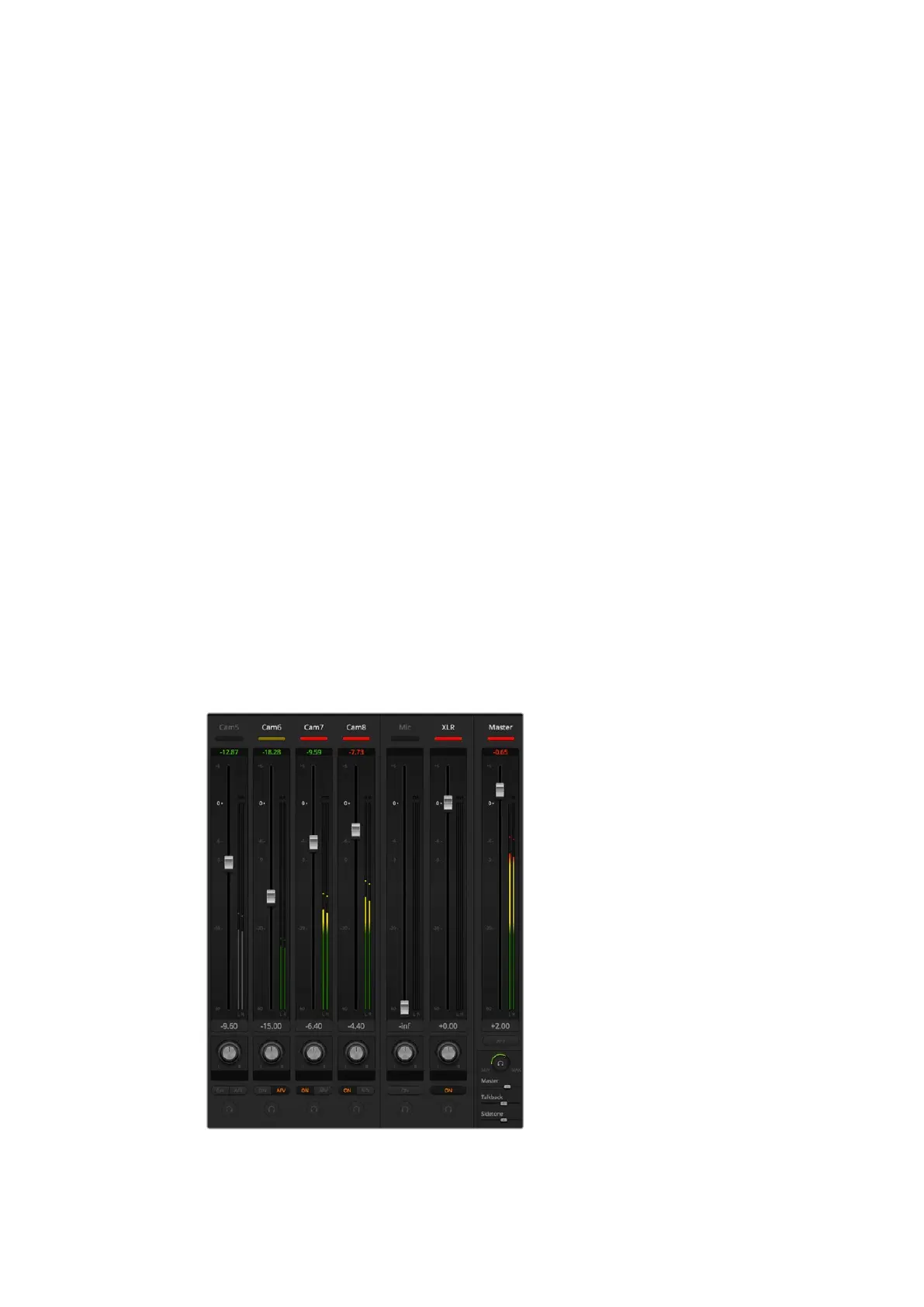
4 Launch ATEM Software Control and it will automatically look for your control surface
using the first port on the first MIDI device that it finds. Click on the Audio tab in ATEM
Software Control to display the ATEM audio mixer. Try sliding the gain faders up and
down on your hardware control surface and verify that the audio mixer faders show a
corresponding increase and decrease in the software on your computer screen. If so,
you have successfully configured your control surface to work with the ATEM switcher.
Try sliding the gain faders up and down on your hardware
control surface and verify that the audio mixer faders show a
corresponding movement in the software on your computer screen
213










 To Next Page