Using Macros
If your macro was successful, you should see your ATEM switcher perform a mix from color bars
to color 1 using a 3 second transition, pause for 2 seconds, then perform another 3 second mix
transition to black, all by clicking one button in the macros window! Your ATEM switcher will also
display an orange border around your software control panel to indicate a macro is playing.
If your macro doesn’t perform the way you expect it to, simply rerecord the macro you just
created following the previous steps.
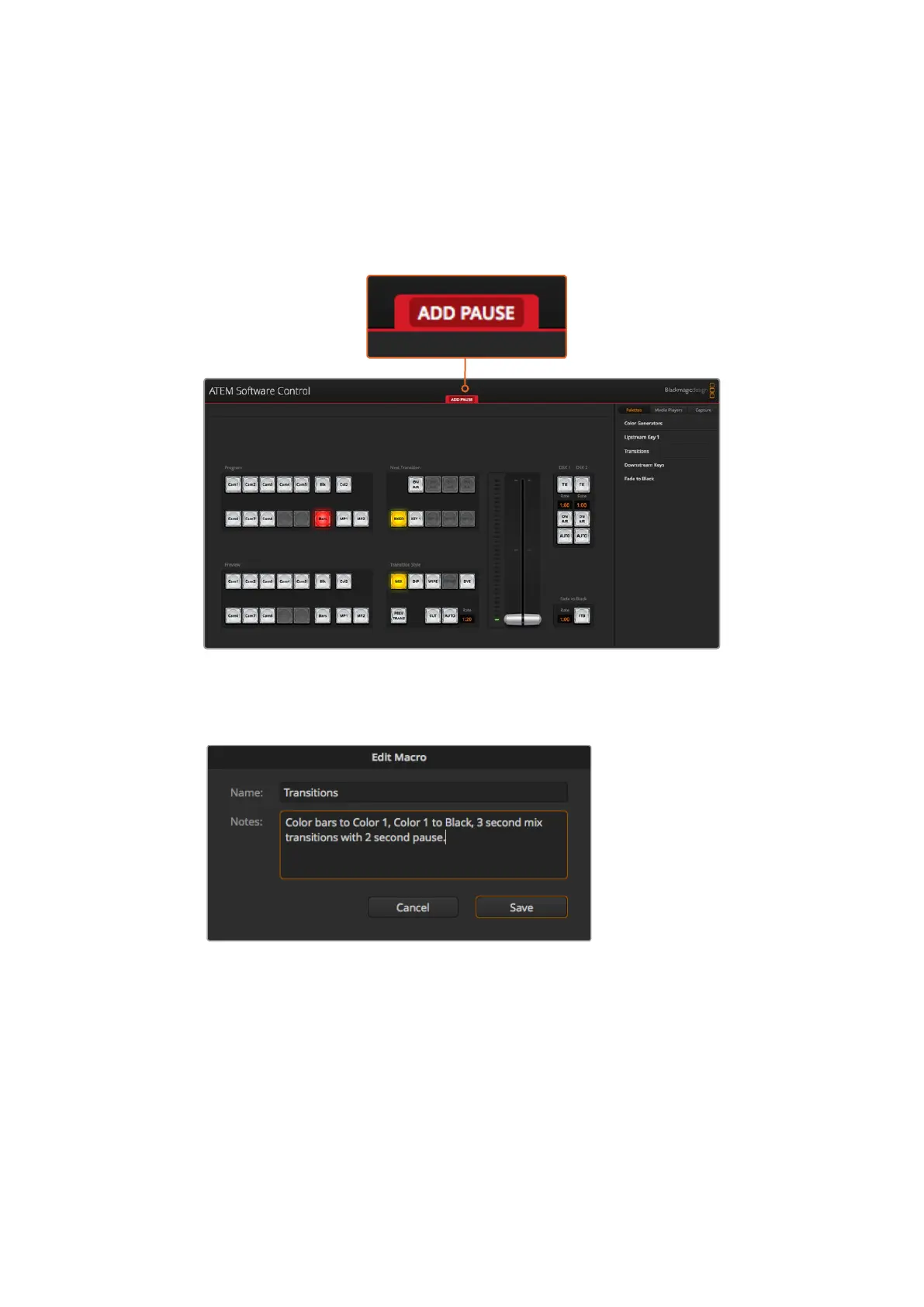
ATEM Software Control displays a red border to indicate when you are
recording a macro. The ‘add pause’ button located at the top of the red
border lets you enter durations for pauses between switcher actions.
Enter a name for your macro and a description so you can
keep track of the switcher actions recorded in the macro.
156










 To Next Page