Using ATEM Software Control
Processing palettes
Palettes Tab
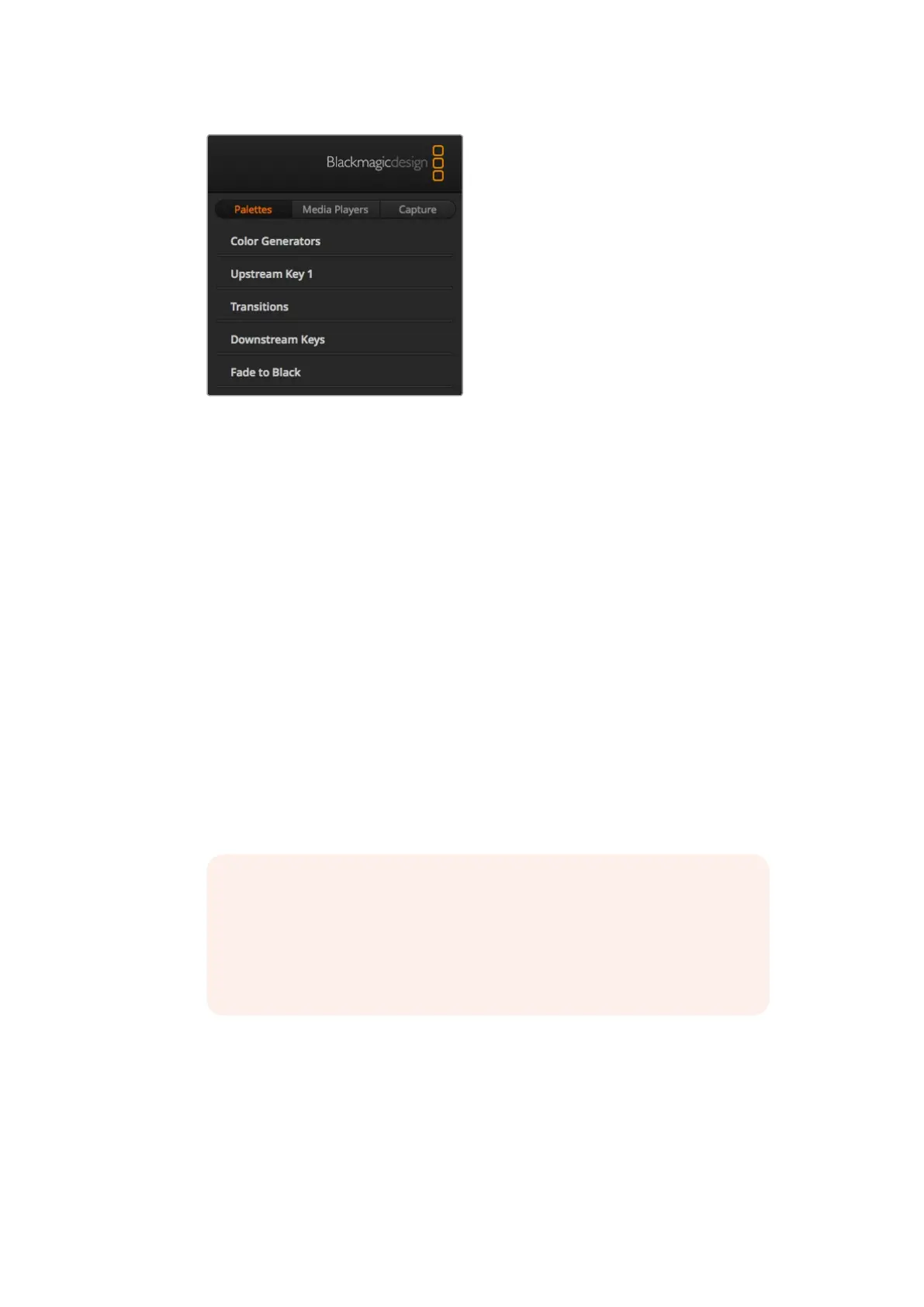
The 'palettes' tab contains the following processing controls.
Color Generators
Your ATEM switcher has two color matte generators which can be configured from the
color generators palette using a color picker or by setting hue, saturation, and
luminance levels.
Upstream Key 1
The switcher's upstream keyer can be configured from the upstream key 1 palette.
Within the keyer palette, the keyer can be configured as a luma key, chroma key, pattern
key or DVE. Thetype of key available will also depend on if the DVE is available. The
upstream key 1 palette will display all the parameters that are available to configure the
keyer. More information on how to use upstream keyers is included later in this manual.
Transitions
The transitions palette is where you can configure the parameters of each transition
style. Forexample, for the dip transition the palette has a drop down menu where you
can select the dip source and for the wipe transition the palette displays all the
available wipe patterns. There are lots of variations of transitions, and a large number of
transitions can be created by combining settings and features in the transitions palette.
Downstream Keys
The ATEM has two downstream keyers which can be configured from the downstream
keys palette. The palette has drop down boxes for selecting the fill and key signals to
the keyer, plus sliders to set the pre multiplied key clip and gain values, and
mask settings.
NOTE It’s worth noting that simply selecting a specific style of transition in this
palette will only adjust the settings for these transitions, and you still need to
select the style of transition you want to perform in the transition control
section on the software, your switcher's built in control panel, or an additional
hardware panel. The software and hardware panels work together and mirror
all settings, so you can use any combination you like!
38










 To Next Page