Keying using ATEM Switchers
Performing an upstream keyer transition on an ATEM Television Studio Pro model switcher:
The upstream keyer is taken on and off the program output by pressing the switcher's KEY 1
CUT button or KEY 1 TIE next transition button.
Key 1 Cut Button
Take the upstream keyer on or off the program output using the KEY 1 CUT button as follows:
1 Press the KEY 1 CUT button next to the transition slider to immediately turn on or turn
off the upstream key on the program output.
2 The KEY 1 CUT button also indicates if the upstream keyer is currently on or off the
program output.
KEY 1 TIE Next Transition Button
Take the upstream keyer on or off the program output using the KEY 1 TIE next transition button
as follows:
1 Select the elements you wish to transition using the BKGD and KEY 1 TIE next
transition buttons.
2 Verify the preview output, which will show you exactly what your program output will
look like after you perform the transition.
3 Press CUT, AUTO, or use the transition slider to perform the transition.
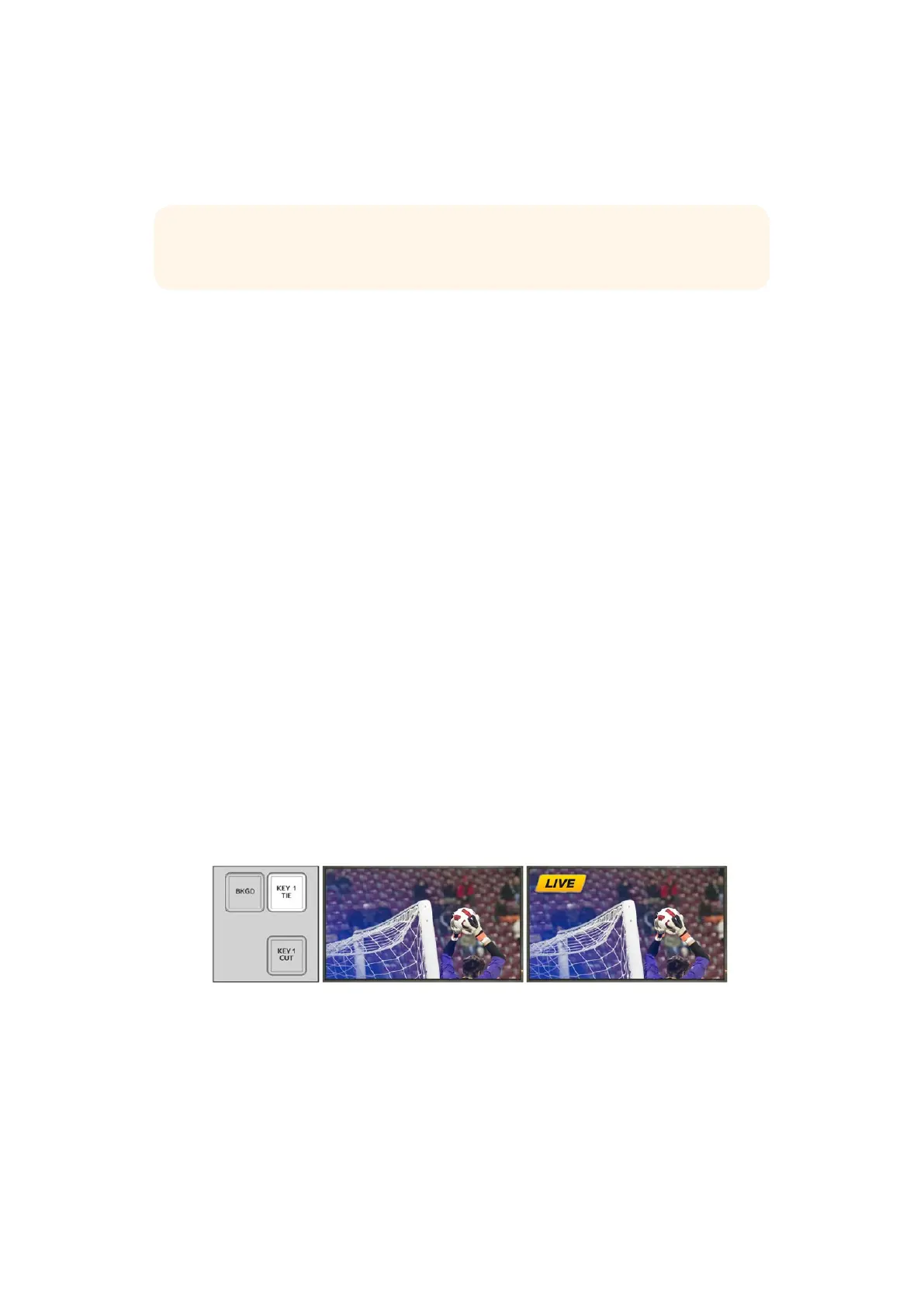
In the examples below, KEY 1 contains a live bug on the top left of the screen.
Upstream Key Example
Example 1
In this example the upstream keyer is not currently on air. The next transition has KEY 1 TIE
selected, therefore the next transition will change the state of key 1 and turn it on so that it is
visible on the program output. On ATEM Software Control, the corresponding KEY 1 next
transition button will also illuminate.
TIP Clicking the ON AIR button in the software control panel performs the same
function as pressing the KEY 1 CUT button on the switcher's controlpanel.
Program output after transition.Program output before transition. Control panel next
transition buttons
before transition.
146










 To Next Page