Performing Transitions using ExternalHardwarePanels
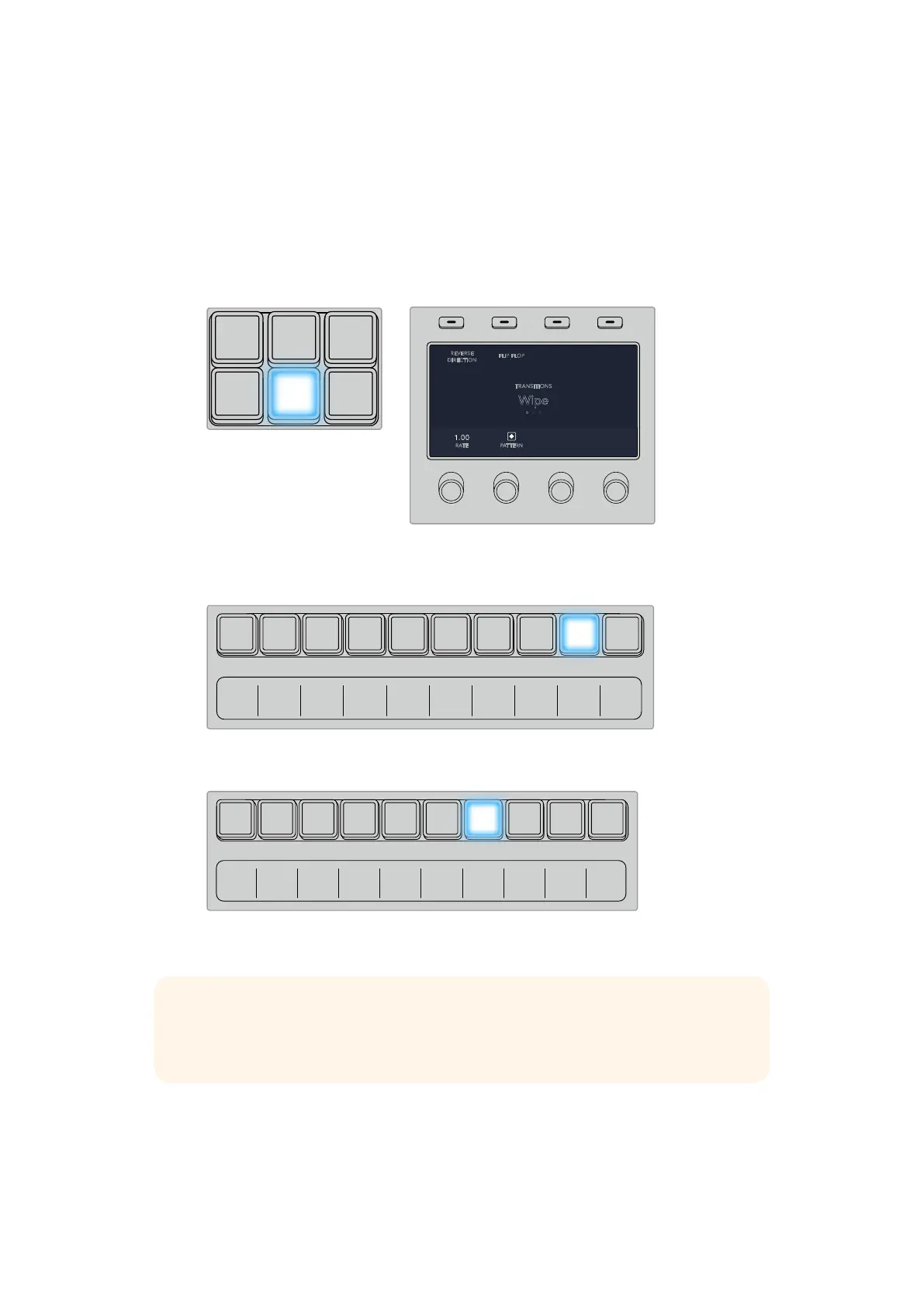
3 Press the desired wipe pattern button on the control panel.
4 In the transition settings, use the corresponding LCD control knobs to adjust the border
parameters, the wipe rate, and wipe direction. You can also enter a rate duration and
specific setting values using the number pad.
5 Use the select bus to select the border source.
6 Perform the transition as an auto transition or manual transition from the transition
control block.
Press a source button in the source select row to select a source
for the wipe border. Hold the shift button down to select a shifted
source, such as a color generator or media player.
Press a source button in the source select row to select a source
for the wipe border, such as a camera or media player.
Hold the shift button down to select a shifted source,
such as color bars or a color generator.
STINGER
COLOR
AUDIO
DIP
AUX
1
4
7
ENTER
2
5
8
0
3
6
9
RESET
FLIP FLOP
TRANSITIONS
Wipe
. . .
1.00
RATE PATTERN
REVERSE
DIRECTION
Studio A
Cam 1
Studio A
Cam 2
Studio A
Cam 3
Studio A
Cam 4
Studio A
Cam 5
Media
Player 1
Media
Player 2
Replay
1
Replay
2
Remote
1
Studio A
Cam 1
Studio A
Cam 2
Studio A
Cam 3
Studio A
Cam 4
Studio A
Cam 5
Media
Player 1
Media
Player 2
Replay
1
Replay
2
Remote
1
Studio A
Cam 1
Studio A
Cam 2
Studio A
Cam 3
Studio A
Cam 4
Studio A
Cam 5
Media
Player 1
Media
Player 2
Replay
1
Replay
2
Remote
1
PROGRAM
SHIFT MACRO ON ON ON ON
M/E 1 M/E 2 M/E 3 M/E 4
BKGD
SHIFT
PREV
TRANS
CUT AUTO
DSK 1
CUT
DSK 1
TIE
DSK 2
TIE
DSK 2
CUT
DSK 1
AUTO
DSK 2
AUTO
FTB
DVE STING
ARM
KEY 1 KEY 2 KEY 3 KEY 4
PREVIEW
HOME SETTINGS
KEYERS
1 2 3
4 5 6
7 8 9
ENTER 0 RESET
DVE STINGER DIP
COLOR
AUDIO AUX
BORDER
CAMERA
CONTROL
WIPE
MEDIA
PLAYERS
SUPER
SOURCE
MIX
FTB
MACRO
MIX
DIP
WIPE
Studio A
Cam 1
Studio A
Cam 2
Studio A
Cam 3
Studio A
Cam 4
Studio A
Cam 5
Media
Player 1
Media
Player 2
Replay
1
Replay
2
Remote
1
Studio A
Cam 1
Studio A
Cam 2
Studio A
Cam 3
Studio A
Cam 4
Studio A
Cam 5
Media
Player 1
Media
Player 2
Replay
1
Replay
2
Remote
1
Camera
1
Camera
2
Camera
3
Camera
4
Camera
5
Camera
6
Camera
7
Camera
8
PROGRAM
SHIFT MACRO ON ON ON ON
M/E 1 M/E 2 M/E 3 M/E 4
BKGD
DIPSHIFT
PREV
TRANS
CUT AUTO
DSK 1
CUT
DSK 1
TIE
DSK 2
TIE
DSK 2
CUT
DSK 1
AUTO
DSK 2
AUTO
FTB
DVE STING
MIX WIPE ARM
KEY 1 KEY 2 KEY 3 KEY 4
HOME SETTINGS
KEYERS
1 2 3
4 5 6
7 8 9
ENTER 0 RESET
DVE STINGER DIP
COLOR
AUDIO AUX
BORDER
CAMERA
CONTROL
WIPE
MEDIA
PLAYERS
SUPER
SOURCE
MIX
FTB
MACRO
Media
Player
2
Media
Player
1
Studio A
Cam 1
Studio A
Cam 2
Studio A
Cam 3
Studio A
Cam 4
Studio A
Cam 5
Media
Player 1
Media
Player 2
Replay
1
Replay
2
Remote
1
Studio A
Cam 1
Studio A
Cam 2
Studio A
Cam 3
Studio A
Cam 4
Studio A
Cam 5
Media
Player 1
Media
Player 2
Replay
1
Replay
2
Remote
1
Black
Color
Bars
Color
1
Color
2
PROGRAM
SHIFT MACRO ON ON ON ON
M/E 1 M/E 2 M/E 3 M/E 4
BKGD
DIPSHIFT
PREV
TRANS
CUT AUTO
DSK 1
CUT
DSK 1
TIE
DSK 2
TIE
DSK 2
CUT
DSK 1
AUTO
DSK 2
AUTO
FTB
DVE STING
MIX WIPE ARM
KEY 1 KEY 2 KEY 3 KEY 4
HOME SETTINGS
KEYERS
1 2 3
4 5 6
7 8 9
ENTER 0 RESET
DVE STINGER DIP
COLOR
AUDIO AUX
BORDER
CAMERA
CONTROL
WIPE
MEDIA
PLAYERS
SUPER
SOURCE
MIX
FTB
MACRO
Media
Player
2 Key
Media
Player
1 Key
TIP The border source used in a wipe transition can be any source in the switcher.
For example, a thick border with the media player as its source can be used for
sponsorship or branding.
203










 To Next Page