Using the ATEM Television Studio HD Front Panel
So for example if you want cuts when you select sources, then select the cut button. It will be
illuminated and now when you select sources you will see a cut. If you want to do transitions
now, then press the auto button. It will illuminate and now when you select sources, you will see
that each transition will use your currently selected transition. As we selected the DVE transition
in the example above, you should see a DVE transition, but the transition performed will be the
transition you selected in the transition menu. Use the same process as shown in the previous
examples to select the type of transition you want in the LCD menus.
If you have many people using your ATEM Television Studio HD, you might want to do a few test
transitions to see what mode the switcher is set to. It’s a very personal choice to use either
program/preview or cut bus style of operation, so you will find that different operators will
change between modes based on their preference.
In Case of Strange Behavior!
It’s important to note that anything you change on the front panel buttons or in the LCD menus
here will also be reflected on the software and hardware panel. What this means is if the front
panel does not behave in a normal way and seems to be doing strange things that are
unexpected, then it could be that another user has selected a mode that you cannot easily
seeon the front panel. For example, another user could have a keyer selected and no
background, so when you press the auto button you are actually selecting a keyer. If you see
this happen, it’sa good idea to check the LCD menus or use the software control panel to clear
these settings back to normal.
This is very important if someone selects a specific switcher feature and then saves the switcher
state! It could mean you turn on the switcher and the front panel does not do what you expect!
Understanding the Audio Controls
You can mix audio on the front panel using the audio controls. As audio is quite dynamic and
changes constantly, the front panel audio controls are important to ensure you don’t have audio
distortion from audio sources that are too high in level, or the audio is not so soft that your
program master or streaming is hard for viewers to listen to.
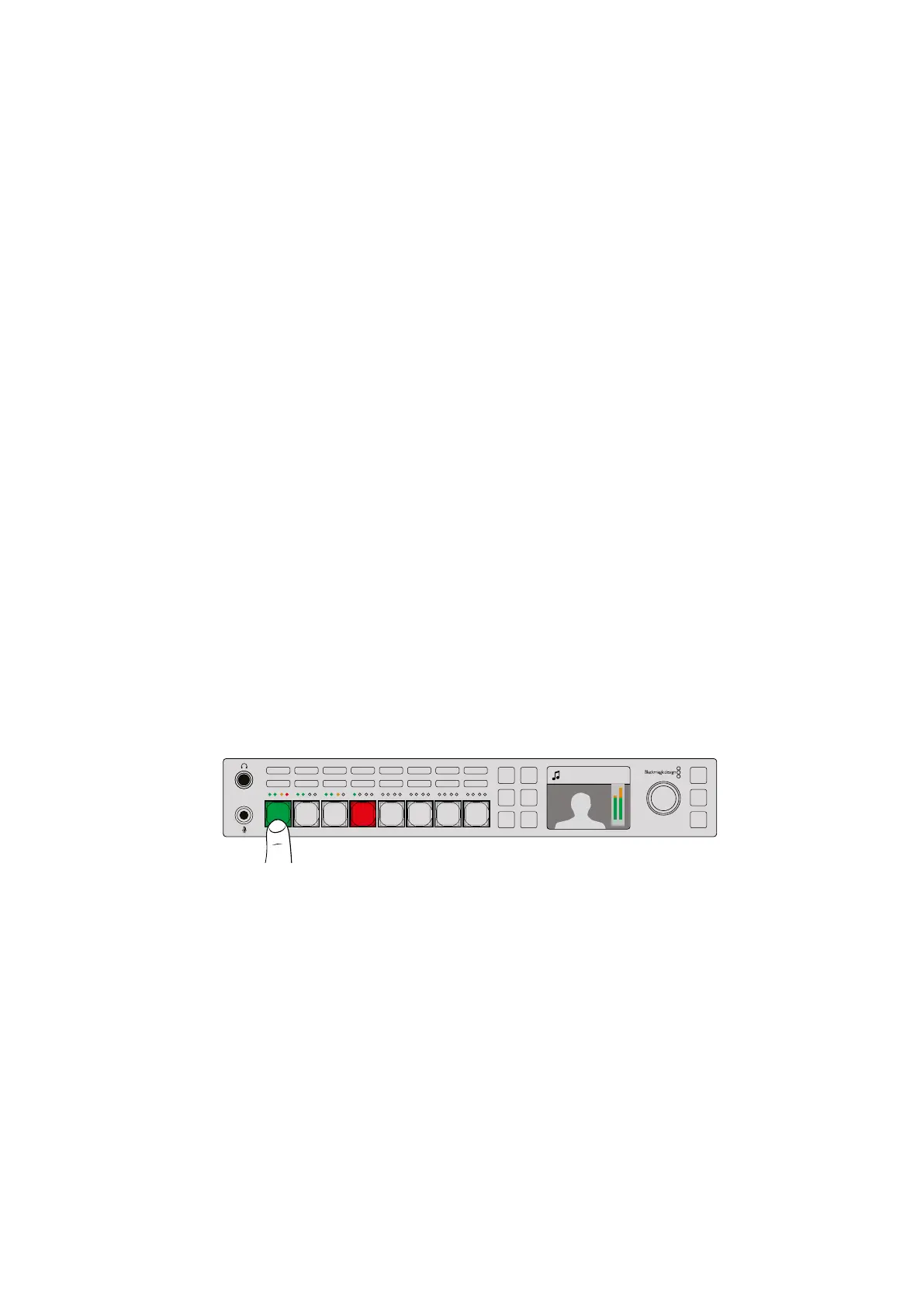
The ON and AFV buttons let you control the audio for eachsource, and the 4 LED
meterlets you visually identify if the audio for a specific source is too low or too high
If you look at the front panel above the main source buttons you can see that each source
button has a small audio meter plus an ON and AFV button. These buttons above the source
buttons are the audio controls for that specific input. If you want to control the audio settings for
input 1, then you use the controls immediately above input 1. It’s the same for each of the other
inputs to the switcher and the controls for each input are above the input source button.
You can also change audio settings in the LCD menus as there is a full menu just for audio
settings, proving an alternative way of adjusting audio. Of course, any control you do on the
front panel and in the LCD menus is also reflected in the software control panel. You can try
connecting a computer, selecting the audio mixer in the software control panel and watching
the effect of each front panel setting on the audio mixer. This can be a good way of better
understanding what the front panel audio controls are doing.
Camera 4
+2.3dB
AUX
MENU
SET
FTB
MP 2
AUTO
DSK 1
MIX
MP 1
CUT
ON ON ON ON ON ON ON ON
AFV AFV AFV AFV AFV AFV AFV AFV
1 2 876543
88










 To Next Page