165
A Adjusting the Picture Stylet
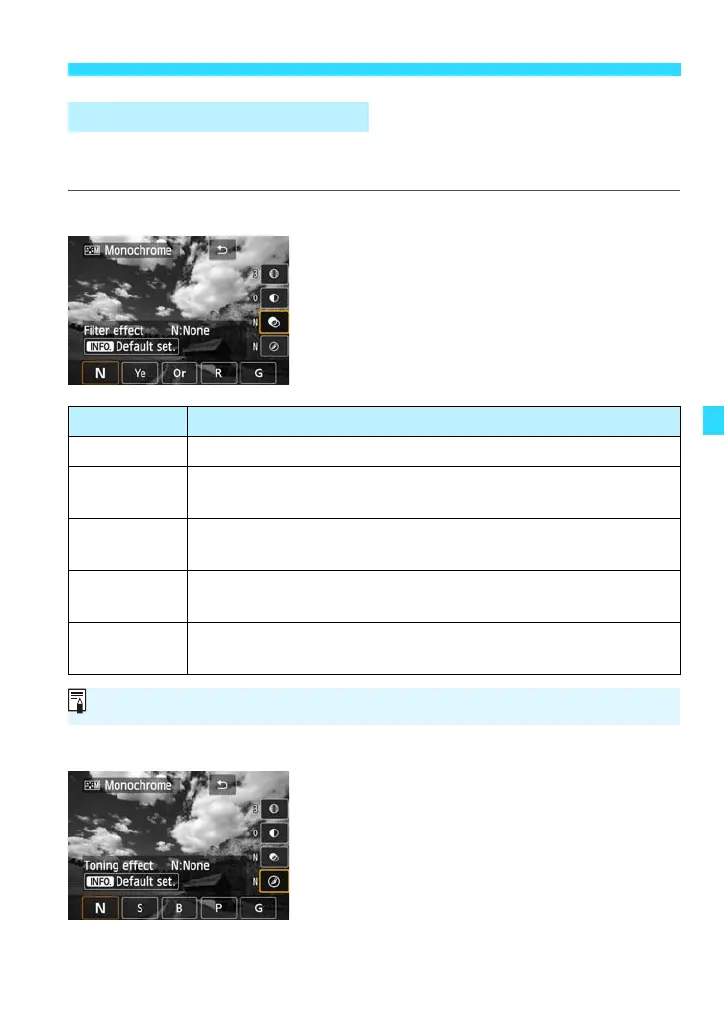
For Monochrome, you can also set [Filter effect] and [Toning effect] in
addition to [Sharpness] and [Contrast] explained on the preceding page.
kFilter Effect
With a filter effect applied to a monochrome
image, you can make white clouds or green
trees stand out more.
lToning Effect
By applying a toning effect, you can create a
monochrome image in that color. It can
make the image look more impressive.
The following can be selected: [N:None],
[S:Sepia], [B:Blue], [P:Purple] or
[G:Green].
V Monochrome Adjustment
Filter Sample Effects
N : None Normal black-and-white image with no filter effects.
Ye : Yellow
The blue sky will look more natural, and the white clouds will
look crisper.
Or : Orange
The blue sky will look slightly darker. The sunset will look
more brilliant.
R: Red
The blue sky will look quite dark. Fall leaves will look crisper
and brighter.
G: Green
Skin tones and lips will appear muted. Green tree leaves will
look crisper and brighter.
Increasing the [Contrast] will make the filter effect more pronounced.






 To Next Page