223
Handy Features
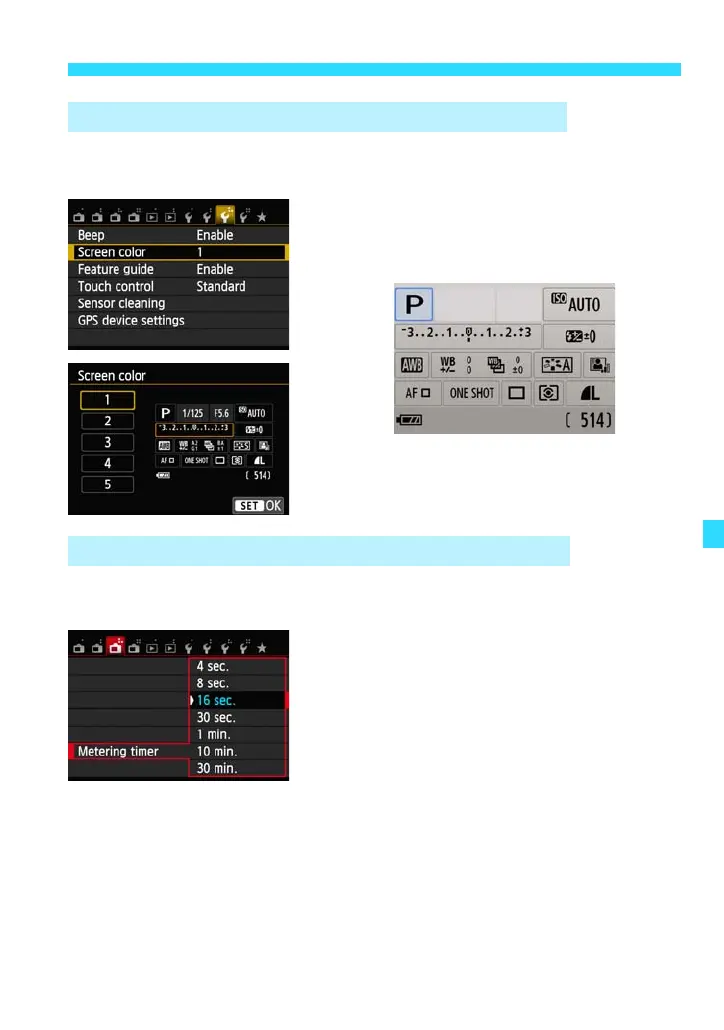
You can change the background color of the shooting settings screen (B
Quick Control).
Under the [53] tab, select [Screen color],
then press <0>. Select the desired color,
then press <0>.
You can change the length of time that the exposure value will be displayed
(the exposure lock period when using AE lock).
Under the [A3] tab, select [Metering
timer], then press <0>. Select the
desired setting, then press <0>.
With <A> and in Basic Zone modes,
the length of time will be fixed at 8
seconds.
When an external flash is attached and
FE lock is applied, the length of time will
be fixed at 16 seconds.
3 Changing the Shooting Settings Screen Color
3 Changing the Exposure Value Display Time w






 To Next Page