185
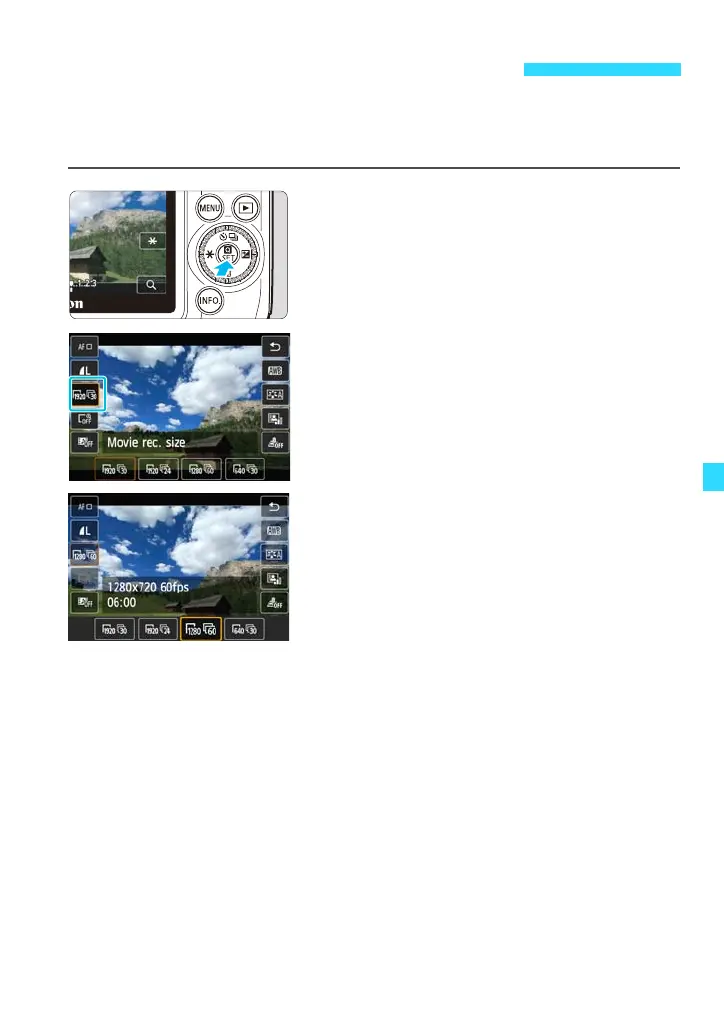
You can select the movie’s image size [****x****] and frame rate [9] (frames
recorded per second). The 9(frame rate) switches automatically depending
on the [52: Video system] setting.
1
Display the Quick Control screen.
Press the <Q> button to display it.
2
Tap the movie recording size.
3
Tap the desired setting to select it.
Tap the desired setting to select it, then
tap [2].
Image size
A [1920x1080] : Full High-Definition (Full HD) recording quality. The
aspect ratio will be 16:9.
B [1280x720] : High-Definition (HD) recording quality. The aspect
ratio will be 16:9.
C [640x480] : Standard-definition recording quality. The aspect ratio
will be 4:3.
Frame rate (fps: frames per second)
6/8 : For areas where the TV format is NTSC (North America, Japan,
Korea, Mexico, etc.).
5/7 : For areas where the TV format is PAL (Europe, Russia, China,
Australia, etc.).
4 : Records the movie at the cinematic rate of 24 fps.
Setting the Movie Recording Size






 To Next Page