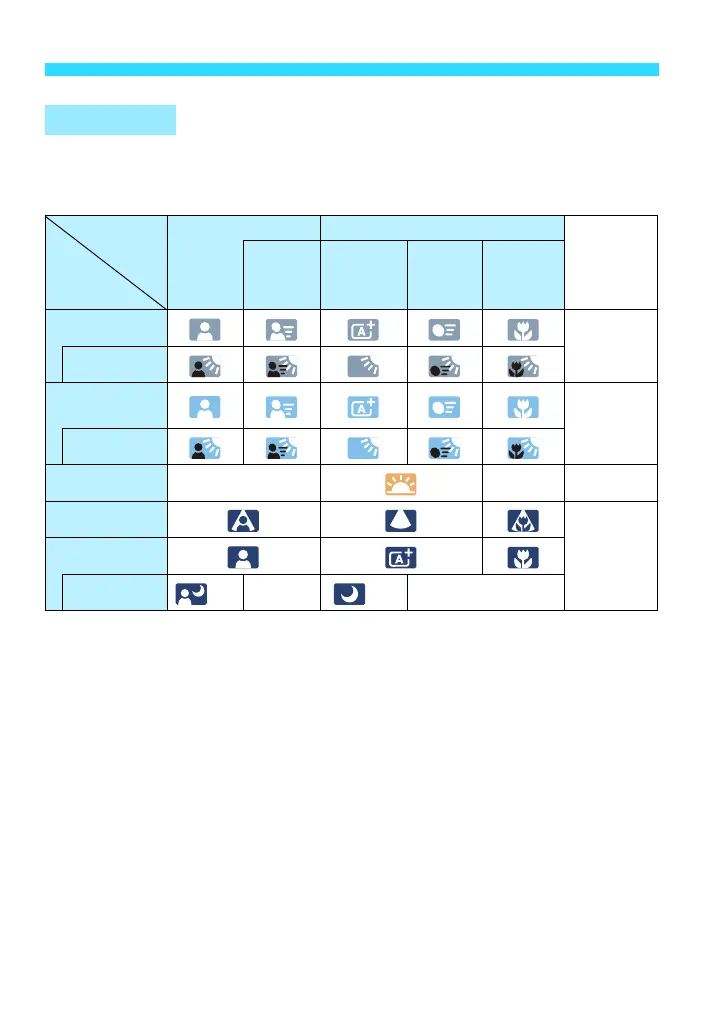
A Full Auto Techniques (Scene Intelligent Auto)
68
When you shoot in the <A> mode, an icon representing the scene detected
by the camera will be displayed on the upper left of the screen (at the position
of the shooting mode icon).
*1: Displayed only when the AF method is set to [u+Tracking]. If another AF method
is set, the “Non-Portrait” icon will be displayed even if a person is detected.
*2: Displayed when the attached lens has distance information. With an Extension
Tube or Close-up Lens, the icon displayed may not match the actual scene.
*3: The icon suiting the scene detected will be displayed.
*4: Displayed when you use a tripod for a low-light or night scene.
*5: Displayed with any of the lenses below:
• EF-S18-55mm f/3.5-5.6 IS II • EF-S55-250mm f/4-5.6 IS II
• EF300mm f/2.8L IS II USM • EF400mm f/2.8L IS II USM
• IS lenses marketed in 2012 or later.
*4+*5:If the conditions in both *4 and *5 are met, the shutter speed will slow down.
* For certain scenes, the icon displayed may not match the actual scene.
Scene Icons
Subject Portrait
*1
Non-Portrait
Background
Color
Background
Movement
Nature and
Outdoor
Scene
Movement
Close
*2
Bright
Gray
Backlit
Blue sky
included
Light blue
Backlit
Sunset
*3 *3
Orange
Spotlight
Dark blueDark
With tripod
*4*5
*3
*4*5
*3











 To Next Page