168
The function adjusting the color tone so that white objects look white in the
picture is called white balance (WB). Normally, the <Q> (Auto) setting will
obtain the correct white balance. If natural-looking colors cannot be obtained
with <Q>, you can select the white balance that matches the light source or
set it manually by shooting a sheet of white paper, etc.
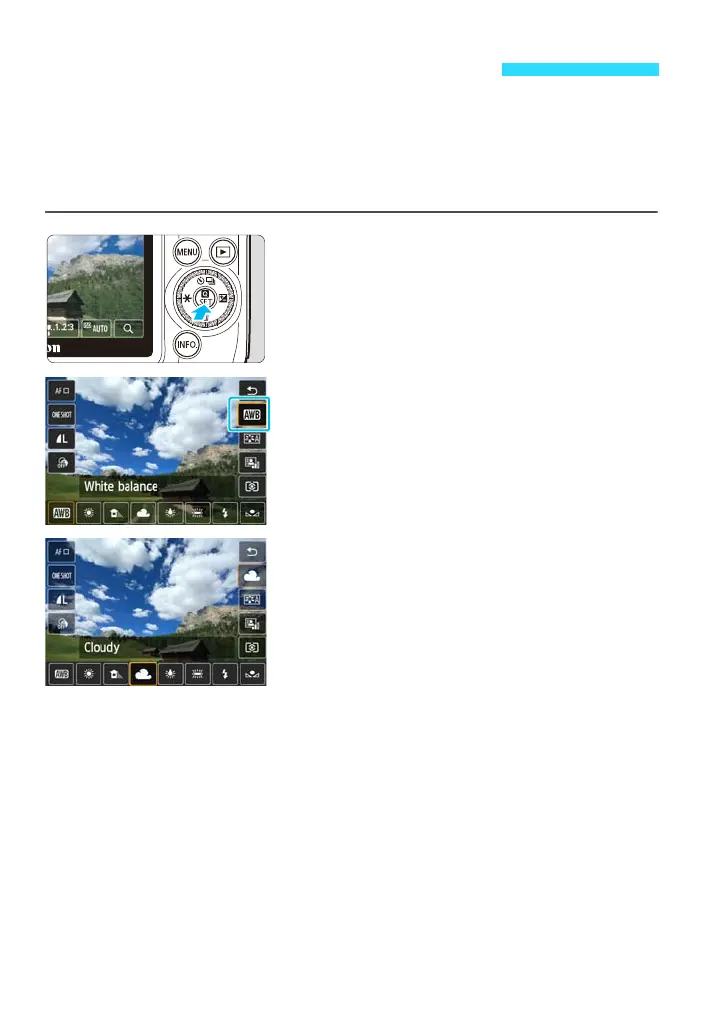
1
Display the Quick Control screen.
Press the <Q> button to display it.
2
Tap the white balance to select it.
3
Tap the desired setting to select it.
Tap the desired setting to select it, then
tap [2].
B: Matching the Light Sourcet






 To Next Page