233
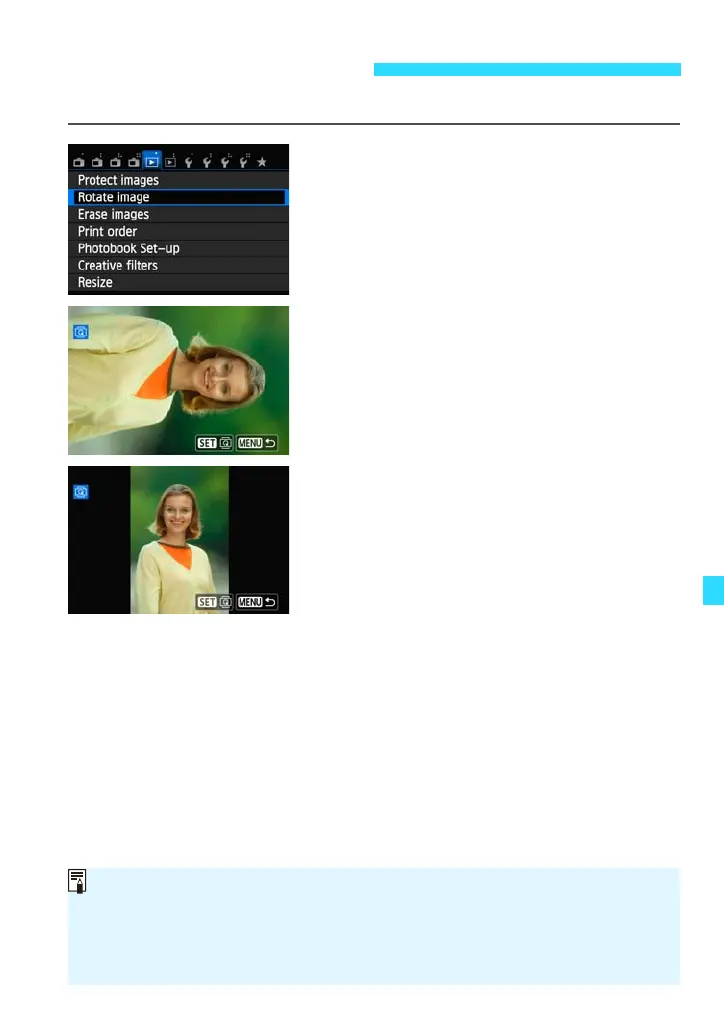
You can rotate the image for viewing.
1
Select [Rotate image].
Under the [x1] tab, select [Rotate
image], then press <0>.
2
Select an image.
Press the <Y> <Z> keys to select the
image to be rotated.
You can also select an image in the index
display (p.231).
3
Rotate the image.
Each time you press <0>, the image
will rotate clockwise as follows: 90° 9
270° 9 0°.
To rotate another image, repeat steps 2
and 3.
To exit and return to the menu, press the
<M> button.
b Rotating the Image
If you have set [51: Auto rotate] to [OnzD] (p.218) before taking vertical
shots, you need not rotate the image as described above.
If the rotated image is not displayed in the rotated orientation during image
playback, set [51: Auto rotate] to [OnzD].
A movie cannot be rotated.











 To Next Page