211
Handy Features
When the ambient light is too bright or too dark, you can adjust the brightness
of the LCD monitor to make it easier to read. You can either use the menu to
set the brightness level or set the Custom Function to make it brighter
temporarily.
Adjusting the brightness with the
menu
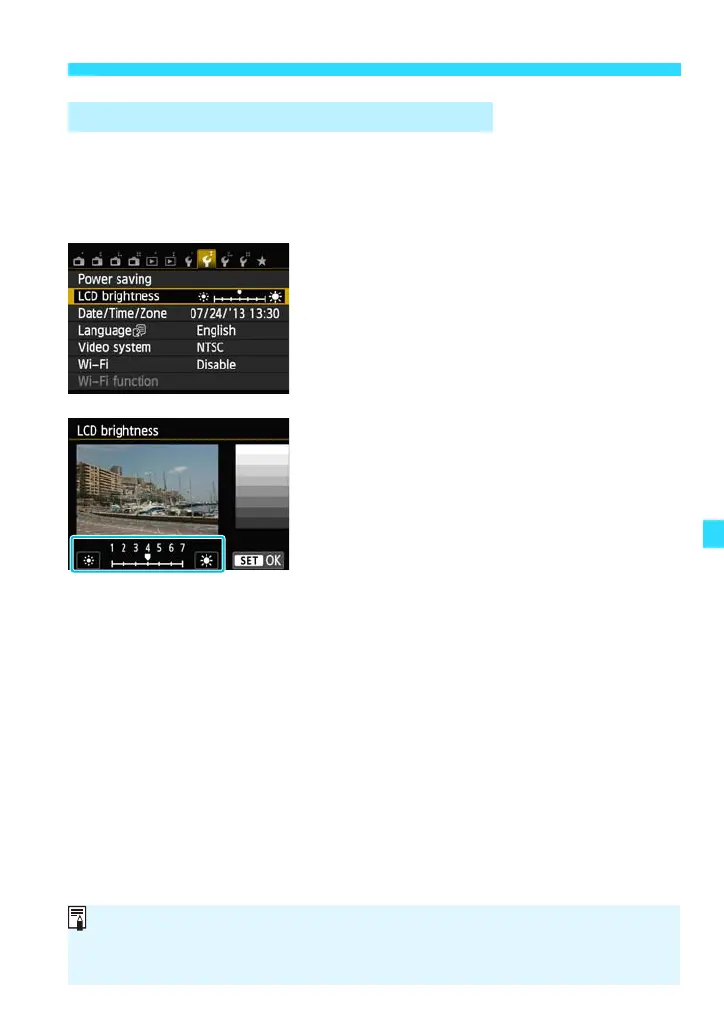
Under the [52] tab, select [LCD
brightness], then press <0>. On the
adjustment screen, tap [G]/[H] or press the
<Y> <Z> keys to adjust the brightness.
Then press <0>.
When checking the exposure of an image,
set the LCD monitor brightness to [4] and
prevent the ambient light from affecting the
reviewed image as much as possible.
3 Adjusting the LCD Monitor Brightness
If [6: XL button function] under [54: Custom Functions (C.Fn)] is set to [4:
Incr LCD brightness (temp)] (p.291), you can set the same brightness as level
[7] on the scale by pressing the <XL> button.











 To Next Page