231
d Playback with the Touch Screen
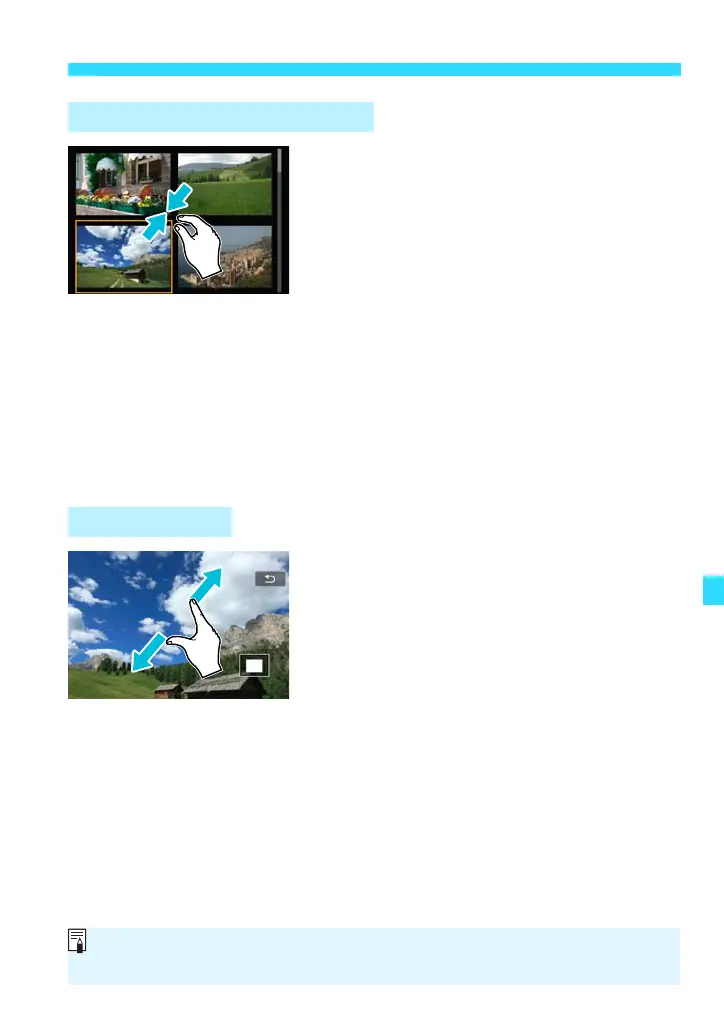
Pinch two fingers.
Touch the screen with two fingers spread
apart, and pinch your fingers together on the
screen.
Each time you pinch your fingers, the
screen changes from a single-image
display to an index display of 4 images, 9
images, 36 images, then 100 images.
In the index display, perforations at the
left edge of a thumbnail indicate a movie.
In the index display, press <0> to
switch to the single-image display.
Alternatively, select an image to display
an orange frame, then tap the image
again to display it as a single image.
Spread two fingers apart.
Touch the screen with two fingers together,
then spread your fingers apart on the
screen.
As you spread your fingers, the image
will be magnified.
The image can be magnified up to
approx. 10x.
You can scroll around the image by
dragging your finger.
To reduce the image, pinch your fingers
together on the screen.
Tapping [2] on the screen’s upper right
will return to the single-image display.
Reduce Images (Index Display)
Magnify Images
Touch screen operations on the camera’s LCD monitor are also possible while
playing back images on a TV set connected to your camera (p.247, 251).











 To Next Page