265
You can crop a JPEG image as desired and save it as a new image. RAW
and JPEG c images cannot be cropped. The 1+73 image’s JPEG
image can be cropped.
1
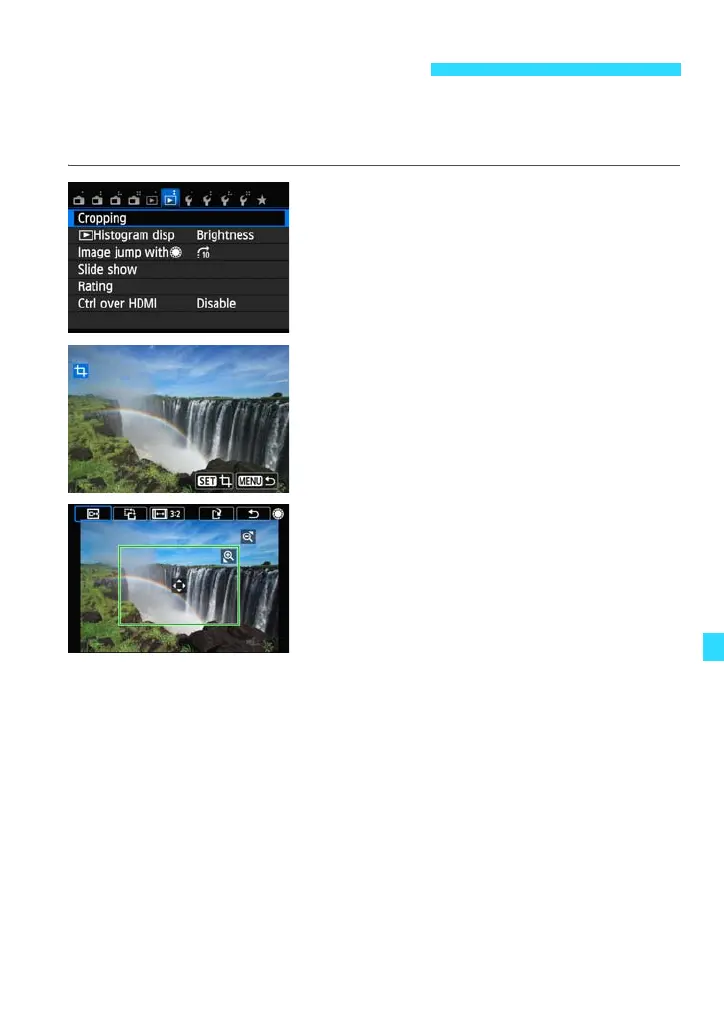
Select [Cropping].
Under the [x2] tab, select [Cropping],
then press <0>.
An image will be displayed.
2
Select an image.
Select the image you want to crop.
You can also select an image in the index
display.
3
Set the cropping frame’s size,
position, orientation, and aspect
ratio.
Press <0> to display the cropping
frame.
Everything outside the cropping frame
will be removed.
Changing the Cropping Frame Size
Tap the screen and pinch two fingers closed or spread them apart as
necessary to change the size of the cropping frame. The smaller the
cropping frame, the larger the image magnification will be.
Moving the Cropping Frame
Press the <S> keys to move the frame over the image vertically or
horizontally.
You can also touch the cropping frame and drag it to the desired position.
N Cropping JPEG Images











 To Next Page