282
When you select images to use in photobooks (up to 998 images) and use
EOS Utility (EOS software) to transfer them to a computer, the selected
images will be copied into a dedicated folder. This function is useful for
ordering photobooks online.
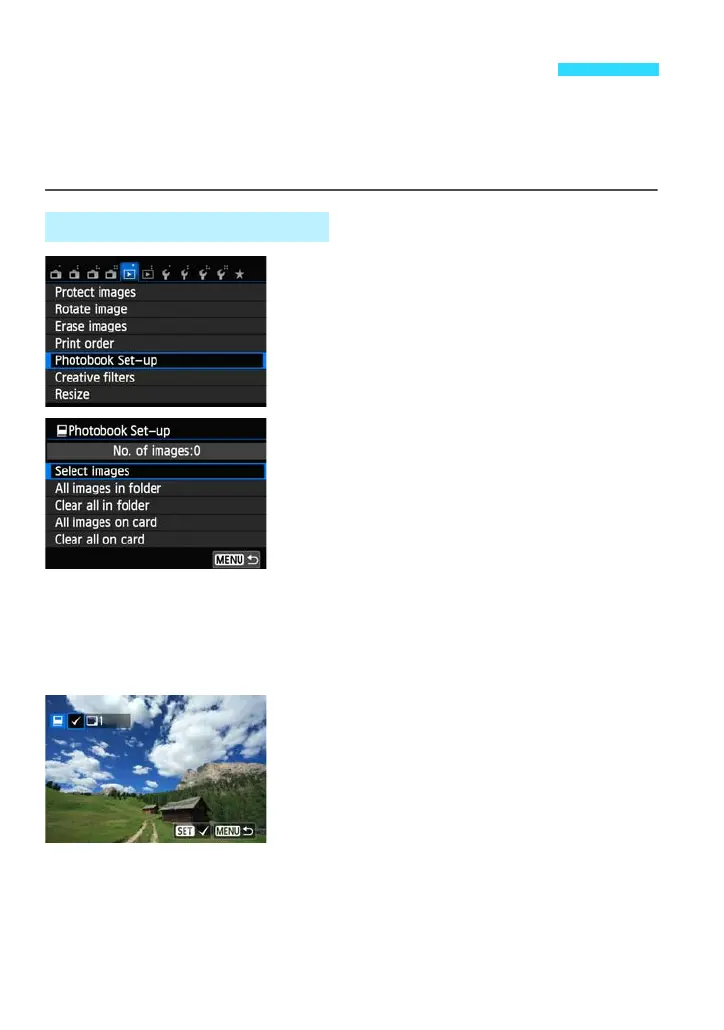
1
Select [Photobook Set-up].
Under the [x1] tab, select [Photobook
Set-up], then press <0>.
2
Select [Select images].
Select [Select images], then press
<0>.
An image will be displayed.
To select images on a three-image
display, touch the LCD monitor with two
fingers spread apart, then pinch the
fingers together on the monitor. To return
to the single-image display, touch the
LCD monitor with two fingers together,
then spread the fingers apart on the
monitor.
3
Select the image to be specified.
Press the <Y> <Z> keys to select the
image to be specified, then press <0>.
Repeat this step. The number of images
which have been specified will be
displayed on the upper left of the screen.
To cancel the specified image, press
<0> again.
Press the <M> button to return to the
screen in step 2.
p Specifying Images for a Photobook
Specify One Image at a Time











 To Next Page