If the [Page Size] setting and [Output Size] setting are different
The print is automatically reduced or enlarged to fit on the page.
7
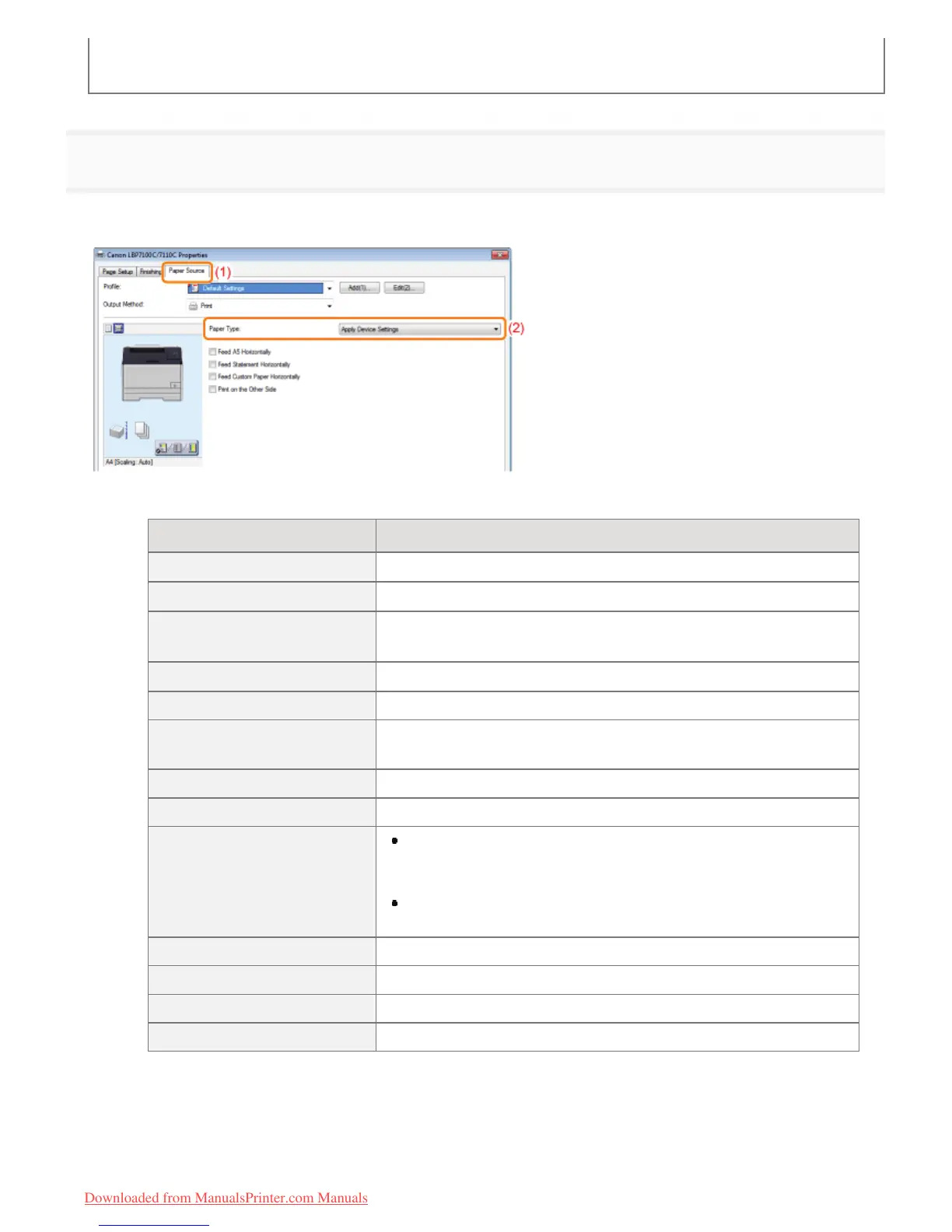
Specify the setting for [Paper Type].
(1) Display the [Paper Source] sheet.
(2)
Select the type of the paper loaded in the paper source.
*
*
Specify the setting according to the paper type as follows.
Paper Type Setting for [Paper Type]
Plain paper (70 to 85 g/m²)
[Plain 1]
*1
(Default)
Plain paper (75 to 90 g/m²)
[Plain 2]
*1 *2
Plain paper (60 to 74 g/m²)
[Thin 1]
[Thin 2]
*3
Heavy paper (86 to 120 g/m²)
[Heavy 1]
*2
Heavy paper (121 to 163 g/m²) [Heavy 2]
Transparency
(black and white printing only)
[Transparency]
Label [Labels]
Index Card [Heavy 2]
Envelope
Envelope Monarch, Envelope No. 10 (COM10), and Envelope DL:
[Envelope]
[Envelope H]
*4
Envelope C5:
[Envelope H]
Coated paper (100 to 110 g/m²) [Coated 1]
Coated paper (111 to 130 g/m²) [Coated 2]
Coated paper (131 to 160 g/m²) [Coated 3]
Coated paper (161 to 220 g/m²) [Coated 4]
*1
If you want to print paper of 75 to 85 g/m², you can specify either of [Plain 1] or [Plain 2].
*5
*2
If you want to print paper of 86 to 90 g/m², you can specify either of [Plain 2] or [Heavy 1].
*5
*3
If the printed paper curls (the printed side curls outward) when 60 g/m² paper is printed with [Thin 1]
selected, select [Thin 2].
*4
㻝㻠㻥㻌㻛㻌㻡㻝㻠
Downloaded from ManualsPrinter.com Manuals




 To Next Page