Displaying or Exiting VPanel
8
Chapter 1 Basic Operation
VPanel serves as resident software.
VPanel works as resident software that is constantly working to manage the milling machine, send e-mails*, and
so on. It is recommended to congure the settings so that VPanel starts automatically when the computer starts.
(
"
P.13 ""Settings" Tab"
) In addition, clicking in the upper right of the top window will minimize the window
to the task tray. The window will disappear from the screen, but the program will not be exited. While VPanel is
running,
is constantly displayed in the task tray.
* Emails are sent to notify the user of milling completion or errors that occur. (
"
P.16 ""Mail" Tab"
)
VPanel Display in the Task Tray
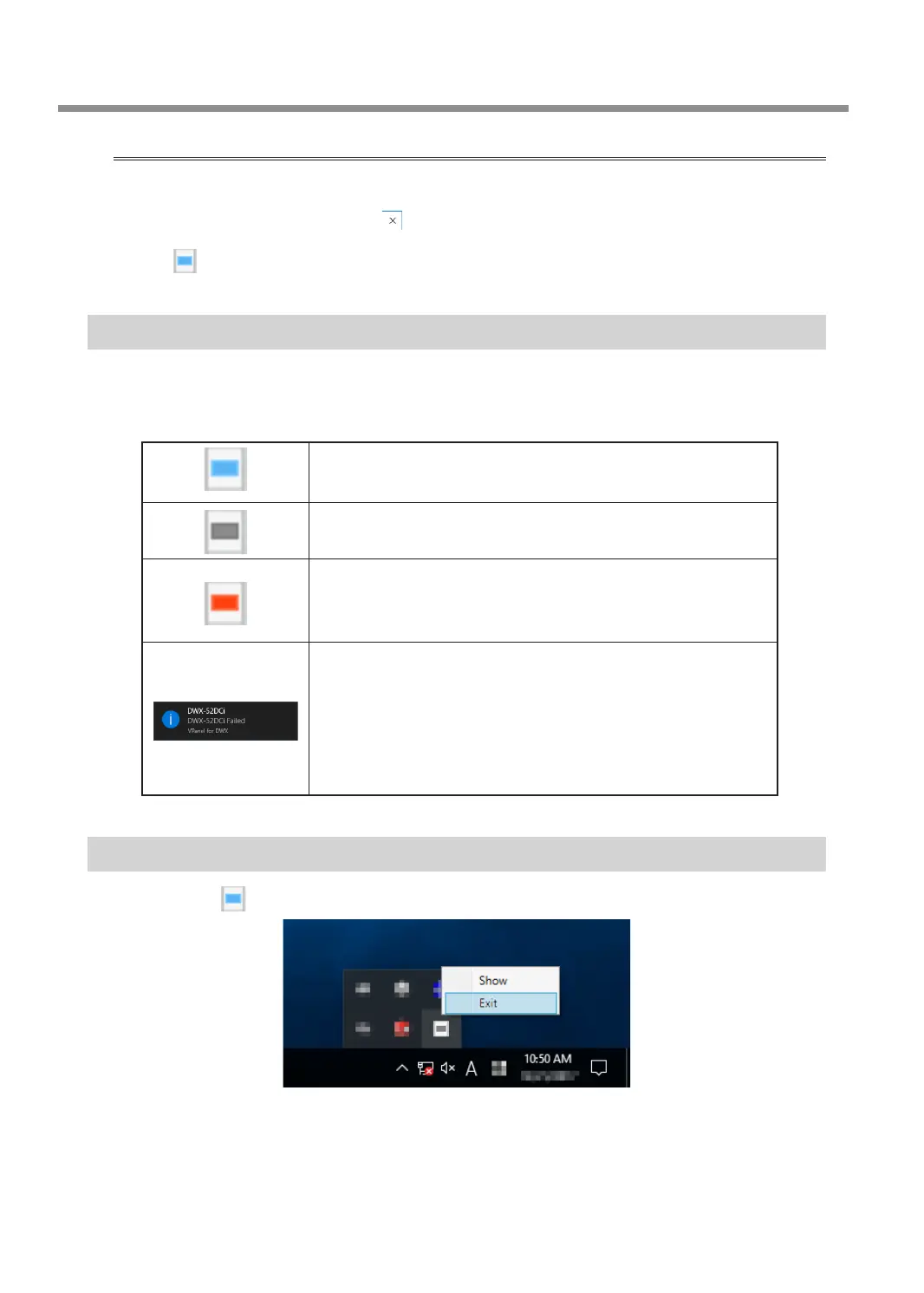
When the VPanel icon is displayed in the task tray, the status of the connected milling machine is always
monitored. The display of the VPanel icon changes depending on the status of the milling machine. The meanings
of the displays are shown below.
Indicates that at least one of the connected milling machines is on (is
online).
Indicates that all the connected milling machines are off.
Indicates that an error has occurred on at least one of the connected
milling machines.
If you hover the mouse pointer over the displayed icons, you can check
which machine has the error.
Messages are displayed automatically if an error occurs, during milling,
and in similar situations. Even after the message disappears, if you
hover the mouse pointer over the displayed icons, the status of each
connected machine (such as Ready, Milling, Finished, Completed, or
Ofine) will be displayed.
Messages prompting you to perform maintenance (such as "Spindle
run-in required") will also be displayed. In these situations, perform the
maintenance work indicated by the message.
Exiting VPanel
Right-click in the task tray and click [Exit].


 To Next Page