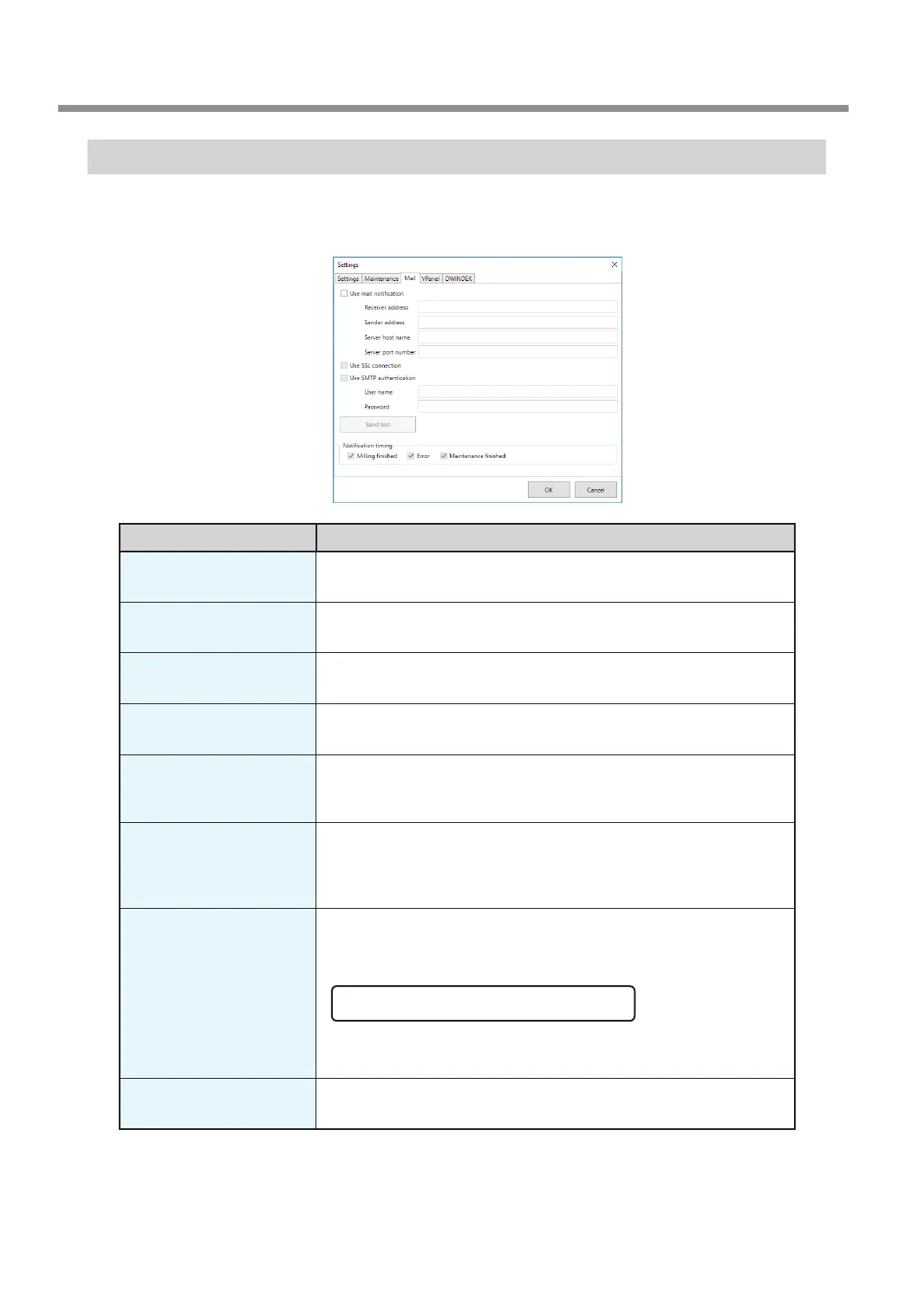
"Mail" Tab
Settings on this tab can be congured so that a notication email is sent when milling nishes, when an error
occurs, or when maintenance is complete. When more than one machine is connected, all of the machines
become the targets for the settings. Select the "Use mail notication" check box to enter each item.
Display Explanation
Receiver address
Enter the receiver's email address. You can enter multiple addresses by
separating them with commas.
Sender address
Enter the sender's email address. Enter the email address being used on
the computer on which VPanel is installed.
Server host name
Enter the name of the outgoing mail server (SMTP server name) for the
email address entered for the sender’s address.
Server port number
Enter the port number of the outgoing mail server for the email address
entered for the sender's address.
Use SSL connection
Select this check box to use a security-protected connection (SSL).
Select or clear this check box according to the settings of the outgoing
mail server for the email address entered for the sender’s address.
Use SMTP authentication
User name / Password
Select this check box to perform authentication before sending emails.
Input the user name and password for authentication. Select or clear this
check box according to the settings of the outgoing mail server for the
email address entered for the sender’s address.
Send test
Click [Send test] to send a test email. If the following email is received at
the address specied with "Receiver address," the conguration of the
settings is complete.
Subject: <Machine name> Body: Test
If the sending of the email fails, the message "The email could not be
sent." will be displayed. Check the content in the input elds again.
Notication timing
Notication emails will be sent for the items whose check boxes are
selected.
VPanel Window and Functions
16
Chapter 1 Basic Operation


 To Next Page