Get started with BLE Enable BLE on the XBee 3 Zigbee RF Module
Digi XBee® 3 Zigbee® RF Module
52
Enable BLE on the XBee 3 Zigbee RF Module
To enable BLEon a XBee 3 Zigbee RF Module and verify the connection:
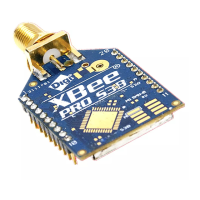
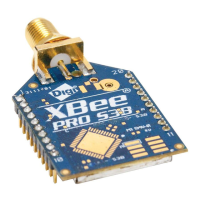
1. Set up the XBee 3 Zigbee RF Module and make sure to connect the antenna to the device.
2. Enable BLEand configure the BLEpassword.
3. Get the Digi XBeeMobile phone application.
4. Connect with BLEand configure your XBee 3 device.
Note The BLE protocol is disabled on the XBee 3 Zigbee RF Module by default. You can create a custom
factory default configuration that ensures BLE is always enabled. See Custom configuration: Create a
new factory default.
Enable BLEand configure the BLEpassword
Some of the latest XBee 3 devices support Bluetooth Low Energy (BLE) as an extra interface for
configuration. If you want to use this feature, you have to enable BLE. You must also enable security by
setting a password on the XBee 3 Zigbee RF Module in order to connect, configure, or send data over
BLE.
Use XCTUto configure the BLE password. Make sure you have installed or updated XCTU to version
6.4.2 or newer. Earlier versions of XCTU do not include the BLEconfiguration features. See Download
and install XCTU for installation instructions.
Before you begin, you should determine the password you want to use for BLEon the XBee 3 Zigbee
RF Module and store it in a secure place. We recommend a secure password of at least eight
characters and a random combination of letters, numbers, and special characters. We recommend
using a security management tool such as LastPass or Keepass for generating and storing passwords
for many devices.
Note When you enter the BLEpassword in XCTU, the salt and verifier values are calculated as you set
your password. For more information on how these values are used in the authentication process, see
BLE Unlock API frame - 0x2C.
1.
Launch XCTU .
2.
Switch to Configuration working mode .
3. Select a BLE compatible radio module from the device list.
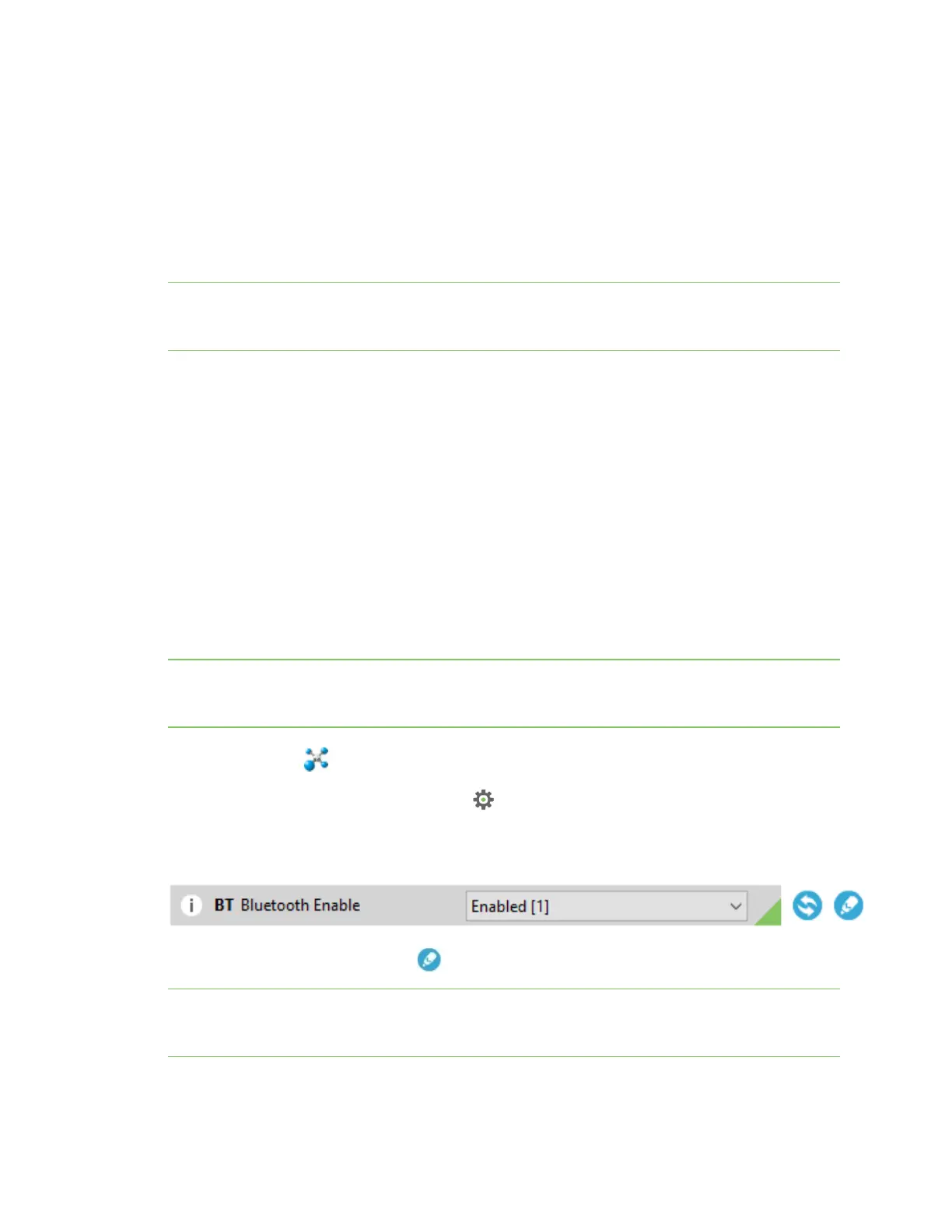
4. Select Enabled[1] from the BT Bluetooth Enable command drop-down.
5.
Click the Write setting button . The Bluetooth authentication not set dialog appears.
Note If BLE has been previously configured, the Bluetooth authentication not set dialog does not
appear. If this happens, click Configure in the Bluetooth Options section to display the Configure
Bluetooth Authentication dialog.


 To Next Page