AssuredSAN 4004 Series Setup Guide 37
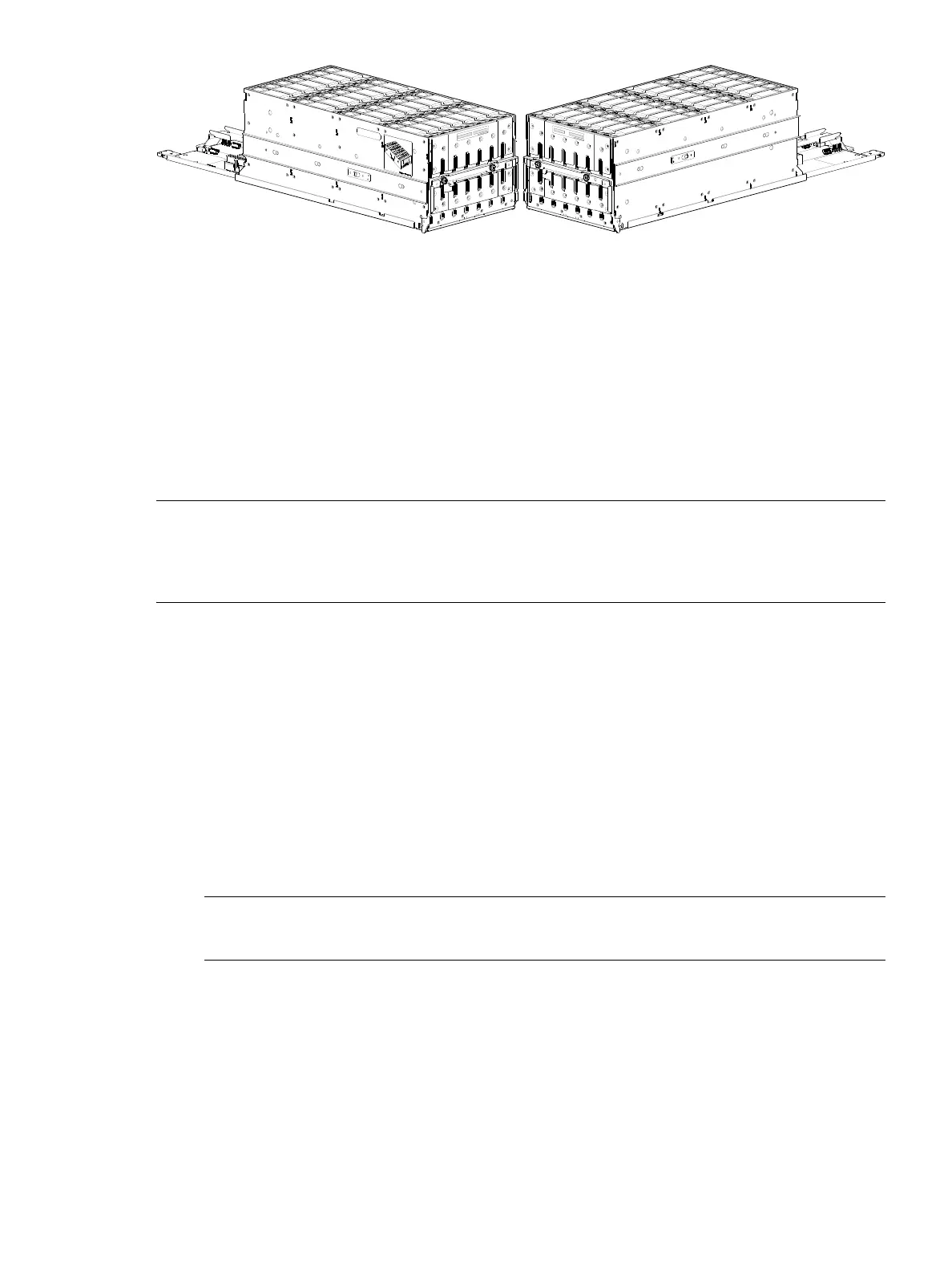
Figure 33 Drawer 1 with full complement of disks (4U56)
FDE considerations
The Full Disk Encryption feature available via the management interfaces requires use of self-encrypting
drives (SED) which are also referred to as FDE-capable disk drive modules. When installing FDE-capable
disk drive modules, follow the same procedures for installing disks that do not support FDE. The exception
occurs when you move FDE-capable disk drive modules for one or more disk groups to a different system,
which requires additional steps.
The procedures for using the FDE feature, such as securing the system, viewing disk FDE status, and
clearing and importing keys are performed using the web-based (v3 or v2) application or CLI commands
(see the Storage Management Guide or CLI Reference Guide for more information).
NOTE: When moving FDE-capable disk drive modules for a disk group, stop I/O to any disk groups
before removing the disk drive modules. Follow the “Removing a disk drive module” and “Installing a disk
drive module” procedures within the AssuredSAN 4004 Series FRU Installation and Replacement Guide.
Import the keys for the disks so that the disk content becomes available.
While replacing or installing FDE-capable disk drive modules, consider the following:
• If you are installing FDE-capable disk drive modules that do not have keys into a secure system, the
system will automatically secure the disks after installation. Your system will associate its existing key
with the disks, and you can transparently use the newly-secured disks.
• If the FDE-capable disk drive modules originate from another secure system, and contain that system’s
key, the new disks will have the Secure, Locked status. The data will be unavailable until you enter the
passphrase for the other system to import its key. Your system will then recognize the metadata of the
disk groups and incorporate it. The disks will have the status of Secure, Unlocked and their contents will
be available:
• To view the FDE status of disks, use the SMC or RAIDar, or the show fde-state CLI command.
• To import a key and incorporate the foreign disks, use the SMC or RAIDar, or the set
fde-import-key CLI command.
NOTE: If the FDE-capable disks contain multiple keys, you will need to perform the key importing
process for each key to make the content associated with each key become available.
• If you do not want to retain the disks’ data, you can repurpose the disks. Repurposing disks deletes all
disk data, including lock keys, and associates the current system’s lock key with the disks.
To repurpose disks, use the SMC or RAIDar, or the
set disk CLI command.
• You need not secure your system to use FDE-capable disks. If you install all FDE-capable disks into a
system that is not secure, they will function exactly like disks that do not support FDE. As such, the data
they contain will not be encrypted. If you decide later that you want to secure the system, all of the disks
must be FDE-capable.
• If you install a disk module that does not support FDE into a secure system, the disk will have the
Unusable status and will be unavailable for use.



 To Next Page