Revision 1 37 9/10/2019
3.4.5.4 Connect the Computer and the Analyzer
Once the settings are correctly set, press the OK button to close the Communications Setup
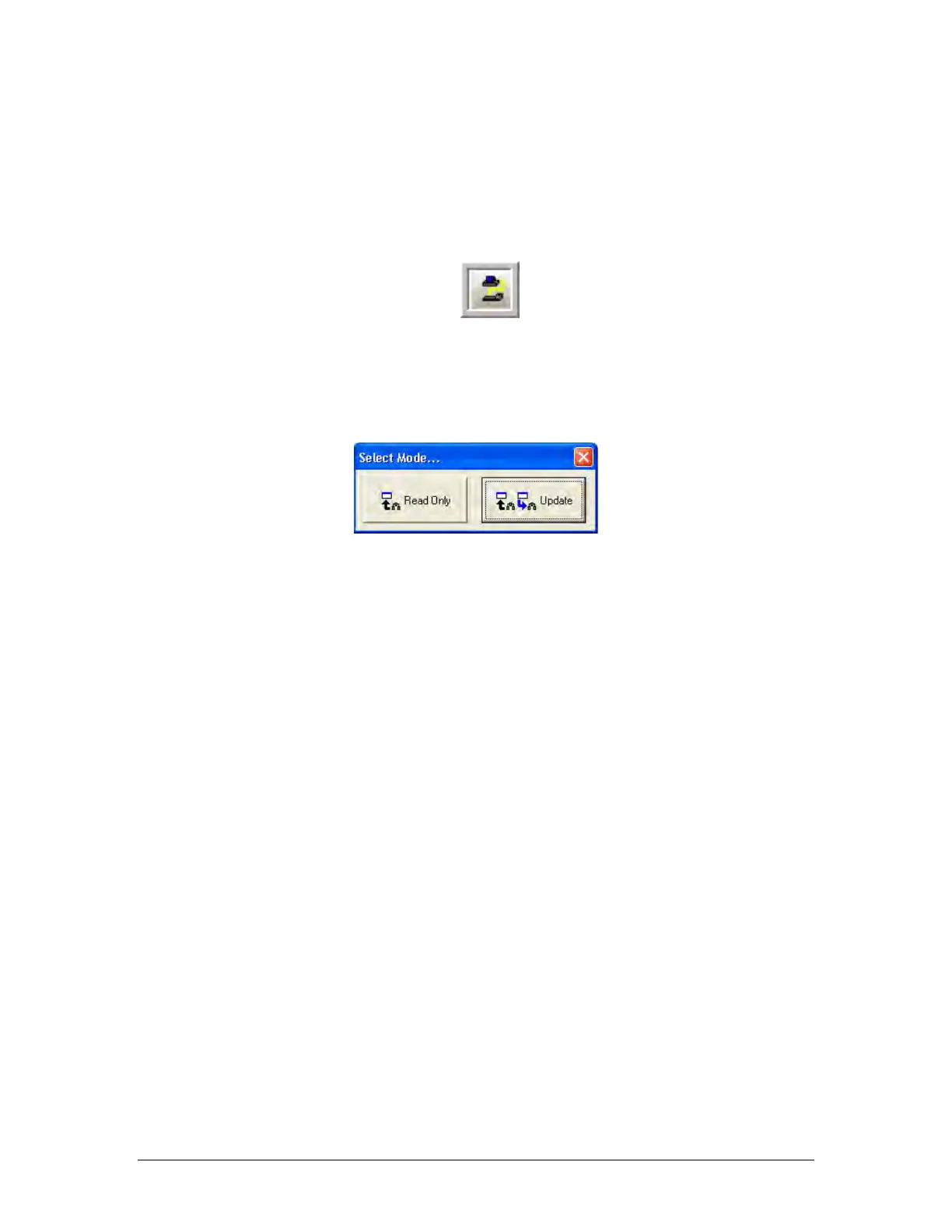
dialog box and press the Logon button (Figure 3-11)
on the button bar to connect the computer
to the analyzer.
Figure 3-11 Logon Button
After the Logon button is pressed, an information line with increasing length will appear on
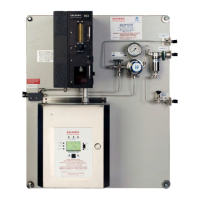
the screen. When the logon process is complete, the GUI will present a dialog box (Figure
3-12) asking if the operator wants to enter Read-Only or Update mode.
Figure 3-12: Select Mode Dialog Box
Read Only mode does not allow the operator to write any changes to the analyzer. It allows
the operator to view all aspects of the application program and review all the settings of the
analyzer, but prevents the operator from writing any changes to these settings.
Update mode allows the operator to make changes to settings in the application program and
write these changes to the analyzer. This mode is password protected to prevent
unauthorized changes to the analyzer. The password for the Update Mode is set by default to
2222 and can be changed as described in Section 5.2.1
If the operator has logged into the analyzer in Read Only mode, it is possible to enter Update
mode by going to the Tools menu and selecting Update to present the Password Request
dialog box. If the correct password is entered, the application program will then be in Update
mode.
If communication is unsuccessful, ensure that:
a) the correct COM port is chosen
b) the correct baud rate is chosen
c) the cable is securely connected to both the PC and the analyzer.
d) the IP address is correct
If changing the baud rate and COM port or the IP address still does not result in a successful
connection, please call Galvanic Applied Sciences’ technical support.


 To Next Page