Revision 1 61 9/10/2019
5.2 Components of the Main Window
5.2.1 Menu Bar
The Menu bar includes four menus:
a) System Menu -
The System menu contains the Exit command which can be used to
close the GUI (it does not turn the analyzer off).
b) View Menu - The View menu allows the user to decide which toolbars to display. A drop
down menu presents four options - Communicate ToolBar, Operation ToolBar, General
ToolBar and Upgrade Window. The first three options allow the user to display the
appropriate toolbar by clicking on the box adjacent to the name (to remove the toolbar,
click to remove the check mark). A discussion of the toolbars is presented in Section
5.2.2. The Upgrade Window option is used to install new software and is discussed in
Appendix A.
c) Others Menu - The Others menu contains:
• Update Mode - used to change from Read Only mode to the Update mode of operation.
A dialog box is presented to enter the password.
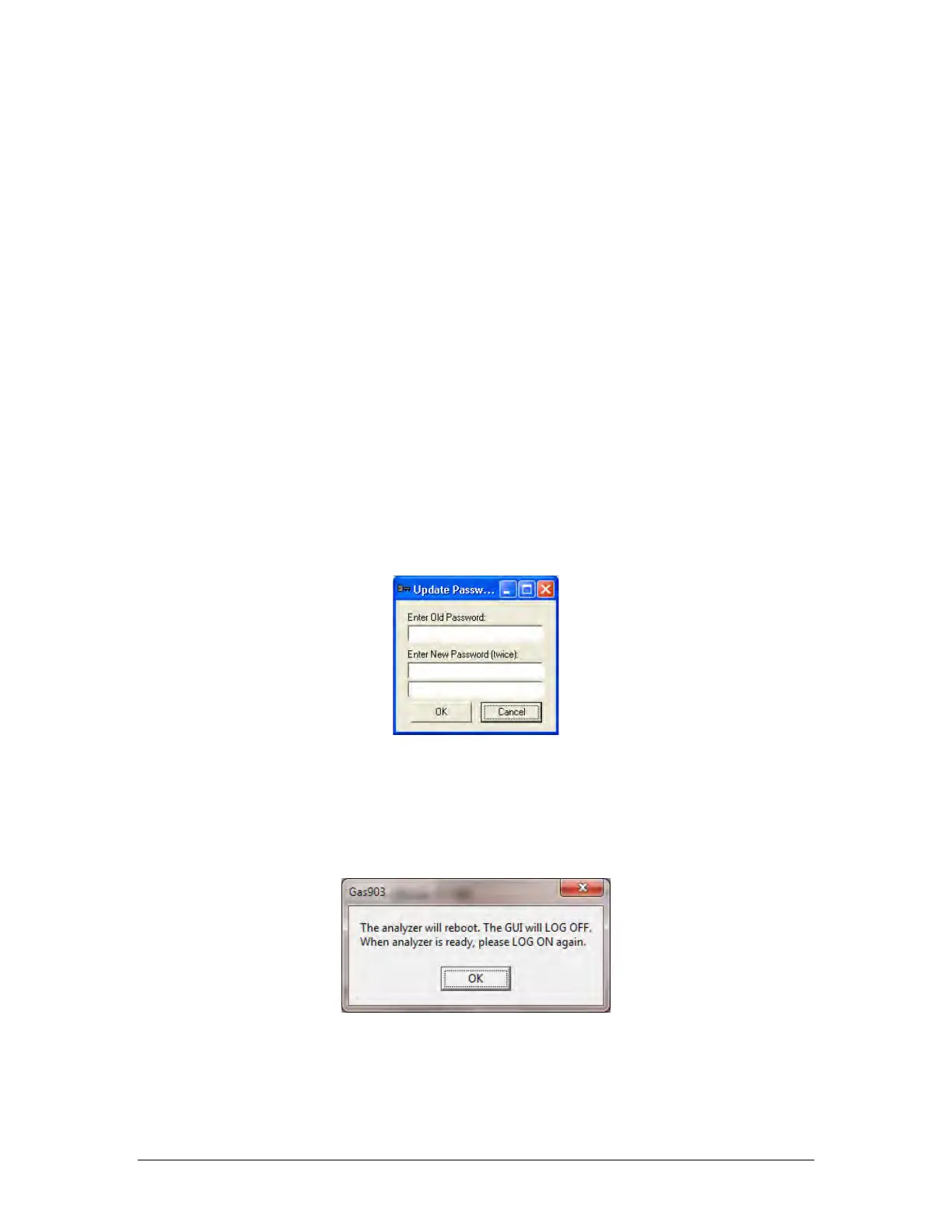
• Change Password - allows the user to change the password for the Update Mode. The
original password must be entered and the new password must be entered two times in
the dialog box shown in Figure 5-4.
Figure 5-4: Change Password Dialog Box
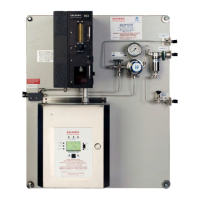
• Reboot - accesses the dialog box shown in Figure 5-5. Pressing the OK button will
cause the analyzer to reset. Any changes that have not been written to the computer
but not transferred to the analyzer will be lost if this option is selected. The Reset option
is unavailable if the program is in read-only mode.
Figure 5-5: Reboot Dialog Box


 To Next Page