190-01115-01 G3X™/G3X Touch™ Avionics Installation Manual
Rev. AV Page 30-143
PFD1(or PFD2) Startup Display Mode–
NOTE
The following references to MFD1 or PFD1 also apply to MFD 2, MFD 3, PFD 2, and
PFD3.
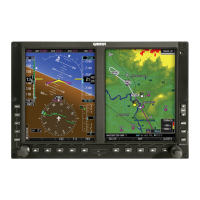
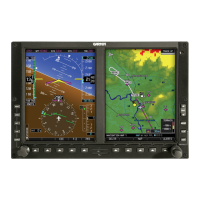
Controls the screen layout that PFD1 assumes upon applying power. The user may then toggle between
full-screen and split modes on the “Full/Split” mode button on the top corner of data bar.
User Selected (default setting)–Allows changing PFD1 layout in normal mode from the Display
Setup page in the main menu. The associated User Selected setting used by the Display Setup
page (in normal mode) lists the setting as PFD Startup Mode. Selecting any setting other than
User Selected disallows the selection of PFD Startup Mode on the Display Setup page.
Auto–PFD1 turns on as a full-screen PFD display (when in a multi-display system and not in
reversionary mode). Display location is then user-selectable.
Split Screen–PFD1 turns on in split-screen mode. Display location is then user-selectable.
PFD1 Split Screen Side–Controls where the side multi-function pane is displayed on PFD1 when split
screen is selected. (Applies to GDU 460 only).
User Selected (default setting)–Allows the pilot/user to select the desired location in normal mode
from the Display Setup page on the main menu.
Left–The multi-function pane will be displayed on the left side of the screen when split screen is
selected.
Right–The multi-function pane will be displayed on the right side of the screen when split screen is
selected.
PFD1 Mode Button Screen Side–Controls where the split/full screen mode button is displayed on PFD1.
User Selected (default setting)–Allows the pilot/user to select the desired location of the split/full
screen mode button in normal mode from the Data Bar page on the main menu.
Auto–When set to Auto, the system automatically places the split/full screen mode button on either
the left or right corner of the data bar, and the selection cannot be change by the user/pilot.
Left–The split/full screen mode button will be displayed on the upper loft corner of the data bar.
Right–The split/full screen mode button will be displayed on the upper loft corner of the data bar.
MFD1 Startup Display Mode–Controls the screen layout that MFD1 assumes during start. The user may
then toggle between full-screen and split modes using the “Full/Split” mode button on the top corner of
data bar.
User Selected (default setting)–Allows changing MFD1 layout in normal mode from the Display
Setup page in the main menu. The associated User Selected setting used by the Display Setup
page (in normal mode) lists the setting as MFD Startup Mode. Selecting any setting other than
User Selected disallows the selection of MFD Startup Mode on the Display Setup page.
Auto–MFD1 turns on as a full-screen MFD display (when in a multi-display system and not in
reversionary mode). Display location is then user-selectable.
Split Screen–MFD1 turns on in split-screen mode. Display location is then user-selectable.



 To Next Page