62
Menu functions
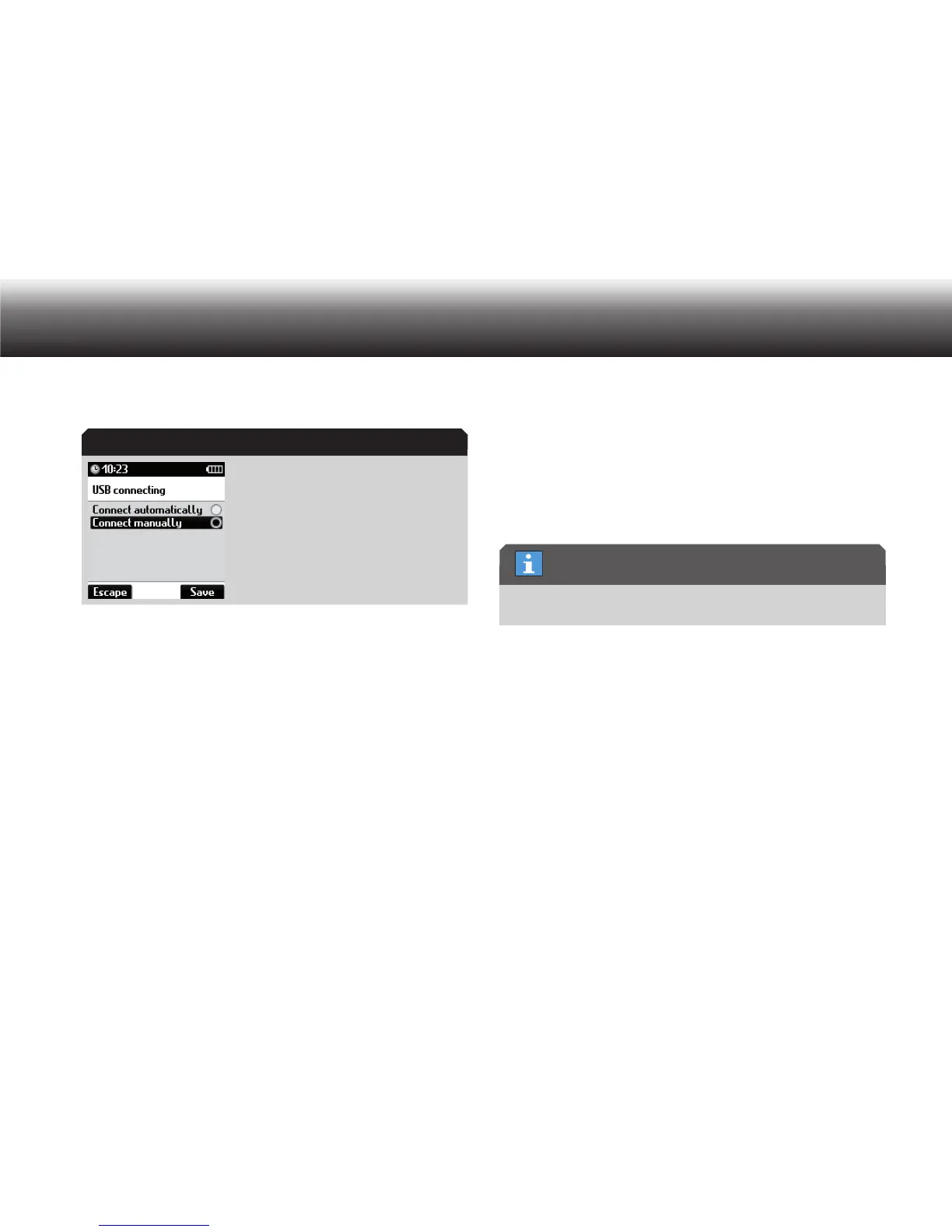
Select the “ x USB connecting” subitem using the up/down buttons.
Confirm your selection using “OK”.
Display in “USB connecting” menu
Select one of the following settings: x
»Connect automatically• «: USB mode switches on automatically
»Connect manually• «: USB mode is only switched on manually
Confirm the selection using the “ x Save” button.
If you do not wish to save the change, press the “ x Escape” button.
If “Connect automatically” is selected, USB mode automatically switches
on when a switched-on dictation machine is connected to the USB port
of a PC. The PC recognizes the device as a removable storage device
and USB Audio and USB HID are active. You can now exchange data
between the PC and the dictation machine, as well as using the dicta-
tion machine as a USB microphone.
For the setting “Connect manually”, the dictation machine remains in
dictation mode when connected via USB. It is supplied with power from
the PC. If you wish to transfer dictations to the PC, select “USB mode”
from the menu and confirm by pressing OK. The device then establishes
a connection with the PC.
Speaker
If you are listening to your dictation using headphones that are connect-
ed to the Digta Station*, you can switch off the speaker of the dictation
machine.
If you connect an earpiece to the Digta’s earphone jack, the dictation
machine’s speaker is automatically switched off.
In the “Speaker” menu, you can switch the Digta’s speaker on or off.
Press “ x MENU”.
Use the up/down buttons to navigate to the “ x Device settings” menu
item and confirm using “OK”.
Select the “ x Speaker” subitem using the up/down buttons. Confirm
your selection using “OK”.
Move to the desired option using the up/down buttons. x
Speaker on•
Speaker off•
Activate the selected option by pressing “ x OK”.
The marker bullet moves to the highlighted bar.
“USB connecting” menu
Earpiece


 To Next Page