5 June 2020 CasTemp Wireless including CasTemp Superheat Page 12
9.12 Superheat Trial Set up
A limited time Superheat trial can be run by the plant operators manually inputting telegrams to the
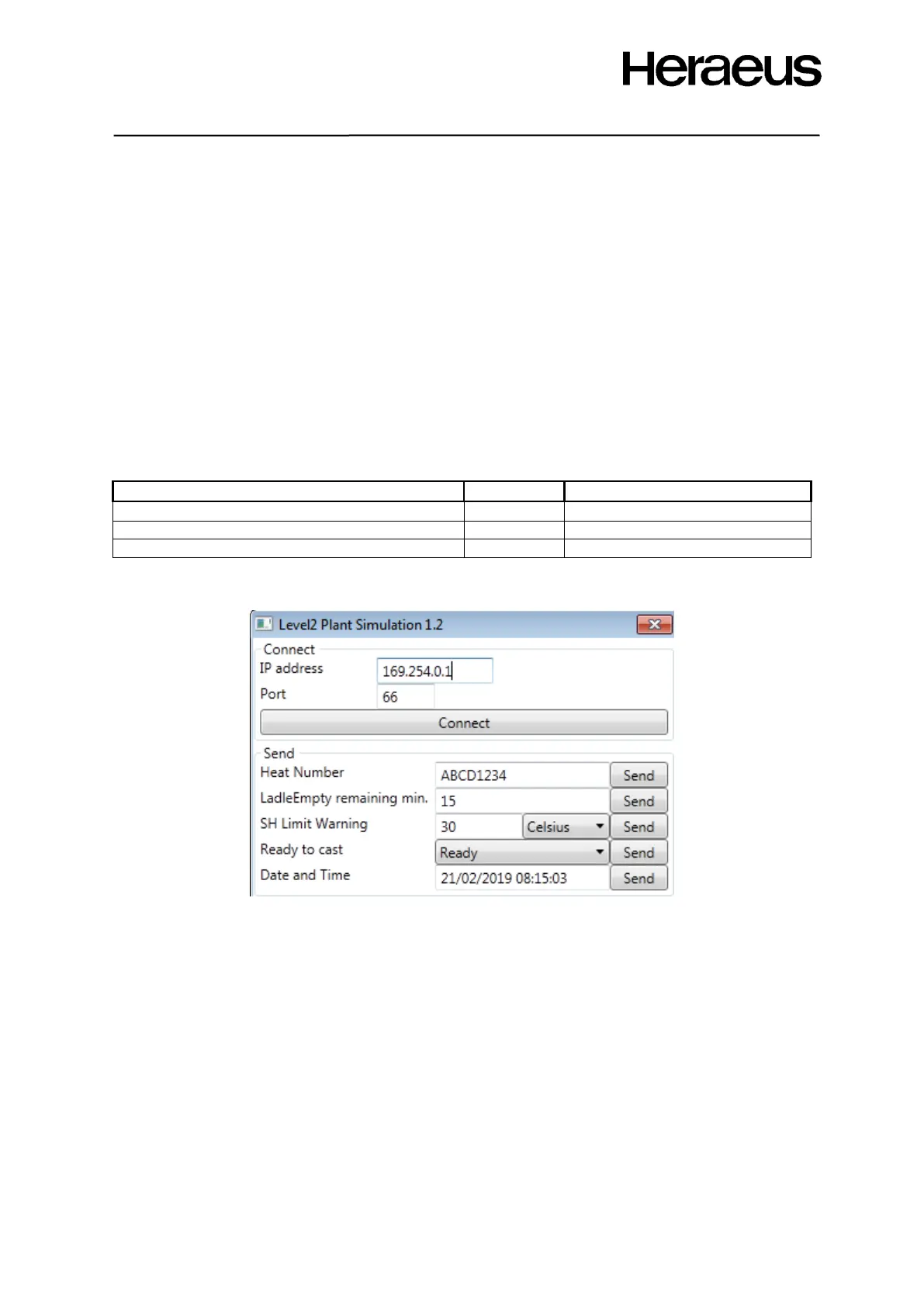
CTW instrument from a connected pc via a small windows based client application, “Level2 Plant
Simulation”, which can be ran alongside a Remote viewer client. The tool allows a demonstration of
the systems capability without requiring level 2 connection
Set up as follows:
Connect a PC and CTW instrument on a network or peer to peer. Follow section 5.2.7 LAN 1 & 2
parameters for the CTW instrument, and section 5.3 to establish the network connection, ensuring
that the two devices are set to IP addresses in the same domain.
Make a TCP IP server on the instrument, see section 6.2.2 and bind it to a telegram, see section 6.3.
Ensure that “Allow input” is checked on the server. Note the port setting of the server.
Open the plant simulation tool on the pc, and enter the IP address of the instrument and the port
setting of the server. Click connect. An example is shown below
Type in the required variable and press “send”. Note that “Ready to Cast” status “ready” is required to
visualise CasTip Liquidus values
Conditions:
• LAN connection established
• Binding made
o TCP IP Server accepting inputs
o Telegram (use default)
• the instrument is in Superheat mode (section 5.2.2 and 9.8)
• a QUBE CTW module is paired and connected
• then inputs can be sent to the CTW instrument system.



 To Next Page