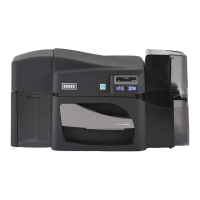
What does film low mean on HID HDP5000?
- TTaylor CombsSep 8, 2025
If the HDP film will soon run out in your HID Printer, if printing a large number of cards, replace the film now or monitor the printer until the film is gone and install a new film.
What does film low mean on HID HDP5000?
If the HDP film will soon run out in your HID Printer, if printing a large number of cards, replace the film now or monitor the printer until the film is gone and install a new film.
Why is my HID Printer doing multiple feed?
If multiple cards were fed into the HID Printer, remove all cards and try again.
What to do if calibrate failed on HID HDP5000?
If film or ribbon calibration has failed on your HID Printer, verify the film is installed correctly and there is not a ribbon installed. If this problem persists, call for technical assistance.
What to do if film align error on HID HDP5000 Printer?
If the film is not able to move correctly in your HID Printer, check for jams/breaks. Check for obstruction. If the problem persists, call for technical assistance.
What to do for film break or jam on HID HDP5000?
If the film is not able to move correctly in your HID Printer, check for jams/breaks. Check for obstruction. If the problem persists, call for technical assistance.
What causes headlift error on HID Printer?
If there is a problem with the printhead lift or transfer roller headlift on your HID Printer, reset the printer and try again. If this problem persists, call for technical assistance.
What to do if lam check card on HID HDP5000 Printer?
If a jam occurred inside the laminator of your HID Printer, open the Lam cover and clear the obstruction.
What does ribbon miscue mean on HID HDP5000 Printer?
If the ribbon is not able to find the next panel correctly on your HID Printer, check for jams/breaks. If jammed, clear the jam. If broken repair by taping the ribbon back on to the take-up core.
How to resolve check laminate 1 error on HID HDP5000?
If the laminator was unable to find the mark on the material in cartridge 1 of your HID Printer, make sure there are no obstructions to the sensor, and recalibrate the laminator sensor.
What to do if check laminate 2 on HID HDP5000?
If the laminator was unable to find the mark on the material in cartridge 2 of your HID Printer, make sure there are no obstructions to the sensor, and recalibrate the laminator sensor.
Describes the step-by-step process of the HDP5000 printer's operation.
Details the sequence of operations for a dual-sided, full-color print job with magnetic encoding.
Explains the sequence of operations for the Lamination Module after printing.
Critical instructions and warnings for safe printer operation and handling.
Lists the certifications and standards the printer complies with, such as CSA, FCC, and UL.
Specifies the range of card thicknesses supported for printing and lamination.
Provides the physical dimensions of the printer and its modules in inches and millimeters.
Details the print speed in seconds per card and cards per hour for various print configurations.
Explains the print method for sharp black text and barcodes using resin-based ink.
Describes the Printhead as the component that performs the actual printing and its fragility.
Details the two-line, 32-character LCD display used for printer status and softkey functions.
Explains the function of the two softkey buttons below the LCD, which change based on printer mode.
Lists accepted card types like UltraCard, PVC, PET, Proximity, and Magnetic Stripe cards.
Specifies standard CR80 card size and printing recommendations for card surfaces and design.
Describes the card cartridge capacity and its role in loading blank cards.
Details the capacity of the card output hopper and its functionality with a flipper module.
Explains that both the printer and its software driver control the built-in transfer roller.
Guides on adjusting the transfer roller temperature via the Printer Driver setup.
Discusses the types of overlaminates accepted, including their thickness and durability.
Explains the availability of clear, holographic, and custom designs for overlaminates.
Instructions for inspecting the printer carton for damage and ensuring all accessories are included.
Guidelines for selecting a suitable location with adequate air circulation and avoiding environmental hazards.
Step-by-step instructions for loading the print ribbon into the printer cartridge.
Detailed steps for loading the HDP transfer film into the film cartridge.
Instructions for loading blank cards into the card cartridge, specifying orientation.
Explains dye-sublimation as a method for smooth, continuous-tone images using dye-based ribbons.
Describes resin thermal transfer for sharp text and barcodes using resin-based ink.
Crucial safety information regarding electrostatic discharge and general handling precautions.
Overview of the HDP500 printer driver settings and available options.
Explains how to configure card size, type, and orientation within the printer driver.
Details the options for selecting CR-80 or custom card sizes, including print area dimensions.
Guides on choosing the appropriate card stock type from a list of supported options.
Describes the function for automatically detecting installed ribbons, film, and laminates.
Instructions for matching the Ribbon Type selection to the ribbon loaded in the printer.
Explains the functions for dual-sided printing, including printing both sides and specific panel splits.
Details how to control image properties like sharpness, contrast, gamma, and color balance.
Explains how to use the Advanced Image Color window for fine-tuning image appearance.
Guides on adjusting the horizontal and vertical position of the printed image on the card.
Explains how to control the speed and temperature for transferring images from film to card.
Describes how to specify the magnetic encoding standard to use (ISO, Custom, Raw Binary, JIS II).
Guides on selecting coercivity levels and magnetic tracks for encoding cards.
Details how to adjust the horizontal position of the overlaminate on the card.
Covers adjusting the lamination dwell time and selecting the type of lamination material used.
Explains how to set custom card sizes and define specific print areas for the K Panel.
Describes options for printing black ink with YMC panels or only black ink on specific backgrounds.
Provides information on the installed ribbon, HDP film, and laminate levels detected by the printer.
Instructions on how to use the security lock slot to prevent unauthorized removal of the printer.
Step-by-step guide for installing the optional Flipper Module accessory to the printer.
Troubleshooting tables that list LCD and printer error messages, their causes, and solutions.
Lists the necessary system requirements for using the Ethernet option, including network and PC specifications.
Describes network services like Print Server, Web Page Server, and Telnet Server for printer management.
Describes how to initiate a Telnet session for network administration and printer commands.
Provides an overview of the card lamination module and its capabilities for applying overlaminates.
Step-by-step guide for installing the lamination module and its driver software.
Instructions on how to adjust the card flattener to fine-tune the flatness of laminated cards.
Discusses optimizing HDP printing for various card stocks based on surface texture and cleanliness.
Explains how to perform a tape adhesion test to evaluate HDP film transfer quality.
Instructions on how to open the Toolbox window to access various printer configuration tabs.
Details how to select printer features, monitor events, and set the LCD display language.
Guides on adjusting internal printer settings customized at the factory, including restoring defaults.
Lists the necessary cleaning supplies, such as printhead cleaning swabs and cleaning cards.
Procedure for cleaning rollers to maintain print quality and prevent jams.
Instructions for cleaning the printhead to ensure consistent print quality, especially after ribbon changes.
Explains how to access the Diagnostics function within the Fargo Workbench utility via the Card tab.
Guides on using the Workbench utility to configure fluorescent panel data for security features.
Explains how to create fluorescent images using application software and text string commands.
Describes generating an Inhibit Panel layout using the Fargo Workbench Printer Utility.
Explains how print jobs are rendered and how inhibit areas affect the print output.
Provides information to help resolve issues encountered when using the inhibit panel functionality.
Instructions for cleaning and packing the card printer for transport, including module handling.
Guides on downloading and installing new firmware versions from the HID Global website.
Provides contact information for Fargo Technical Support via phone and web.
Instructions on how to read the printer's serial number to determine its manufacturing date.
Defines technical terms used throughout the manual for better understanding.
| Print Resolution | 300 dpi |
|---|---|
| Interface | USB |
| Print Technology | Dye sublimation |
| Card Capacity | 100-card input hopper |
| Connectivity | USB 2.0 |
| Print Capability | Single-sided |
| Operating System Support | Windows 7, 8, 10 |
| Card Sizes | CR80 (standard credit card size) |