User interface
Events
67
Creating a new event
You can create a new event from the main inspection view once you have started the video recording.
• Select New Event.
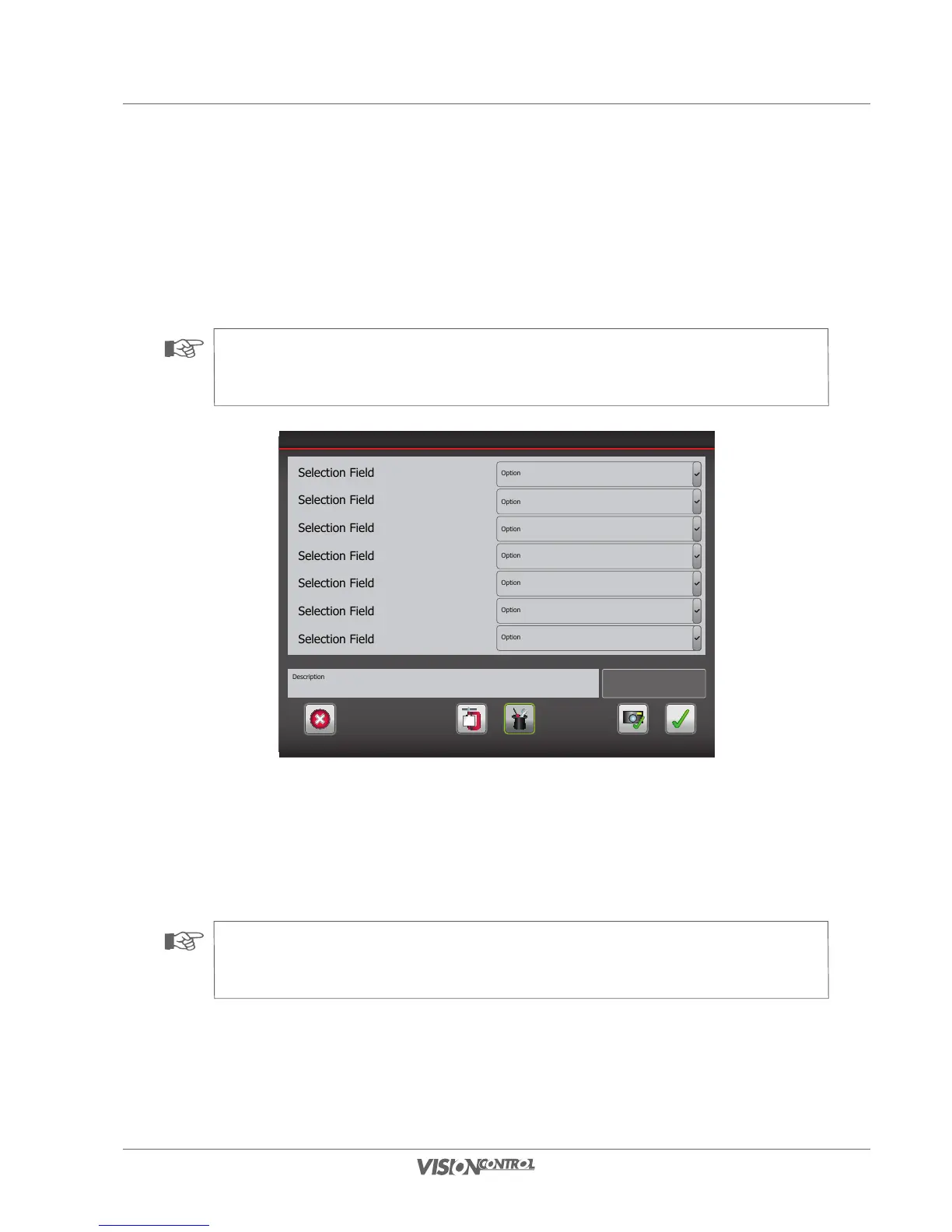
You are now in the system dialog in which you can create a new event.
NOTE!
The possible values of the following selection menu rely on the preset catalog. Instructions on setting the catalog are provided
starting on Seite 18.
Text Preview:
C-A-12
New Event
Close
Photo + OK OKQuick Input
CCA
Tools
Letztes Projekt
• Select the details of your inspection event in the specified drop-down menu.
The number of possible selection fields in the drop-down menus as well as the number of drop-down menus to be filled out, varies depending on
which type of inspection event you note. In the “Code” display field the system will display the current inspection code for the selected event after
each selection. In the “Text Preview” field the system displays the text that will be displayed in the video image after completion of the event.
You can also edit this text manually after completing the selection.
NOTE!
To save time, you can enter an inspection code directly by pressing QUICK INPUT. The on-screen keyboard will also complete
the code automatically.
• Select QUICK INPUT to enter an inspection abbreviation.
• Select Tools to access extended functions and settings.


 To Next Page