Section 4 Windows Driver 4-14
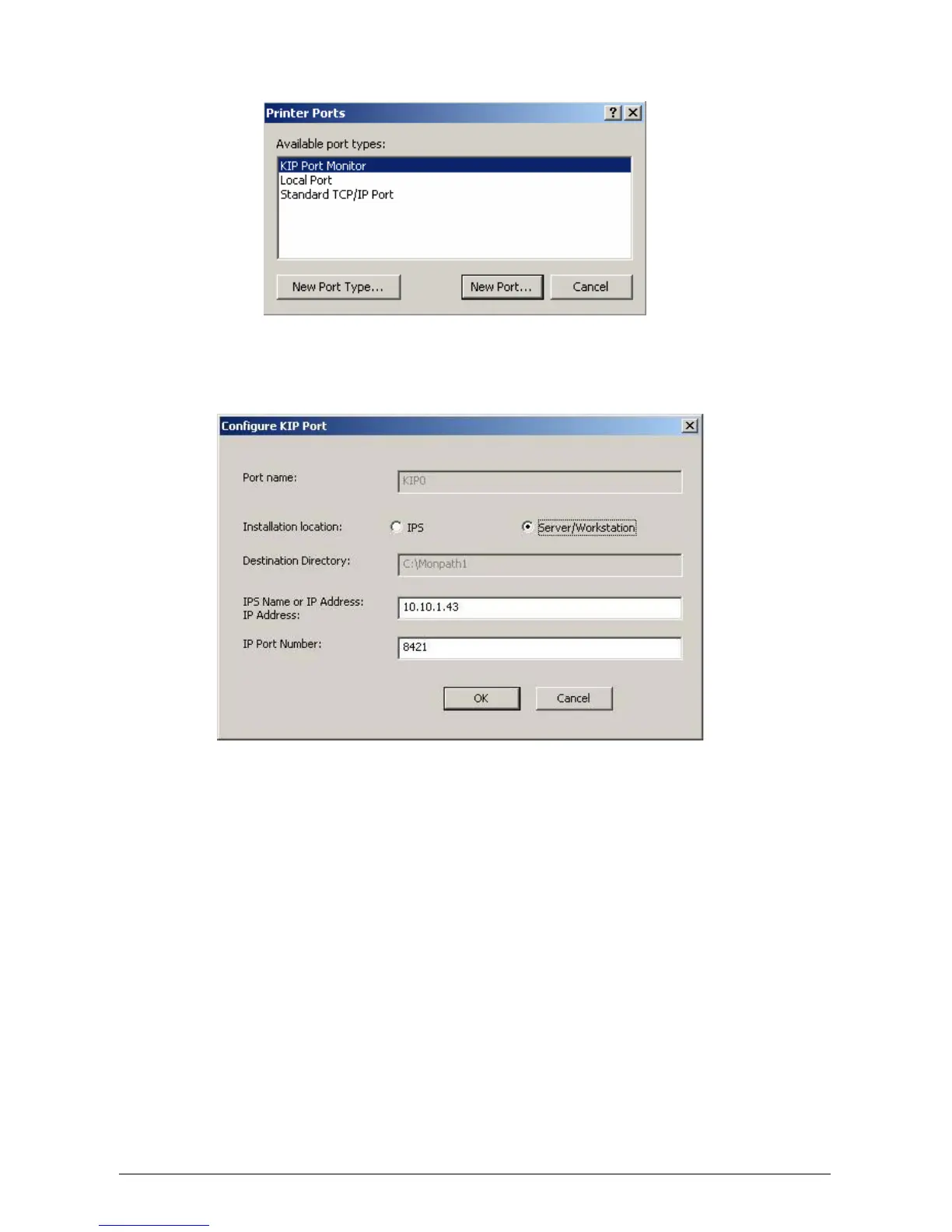
e) Browse to the appropriate operating system folder from the KUWPD distribution, and
select monitor.inf. Select OK. KIP Port Monitor is added to Available Port Types.
f) Select KIP Port Monitor and click New Port.
g) Configure KIP Port:
f) Do not change Port Name unless required*
* For multiple KIP printers, create an additional KIP Port per printer named KIP1,
KIP2, KIP3…
g) Choose Server/Workstation from Installation Location
h) Do not change Destination Directory
i) Provide the IP address OR hostname of your KIP printer for IPS Name or IP
Address. It is important to add EITHER the hostname OR the IP address. Do not
add both. This is the destination address
j) Do not change IP Port Number
k) Click OK. Port Monitor is now configured. Exit Print Server Properties.
l) Continue printer installation by using Add-Printer-Wizard.


 To Next Page