228
Creating Layouts
Configuring Audio Monitors
By default, audio monitors added to a layout by using the toolbar button have this
attribute set to Auto.
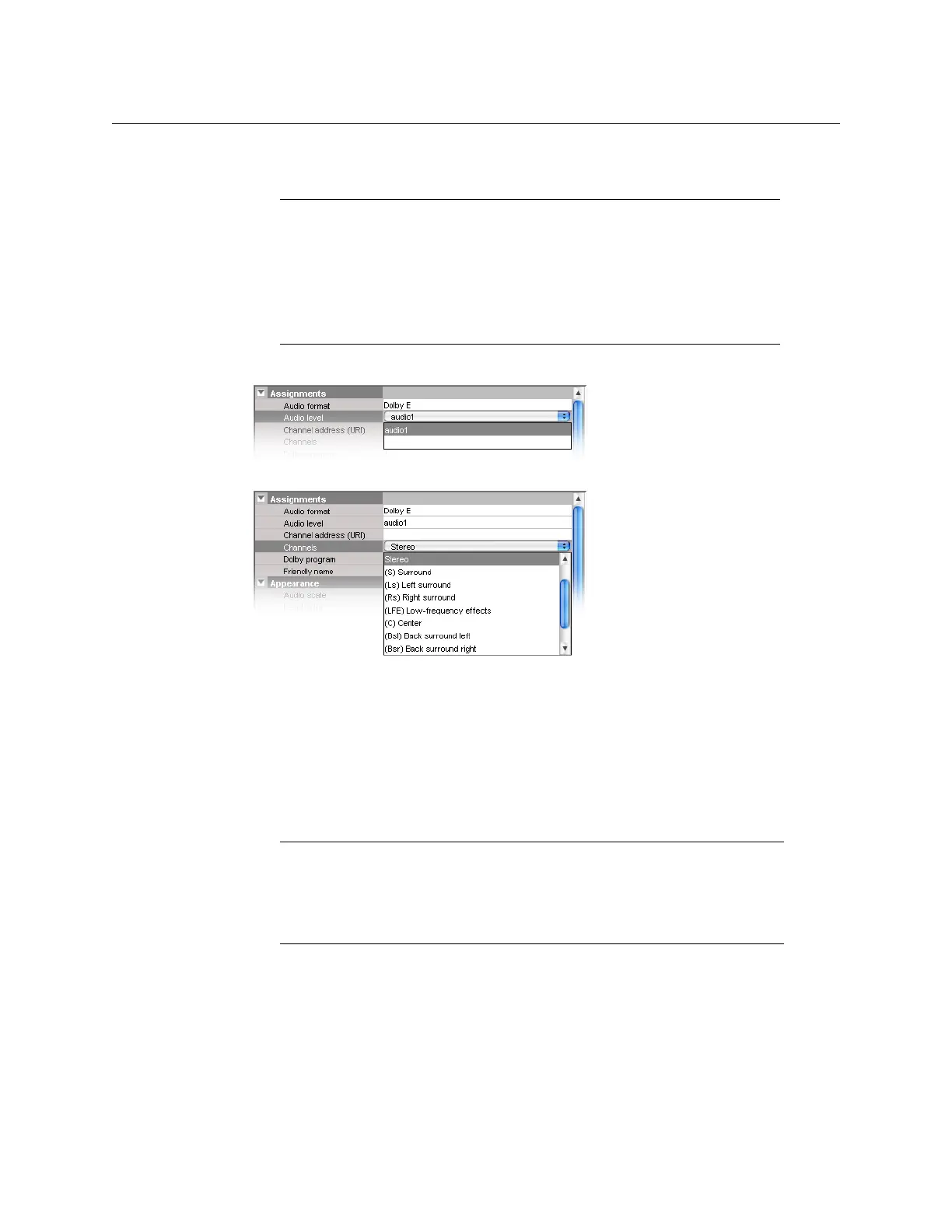
5 Choose an Audio level.
6 Choose a value from the Channels list to indicate which channel to display.
•If the Audio format is set to PCM, then the available choices are (L) Left, (R) Right,
and Stereo.
•If the Audio format is set to Auto, Dolby E or Dolby VANC, then the available
choices are (L) Left, (R) Right, Stereo, (S) Surround, (Ls) Left surround, (Rs) Right
surround, (LFE) Low-frequency effects, (C) Center, (Bsl) Back surround left, (Bsr) Back
surround right, (Le) Left extra and (Re) Right extra.
7 If your monitoring purposes may involve decoding Dolby audio metadata, then select
the appropriate program number (1–8) from the Dolby program list.
8 Make the appropriate assignments (see Assigning Logical Sources or Monitor Wall
Destinations to Monitors, on page 209).
9 Set the other attributes, as needed (see Creating Actions, on page 267 for more
information).
Notes
• If the actual audio source assigned to this audio monitor is not of the same
format configured here, then the audio data will not be shown.
• In the case of a Kaleido-IP, the current version of the Kaleido-X software
does not support audio monitors configured to monitor PCM audio
signals. For every audio monitor in your layout, the Audio format property
should be set to Auto.
Note: The number of programs included in a Dolby metadata bit stream
depends on the program configuration. For example, a Dolby
E stream with
the 7.1 program configuration only has one program available for selection
in its metadata bit stream; a 5.1+2 stream has two programs; a 8x1stream has
eight program selections possible.



 To Next Page