76
Managing Kaleido-X Systems
Restoring a Backup
The Create Backup window appears.
2In Create Backup, select the location where you wish to save a backup copy of the
resolutions from the current database, and then click Save.
The resolutions are saved as an XEdit collection file, with a .xcol extension.
Backing Up Audio Scales
To back up audio scales from the current system
1On the Configure menu, point to Database, then to Create backup and click Audio
scales.
The Create Backup window appears.
2In Create Backup, select the location where you wish to save a backup copy of the
audio scales from the current database, and then click Save.
The audio scales are saved as an XEdit collection file, with a .xcol extension.
Restoring a Backup
Restoring a Database from a Backup
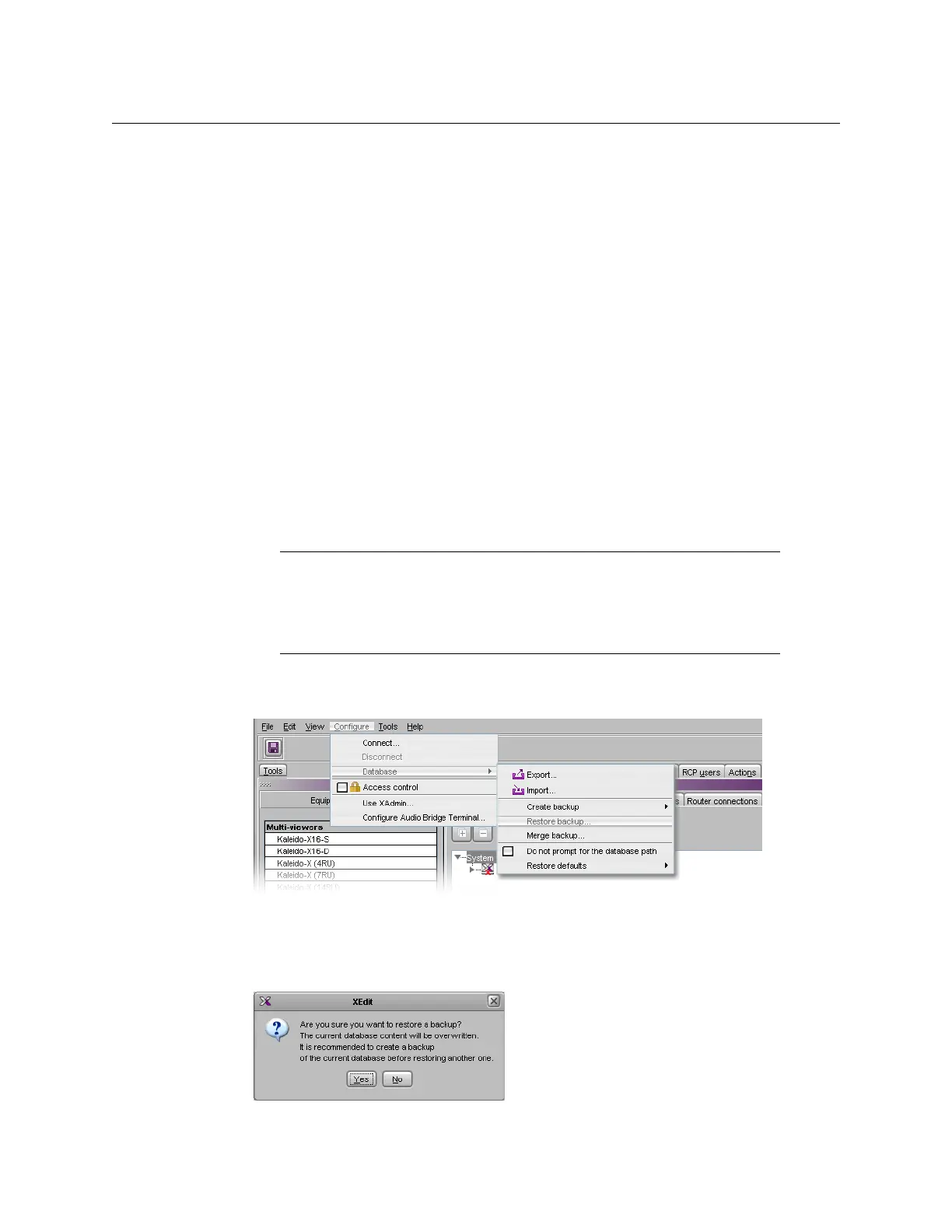
To restore a backup database
1On the Configure menu, point to Database, and then click Restore backup.
The Select Backup window appears.
2In Select Backup, navigate to the appropriate backup file (a ZIP archive, in the case of a
full database backup), select it, and then click Open.
A message appears prompting you to confirm your intention.
Note: When XEdit restores a database backup, it replaces the content of the
local workspace with data from the backup. This cannot be undone. Always
create a backup of the current data before restoring data from a different
source.
See Managing Multiple Databases Efficiently on page 108 for an
overview of the recommended workflow.



 To Next Page