279
Kaleido-X
User’s Manual
5On the File menu, click Save.
Managing Room Access
Granting Room Access to RCP Users
To grant RCP users access to a room
1 In the main window, click the RCP users tab.
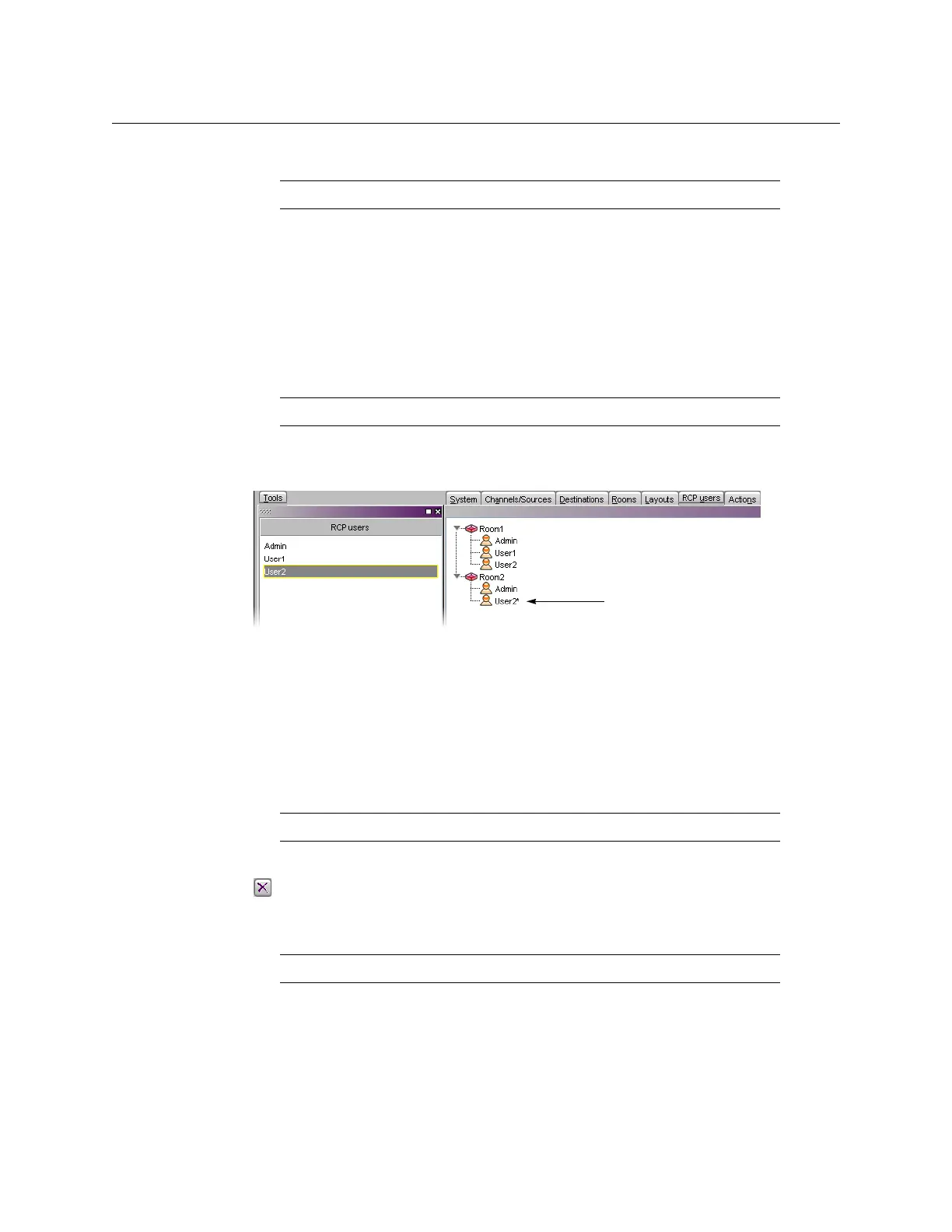
2In the Tools pane, select the appropriate users from the RCP users list.
3 Drag the selected users onto the appropriate room in the RCP users tab.
4 Expand the room (if it is not expanded already) to verify that the users were added.
RCP user “User2” has been granted access to Room2
5On the File menu, click Save.
Removing RCP Users From Rooms
To remove RCP users from rooms
1 In the main window, click the RCP users tab, expand the appropriate rooms if needed,
and then select the users you wish to remove.
2On the File menu, click Remove user from room. Alternatively, click the Remove button
on the toolbar, or right-click and then click Remove user from room on the shortcut
menu.
3On the File menu, click Save.
Setting Room Preferences
Room preferences will apply by default for any user who log on to the room from a Kaleido-
RCP2, or RCP-200 control panel.
See Setting RCP User Preferences on page 282, to learn
how to configure preferences for a specific user.
Note: The user “Admin” cannot be removed.
Note: Use Shift+click or Ctrl+click to select multiple users.
Note: Use Shift+click or Ctrl+click to select multiple users.
Note: The user “Admin” cannot be removed.



 To Next Page