ACCESS GATEWAY
196 System Administration
Take care when mixing font and background colors. You may want to experiment before
establishing these settings to ensure that your chosen color scheme is both presentable and
readable to subscribers (see notes).
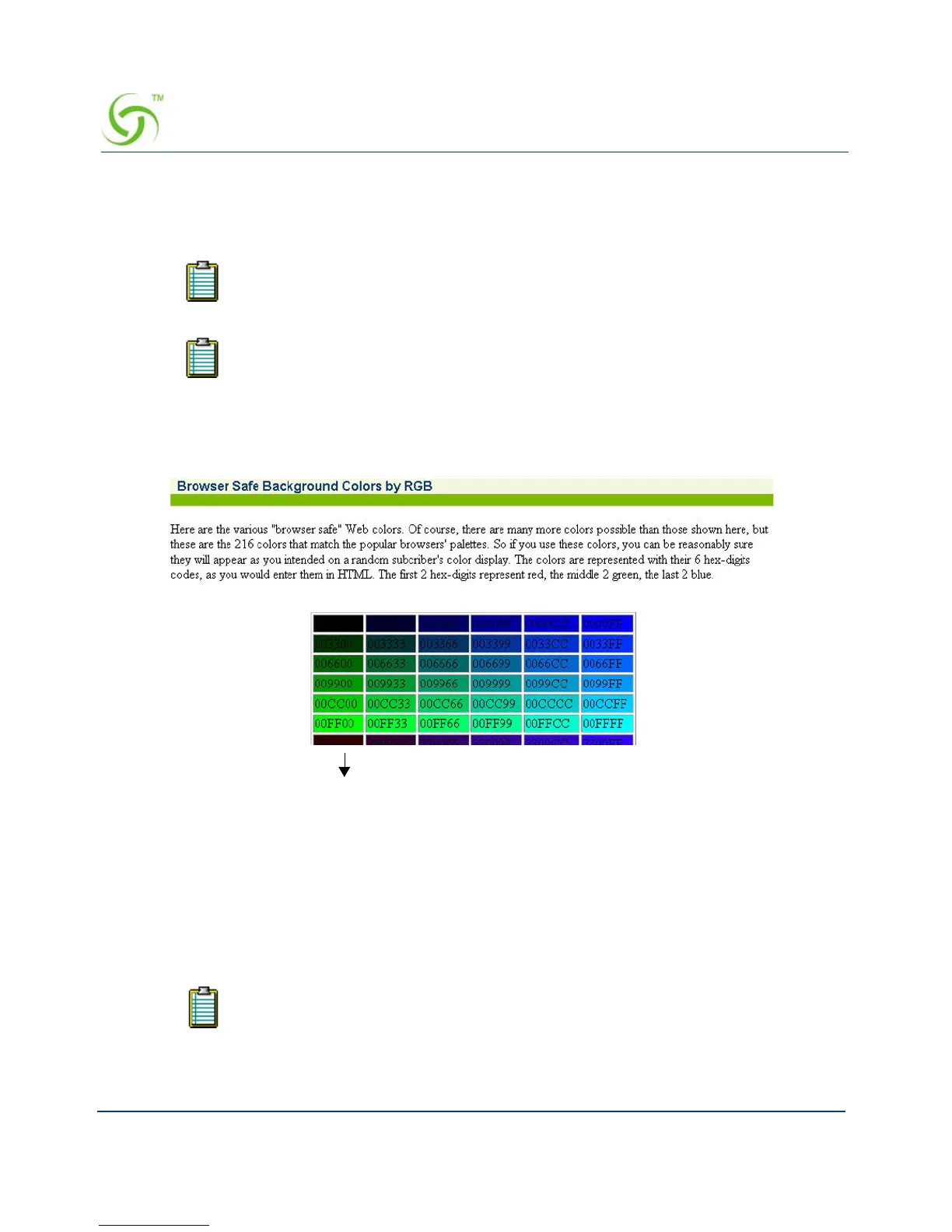
If you click on the “View Color Grid” link, the Browser Safe Background Colors by RGB
screen appears (partial view only shown here):
11. Click on the check box for Partner Image to enable this feature, then enter the name of the
image file in the
Partner Image File Name field. See “Subscriber Login Screen (Sample)”
on page 197.
12. If you made changes to the Image File Name or Partner Image File Name fields, you
must reboot the Access Gateway for your changes to take effect. In this case, click on the
check box for
Reboot after changes are saved?.
13. Click on the Submit button to save your changes, or click on the Reset button if you want
to reset all the values to their previous state.
You must reboot the Access Gateway for the “Image File Name” or “Partner
Image File Name” settings to take effect.
You can view a grid of acceptable screen colors. To view the grid, simply click on
the “View Color Grid” link.
The partner image (splash screen) is not the same screen that is defined by the
Image File Name (IWS screen) field.



 To Next Page