ACCESS GATEWAY
System Administration 75
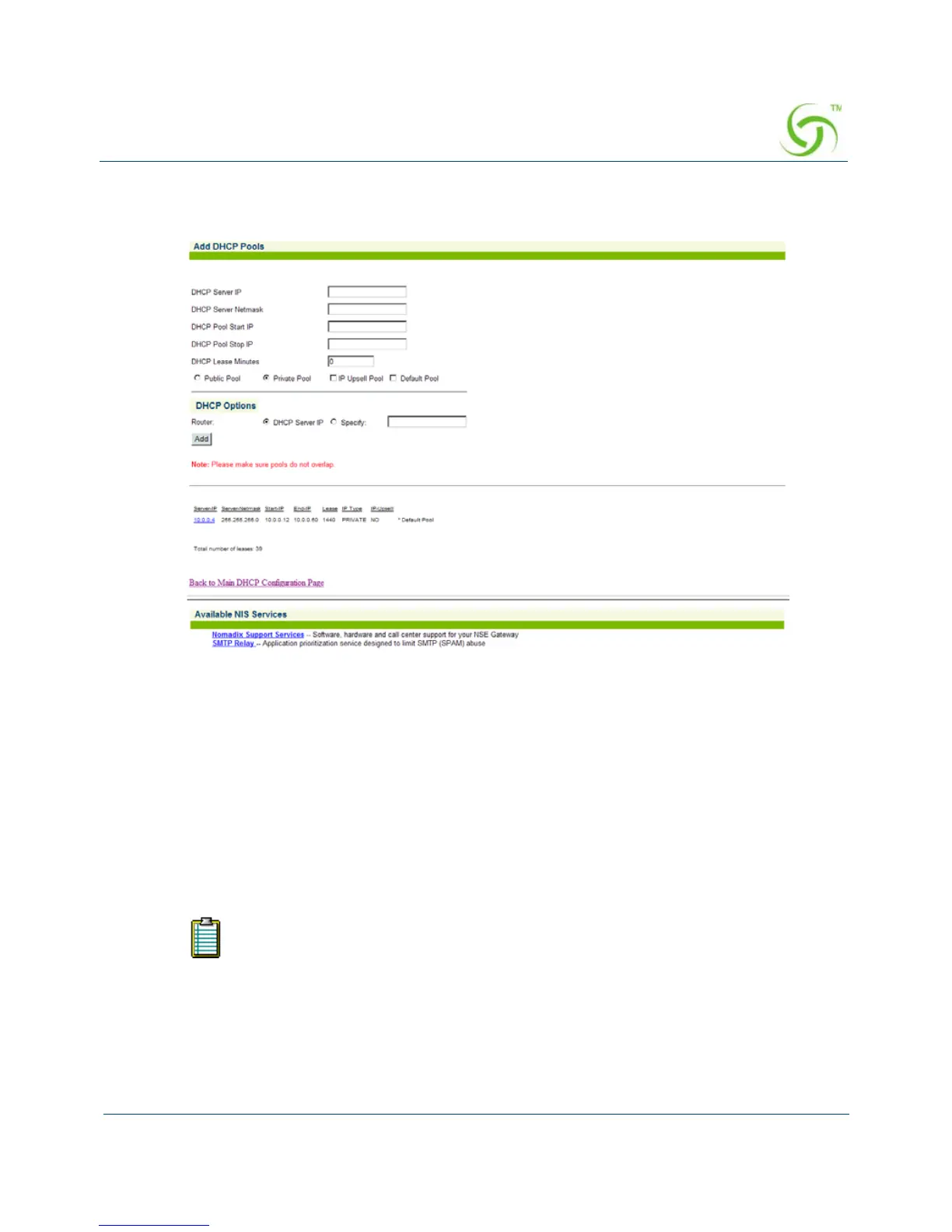
8. If you want to add a new DHCP Pool, click on the Add button. The Add DHCP Pools
screen appears:
9. Enter a valid DHCP Server IP address for the DHCP server.
10. Enter the DHCP Server Netmask.
11. Enter the starting and ending IP addresses for the DHCP address pool you want to use:
DHCP Pool Start IP
DHCP Pool Stop IP
12. Enter the DHCP Lease Minutes.
13. Select Public Pool or Private Pool, as required.
A “public” IP address will not be translated by DAT.



 To Next Page