All-New Event Presentation Switching Solutions
User Manual
b. Select Reset All.
c. Select OK in the dialog box that appears.
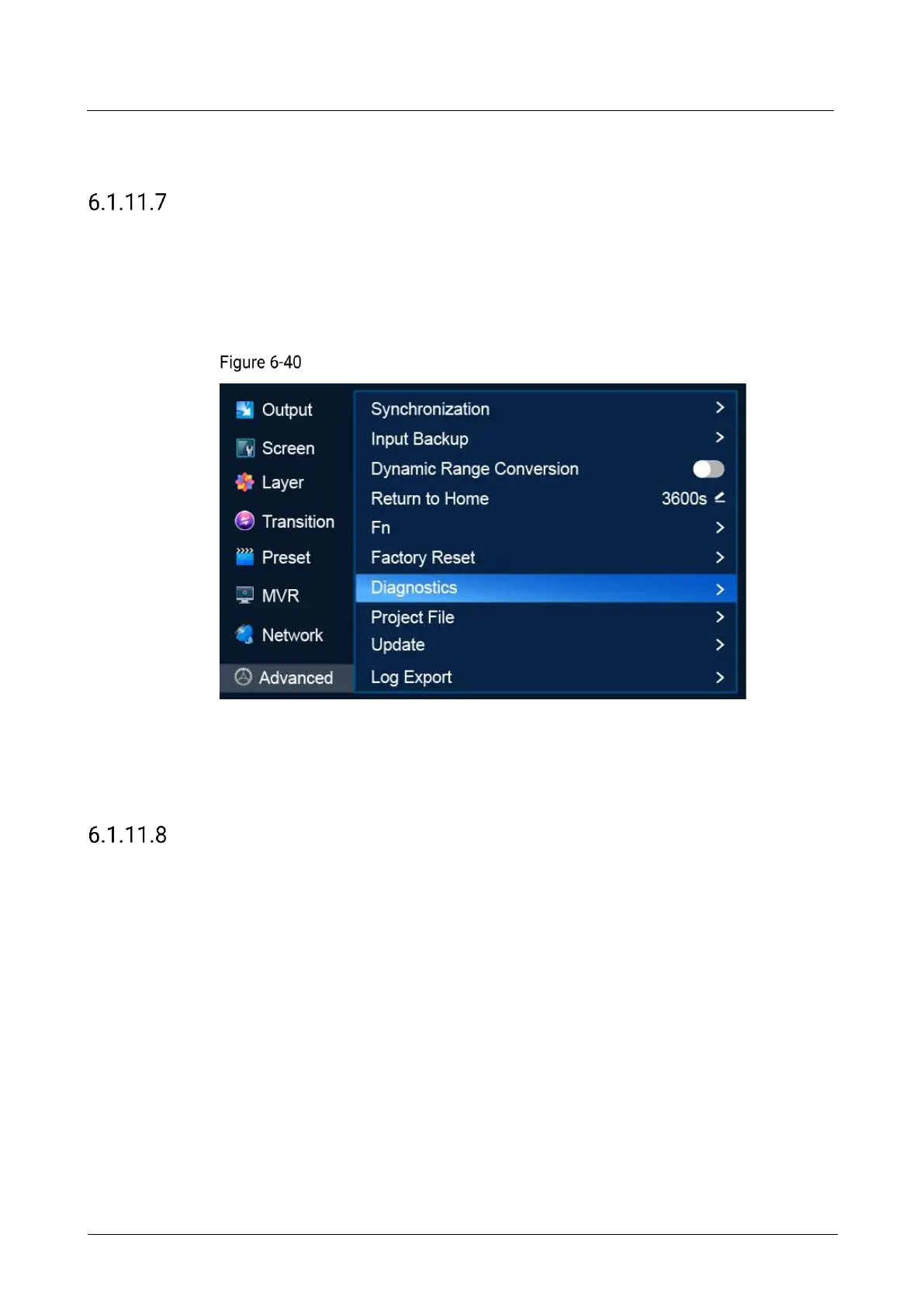
Run Diagnostics
Run diagnostics for the P20/P10 to identify and troubleshoot problems.
Menu Orientation
On the main menu screen, scroll to and select Advanced > Diagnostics.
Diagnostics (P20)
Description
Select Diagnostics to access the submenu and select Run. After the diagnostics,
view the result.
Import and Export Project Files
Import project files from a USB drive to the P20/P10 and export project files from the
P20/P10 to a USB drive. A project file contains configuration files and data.
Prerequisites
Before importing a project file, copy the file (.uprj) to the root directory of a USB
drive and insert the USB drive into the USB port on the front panel of the P20/P10.
Before exporting a project file, insert a USB drive into the USB port on the front
panel of the P20/P10.
Notes
The USB port on the front panel of the P20/P10 does not support USB HUB.
Menu Orientation
On the main menu screen, scroll to and select Advanced > Project File.



 To Next Page