All-New Event Presentation Switching Solutions
User Manual
Project file (P20)
Description
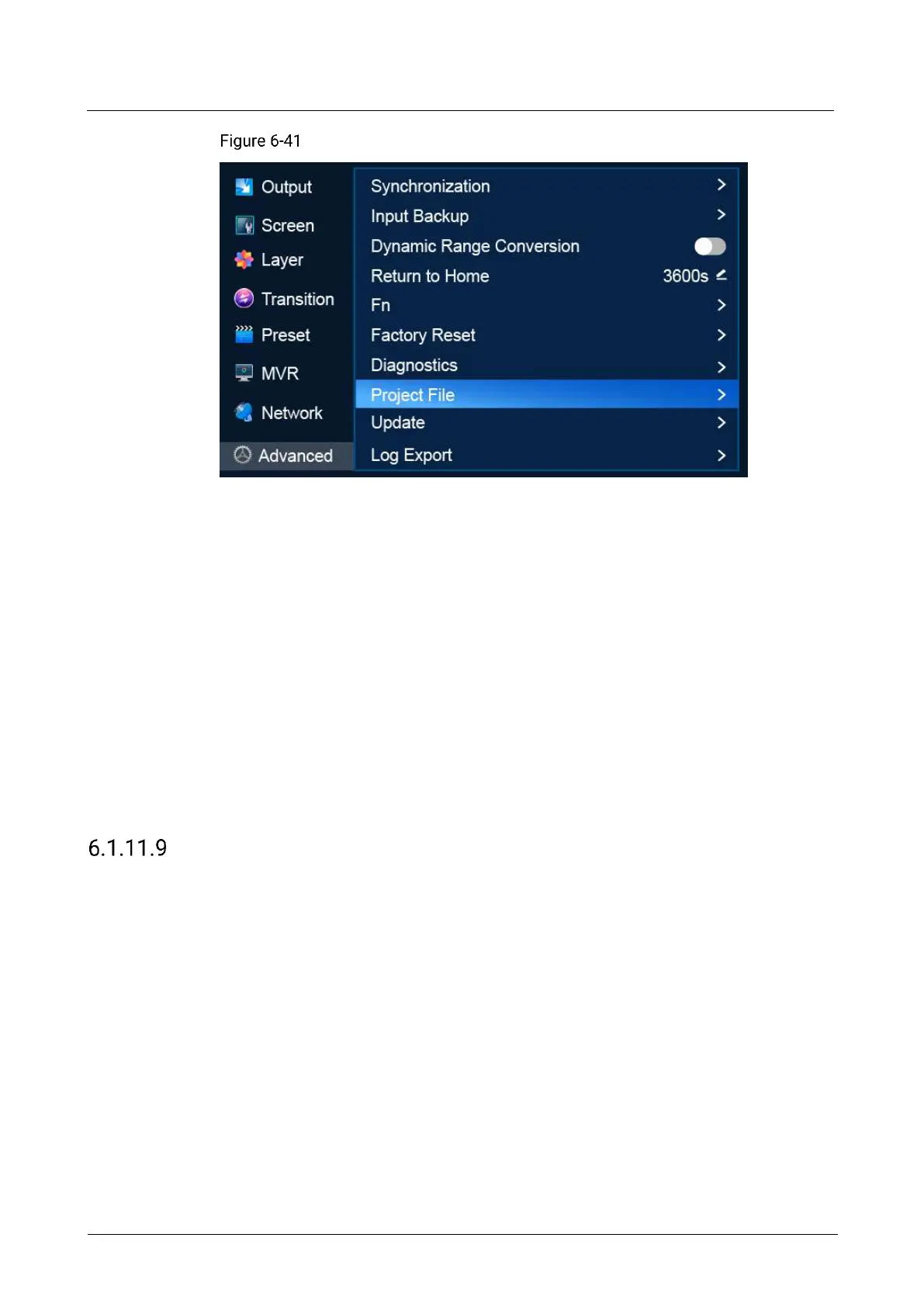
Import a project file
a. Select Project File to access the submenu.
a. Select Import Project File to open the project file screen.
b. Select a project file.
c. In the dialog box that appears, select OK to import the project file in the root
directory of the USB drive.
Export a project file
a. Select Project File to access the submenu.
b. Select Export Project File.
c. In the dialog box that appears, select OK to export the project file to the root
directory of the USB drive.
Update Firmware
Update the firmware of the P20/P10.
Prerequisites
Before firmware update, copy the update file (.img) in the root directory of a USB
drive and insert the USB drive into the USB port on the front panel of the P20/P10.
Notes
The USB port on the front panel of the P20/P10 does not support USB HUB.
After firmware update, the device restarts automatically.
Menu Orientation
On the main menu screen, scroll to and select Advanced > Update.



 To Next Page