All-New Event Presentation Switching Solutions
User Manual
After the settings are completed, select Apply for the settings to take effect.
Set Mosaic
Set screen mosaic by using easy mode or advanced mode.
Prerequisites
The screen is a common screen and Screen Status is set to .
Menu Orientation
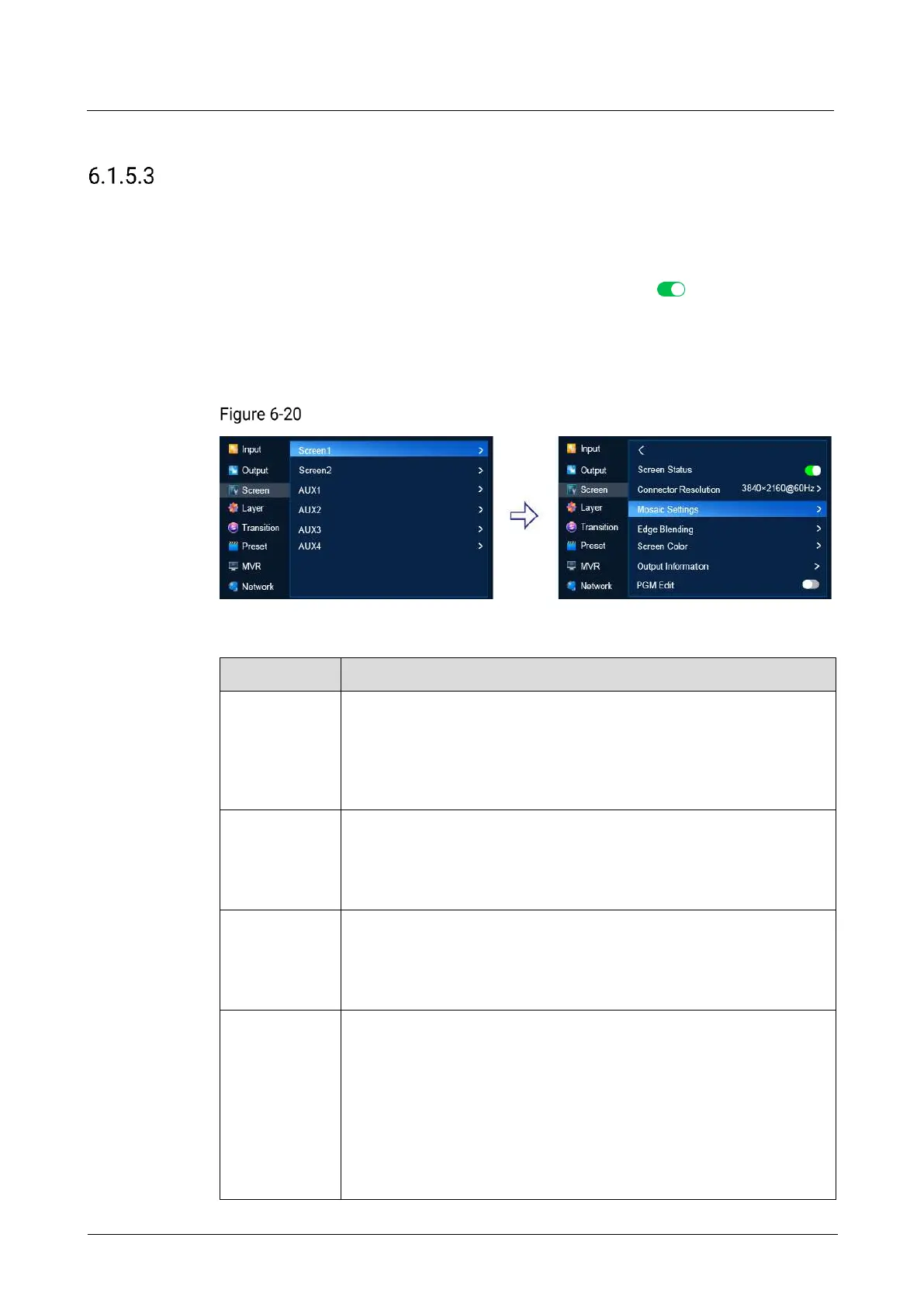
On the main menu screen, scroll to and select Screen > Screen1 > Mosaic Settings.
Mosaic settings (P20)
Description
Select a mode for mosaic settings
Easy: Set the total screen width and height. The P20/P10 will
generate a mosaic solution automatically.
Advanced: Select a mosaic layout template (the number of rows
and columns of the output connectors).
Pixel width of the screen
This parameter is displayed when the Easy mode is selected.
After you select Apply, this parameter value keeps the same as the
value in the mosaic plan.
Pixel width of the screen
This parameter is displayed when the Easy mode is selected.
After you select Apply, this parameter value keeps the same as the
value in the mosaic plan.
Rows and columns of output connectors on the screen
This menu item is displayed only when Advanced is selected as the
mosaic mode.
Number of output connectors that can be used for mosaic:
P20
− In PGM only mode, four output connectors can be used for
mosaic.
− In switcher mode, two output connectors can be used for


 To Next Page