All-New Event Presentation Switching Solutions
User Manual
Description
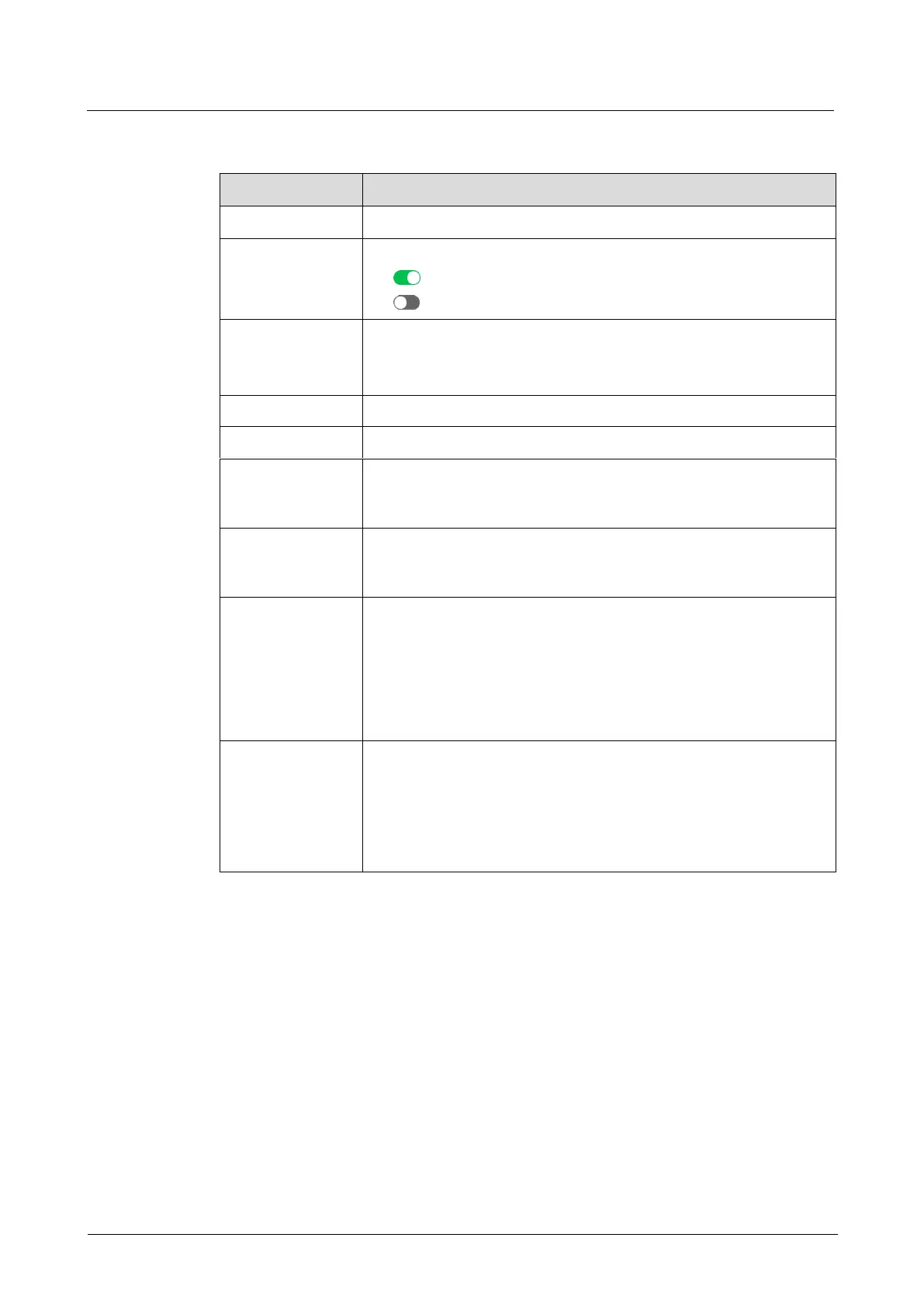
Select an input source for the layer
Lock or unlock the aspect ratio of the layer resolution.
: Locked
: Unlocked
Set the ratio of the layer width to the layer height.
After the aspect ratio is changed, the layer height keeps
unchanged and the layer width is calculated automatically.
Specify the layer height.
Specify the horizontal start position of the layer on the common
screen. The coordinates of the pixel at the top left of the main
screen is (0, 0).
Specify the vertical start position of the layer on the common
screen. The coordinates of the pixel at the top left of the main
screen is (0, 0).
Set the scaling mode of the layer.
Custom: The layer is scaled according to your settings.
Pixel to Pixel: The layer resolution is the same as the input
resolution. If the input source is cropped, the layer resolution is
the same as the resolution after cropping.
Full Screen: The layer fills the entire screen.
Set the priority order of the layer.
Bring Forward
Send Backward
Bring to Front
Send to Back
When there are black borders or unnecessary information on the input source, input
crop allows you to crop the input source and display the desired area.
6.1.6.1.3 Set Input Crop
Prerequisites
A common screen and regular layer are selected.
The layer source is accessed.
Note
The input source status and capacity after cropping is the same as the original.



 To Next Page