All-New Event Presentation Switching Solutions
User Manual
Description
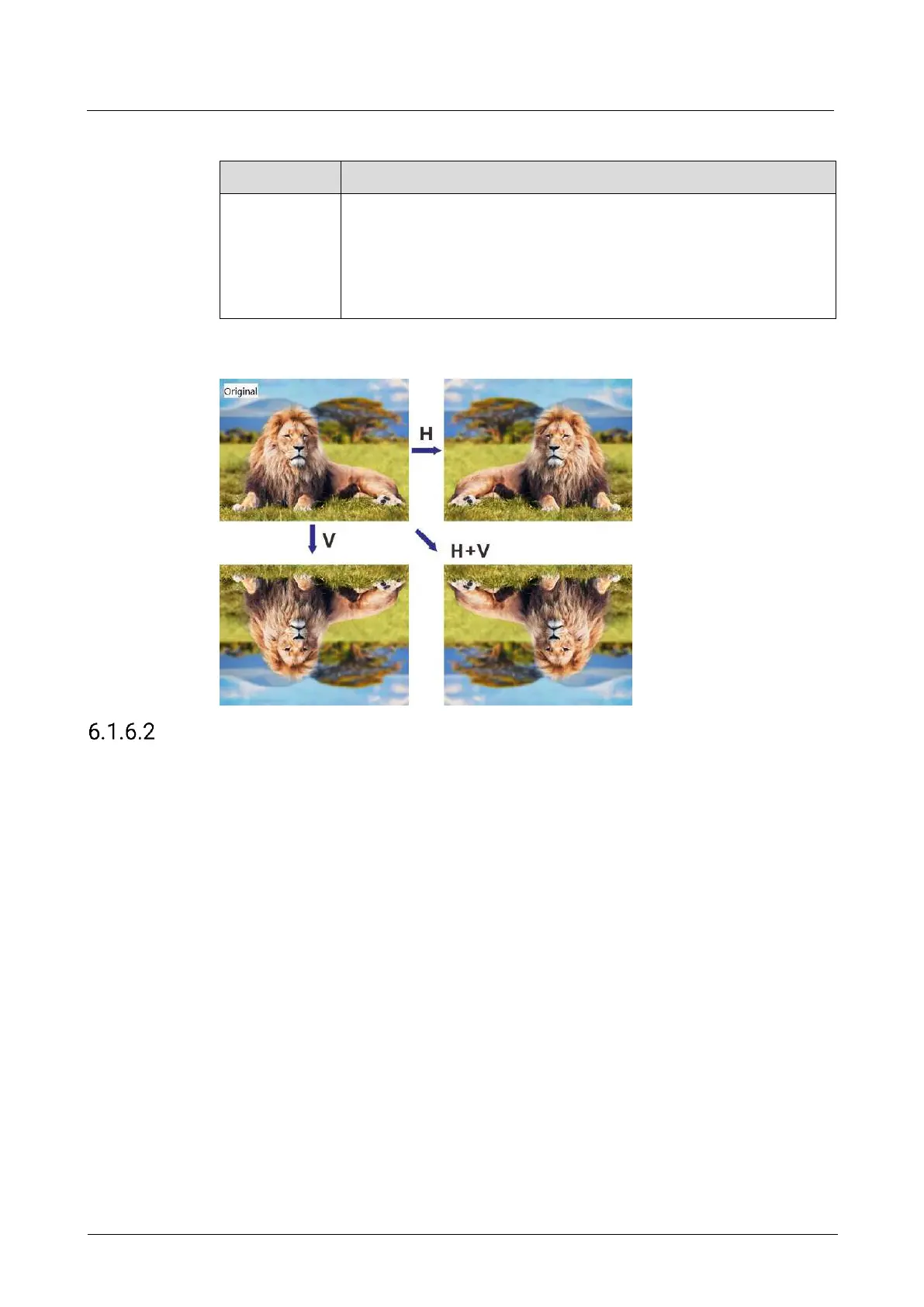
None: Don’t flip the layer.
Flip Horizontally: Flip the layer horizontally.
Flip Vertically: Flip the layer vertically.
Flip Horizontally and Vertically: Flip the layer horizontally and
vertically
Flipping Effect Example
Manage BKG
Apply, export, delete and import BKG files, and save captured images as BKG files.
Prerequisites
Before importing a BKG file, copy the file (.png, .bmp, .jpg, .jpeg) to the root
directory of a USB drive and insert the USB drive into the USB port on the front
panel of the P20/P10.
Before exporting a BKG file, insert a USB drive into the USB port on the front
panel of the P20/P10.
Notes
The USB port on the front panel of the P20/P10 does not support USB HUB.
The BKG does not use the layer resources.
The BKG image automatically fits to the screen and is always at the back of the
layer order.
When you are importing a BKG file using the event controller or PixelFlow, you
are not able to import BKG images using the P20/P10.
The total number of BKG and LOGO files cannot exceed 255 and the total
storage space for BKG and LOGO files is up to 512 MB.



 To Next Page