All-New Event Presentation Switching Solutions
User Manual
LOGO (P20)
Description
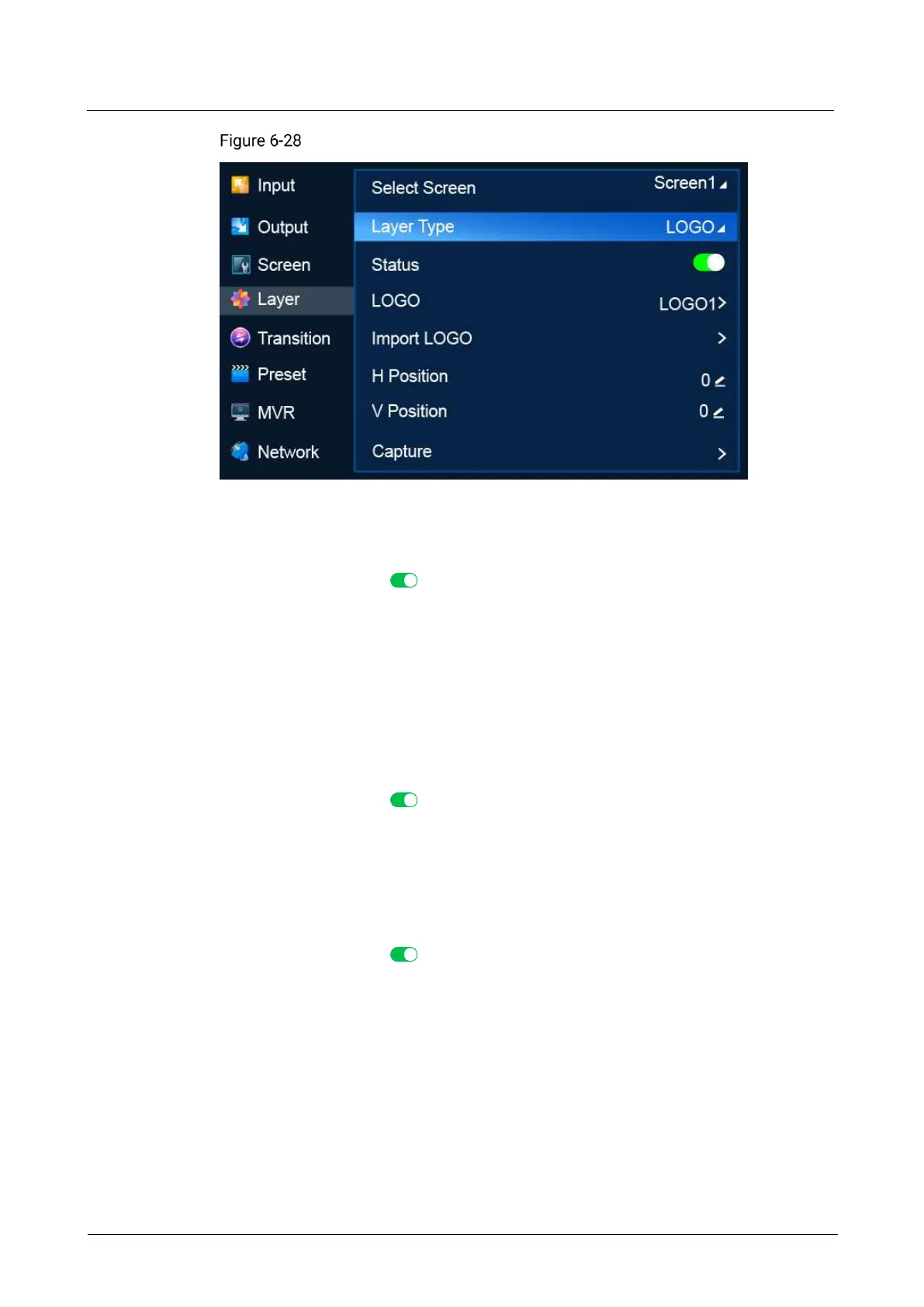
Apply LOGO
a. Turn on LOGO. ( )
b. Select LOGO to open the LOGO file screen.
c. Select a LOGO file. In the dialog box that appears, select Apply to use the
LOGO file as the LOGO of the common screen.
d. Go back to the previous menu.
e. Specify H Position and V Position to set the position of the LOGO on the
screen, that is the horizontal and vertical start position relative to the top left
(0,0) of the screen.
Export LOGO
a. Turn on LOGO. ( )
b. Select BKG to open the LOGO file screen.
c. Select a LOGO file. In the dialog box that appears, select Export.
d. In the dialog box that appears, select OK to export the LOGO file to the root
directory of the USB drive.
Delete LOGO
a. Turn on LOGO. ( )
b. Select LOGO to open the LOGO file screen.
c. Select a LOGO file. In the dialog box that appears, select Delete.
d. In the dialog box that appears, select OK to delete the LOGO file.
Import LOGO
a. Select LOGO Import to open the LOGO file screen.
b. Select a LOGO file. In the dialog box that appears, select OK to import the
LOGO file.



 To Next Page