Page 26
Allocating Devices with the Configuration Software
The installer can perform wireless device allocation via the system Configuration Software
by either RF allocation, or by entering the device’s code (serial number).
RF Allocation
To allocate a device by RF allocation:
1. Establish communication between the main panel and the Configuration Software. For
more information refer to the documentation for the Configuration Software.
1. Open the Activities > Radio Device Allocation screen.
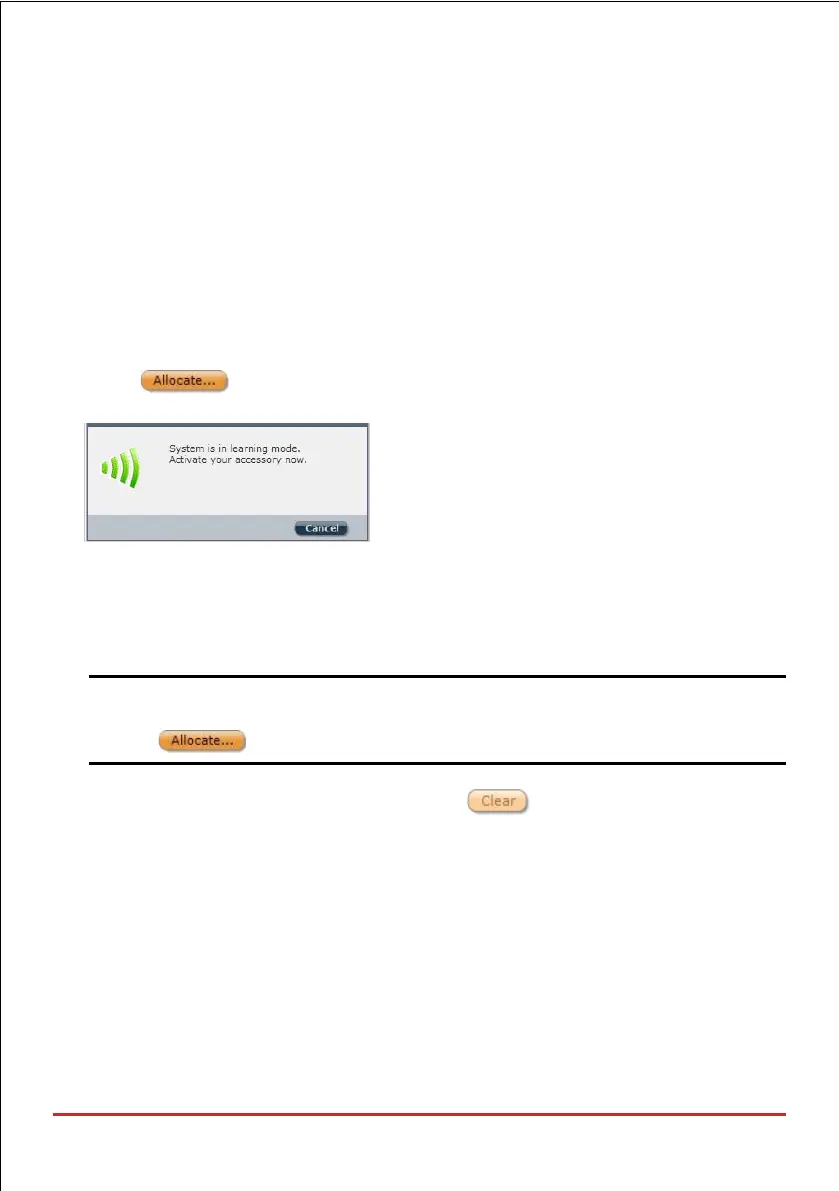
2. Click ; this sets the main panel to “learning” mode, and the following
message appears:
3. Send a transmission from the device. See Wireless Device RF Transmissions on
page 24; the main panel acknowledges the transmission with a beep, and the Radio
Device Allocation screen indicates the allocation status as successful. The serial
number, accessory type, and the system-assigned index number display.
NOTE: If required, you can change the index number assigned to the wireless
device by selecting the corresponding index number and then pressing
again.
4. To allocate an additional wireless device, click and then repeat this procedure
from step 2.
Code Allocation
To allocate a device by code:
1. Establish communication between the main panel and the Configuration Software by
selecting Communication > Connect from the main menu. For more information refer
to the documentation for the Configuration Software.
2. Open the Radio Device Allocation screen, and then in the Allocation area enter the
device’s code (the 11-digit serial number found on the device).



 To Next Page