Page 21
Allocating the Customer’s Panda/LCD Keypad
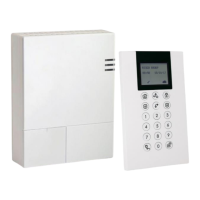
WiComm Pro can be fully configured via the customer’s wireless Panda/LCD keypad.
New systems require that the LCD keypad be the first device to be allocated to the system,
from which it then prompts the installer to define a default language. After the Panda/LCD
keypad allocation, the other system devices can then be allocated with it, and the system
further configured
To allocate the Panda/LCD keypad and define the system language:
1. After the main panel is connected to the power supply, press the LEARN button on
the main panel for 5 seconds. The unit beeps once and enters “Learn” mode. The LEDs
light up one after the other in Green.
2. Press and simultaneously for at least 2 seconds; the keypad will “beep” if
allocated.
3. In the displayed language menu, select the system language (and customer default)
settings, and then press to confirm.
4. Now that you have allocated this Panda/LCD Keypad to the system, you can now
allocate other system devices with the Panda/LCD keypad and perform system
programming
Accessing the Installer Programming Menu
After allocating the installer keypad and defining the system language, you can then start
to allocate system devices from the Programming Menu on the installer keypad.
To access the Programming Menu:
1. Press and enter the installer code (default code is 0132). The keypad will sound a
confirmation beep, and the Programming menu will display on the keypad.
NOTE: If a Grand Master code is required to confirm the installer code, it should be entered at this
stage (after entering the installer code).
2. From the Programming menu, press ; a confirmation sound will be heard and the
three LEDs on the main panel will together flash on and off.
NOTE: If the keypad display shows “Unconfigured in learning mode” then wait a few
minutes for the communication to be established, and then press again.



 To Next Page