Commissioning FLOWSIC100 Flare-XT
FLOWSIC100 Flare-XT · Operating Instructions · 8023761/V 1-0/2020-10 · © SICK Engineering GmbH 123
7.4
Commissioning with the FLOWgate
TM
operating software
7.4.1 Connect to the device
A data connection can be established with the device using the optical data interface and
the infrared/USB adapter HIE-04 (Order No. 6050602).
This interface serves to configure the FLOWSIC100 Flare-XT. The infrared/USB adapter has
a USB 2.0 interface. This interface provides the connection to the PC and transfers the
FLOWSIC100 Flare-XT data.
1 Install the device driver software before connecting the USB plug to the PC.
2 Connect the USB plug to the PC.
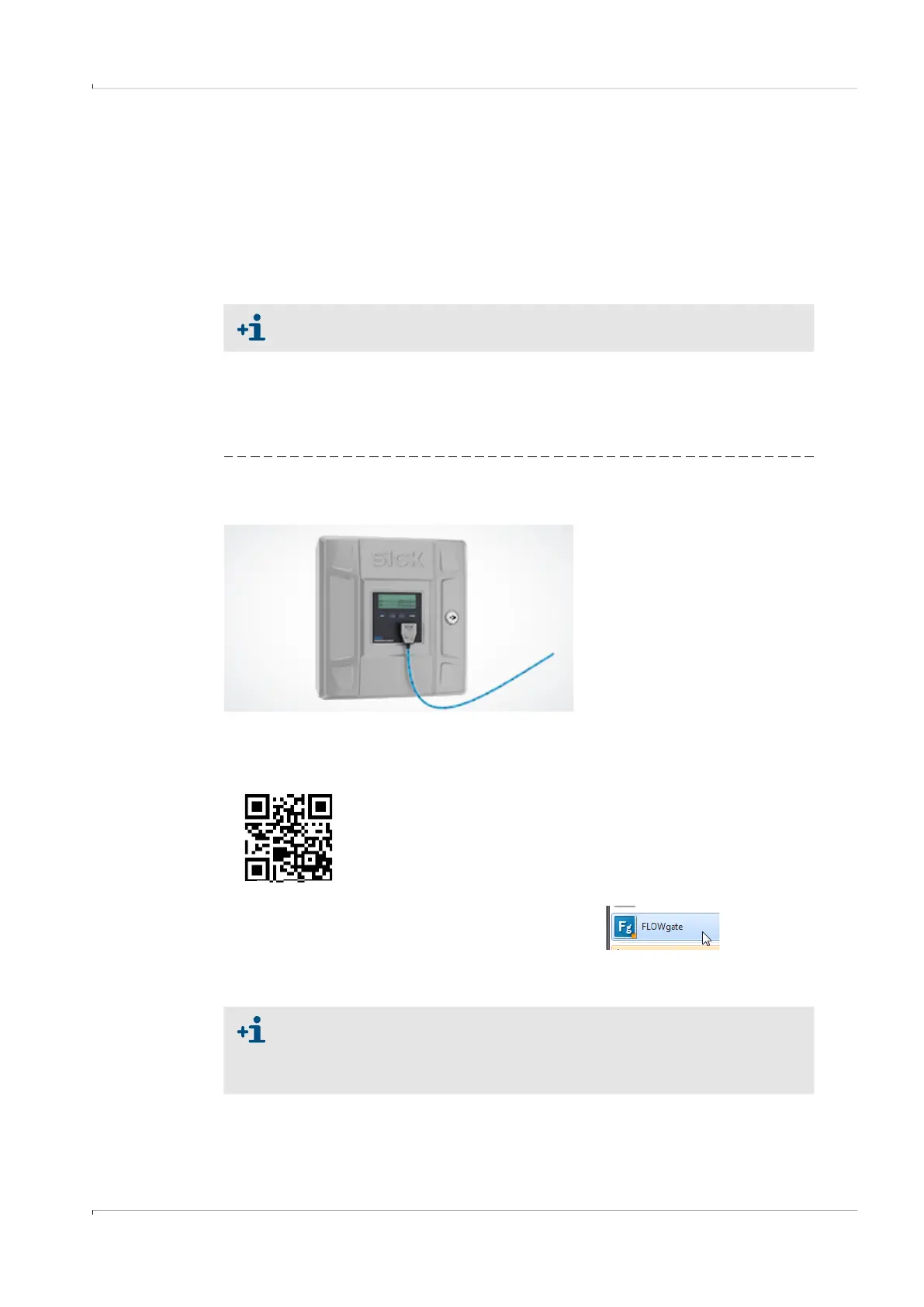
3 Fit the infrared/USB adapter to the infrared interface as shown (Fig. 74), a magnet
integrated in the reading head retains the adapter.
Fig. 74 Aligning the infrared/USB adapter
4 Install the FLOWgate
TM
operating software.
The FLOWgate
TM
operating software and the associated Manual are to be found on the
Product CD delivered with the FLOWSIC100 Flare-XT and on the SICK website.
5 Click on the FLOWgate
TM
icon to start FLOWgate
TM
:
6 Add the FLOWSIC100 Flare-XT to the Device Manager of the FLOWgate
TM
operating
software and create a connection to the device.
A device driver software must first be installed to operate the adapter on a PC.
The device driver software is on the delivered Product CD.
Correct alignment
Standard settings for connection with the infrared/USB adapter:
● Protocol: Modbus RTU
● Baud rate: 38400
● Modbus address: 1



 To Next Page