12-34
Troubleshoot a problem
12
❖
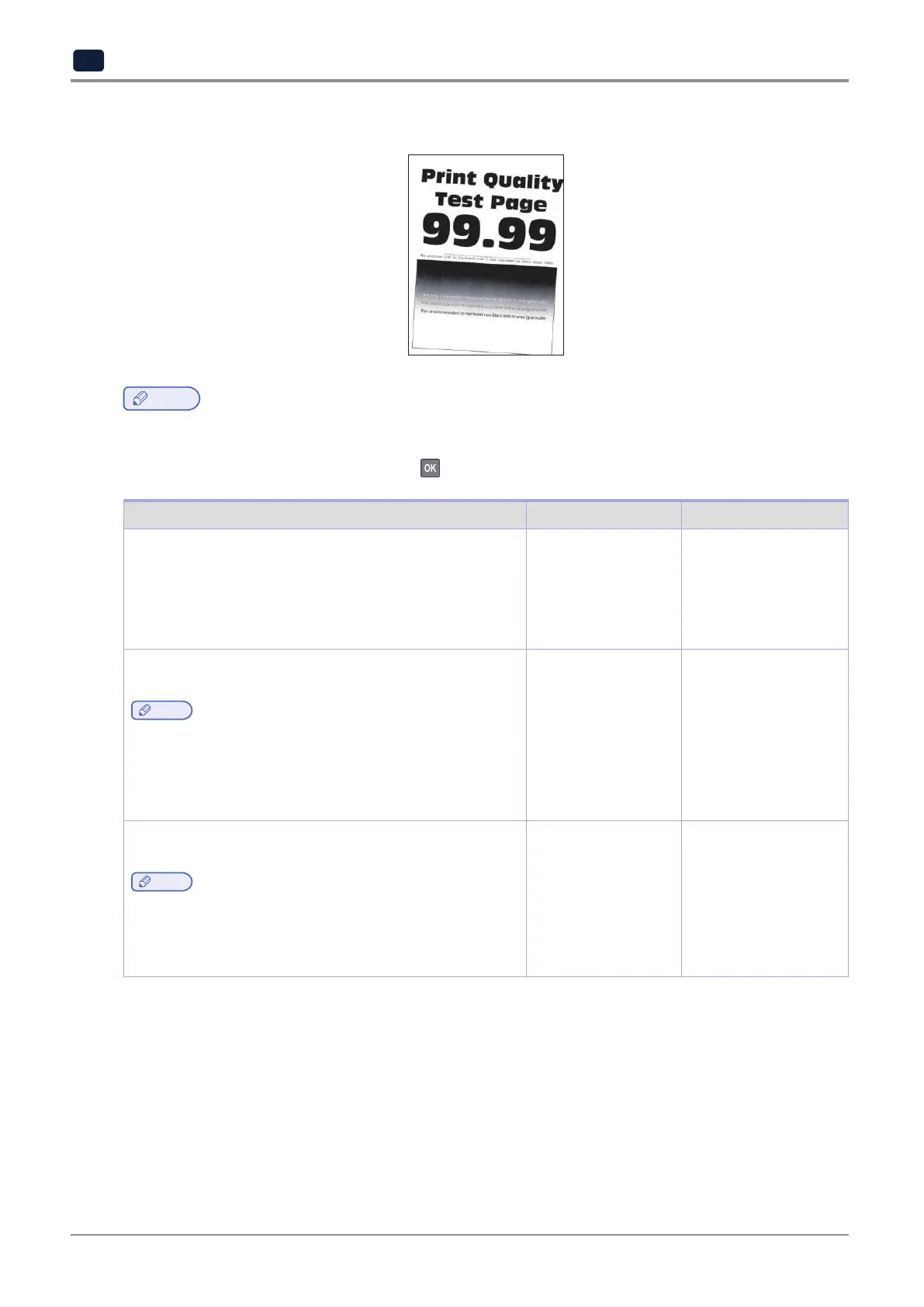
Print crooked or skewed
Note
-
Beforesolvingtheproblem,printthePrintQualityTestPages.Fromthecontrolpanel,navigateto
Settings
→
Troubleshooting
→
Print Quality Test Pages.
For non-touch-screen printer models, press
to navigate through the settings.
Action Yes No
Step 1
1)Adjustthepaperguidesinthetraytothecorrectposition
for the paper loaded.
2)Printthedocument.
Is the print crooked or skewed?
Go to step 2. The problem is
solved.
Step 2
1)Loadpaperfromafreshpackage.
Note
-
Paper absorbs moisture due to high humidity. Store paper
in its original wrapper until you are ready to use it.
2)Printthedocument.
Is the print crooked or skewed?
Go to step 3. The problem is
solved.
Step 3
1)Checkifthepaperloadedissupported.
Note
-
If paper is not supported, then load a supported paper.
2)Printthedocument.
Is the print crooked or skewed?
Contact customer
support.
The problem is
solved.



 To Next Page