Operating Manual Audiology Scanners
Document version: 3.3 04-2020 60
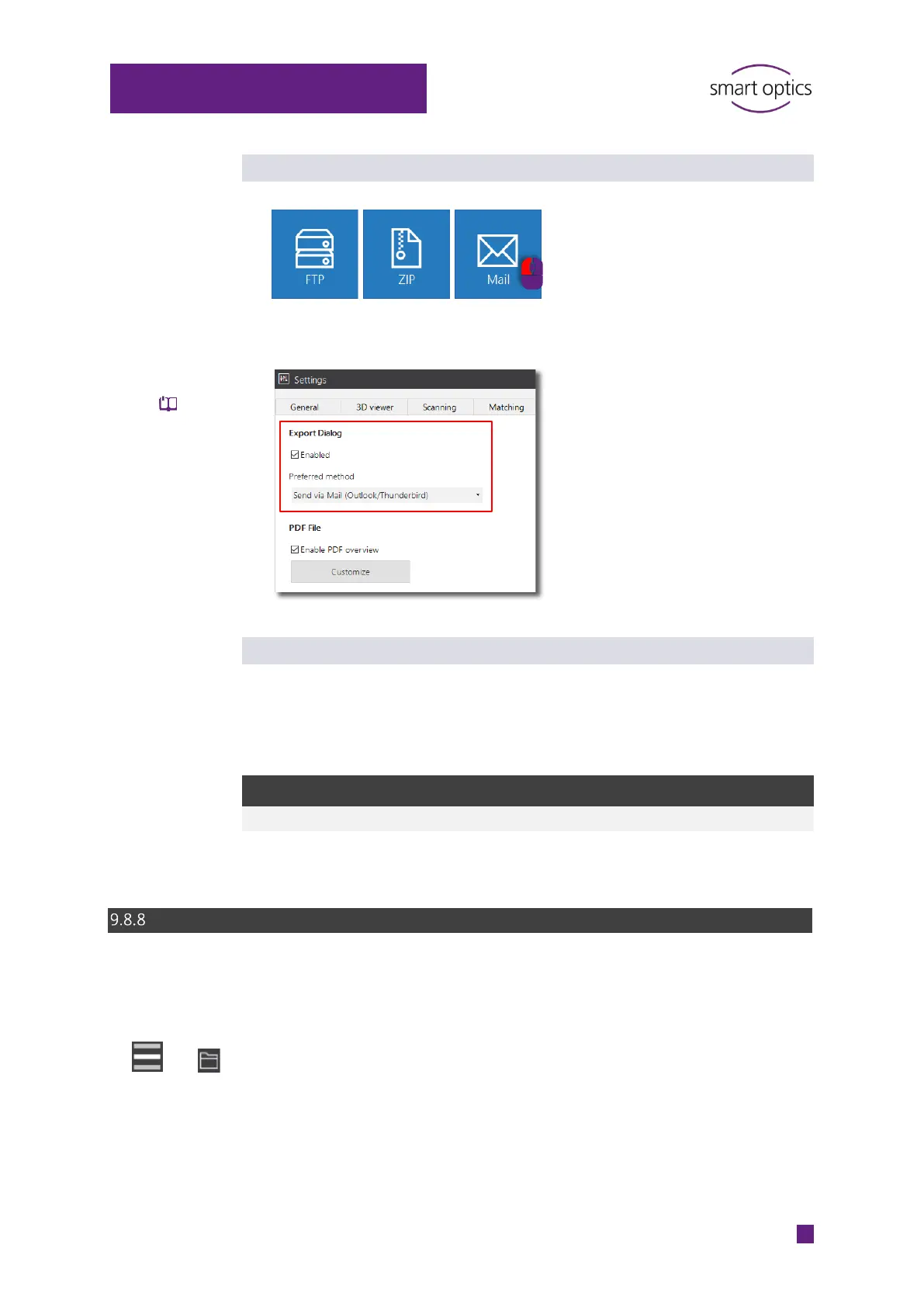
Starting the sending of an email
Button in the Export dialog (default)
Direct start (without file selection), by setting the Send via Mail
(Outlook/Thunderbird) method
Sending files via email
When the work is finished, aural Scan initiates a new email with attachment
(ZIP archive). You can only continue working in aural Scan when the email has
been sent or saved.
The suggested saving location depends on how the export method is started:
Start from Folder
Work finishing (directly)
(work folder)
Editing and exporting
You can edit finished scan projects at a later time and export them again.
Example: Uploading data to an FTP server at a later time
Open the scan file for the left and/or right side.
Export dialog


 To Next Page